Upgrading Ubuntu 20.04 to Ubuntu 22.04 with ispmanager 6 installed
The instructions below provide an experimental method for upgrading from outdated Ubuntu 20.04 to supported Ubuntu 22.04 without migrating data from ispmanager 6 to a new server.
Ispmanager 6 does not officially support any major OS version upgrades!
Preparation
The first step is to back up all data on the server. We also highly recommend creating a backup or a snapshot of the entire server.
To properly upgrade a major version, you need the latest available minor OS version, as well as the latest available software versions. Run the following command:
apt update && apt upgrade -y
After a successful upgrade, restart the server and remove unnecessary packages:
apt autoremove
When using apt autoremove, carefully review the packages that will be removed. Never use the -y switch with this command!
The next step is to comment out the line with the IdentLookups directive in the file at /etc/proftpd/proftpd.conf:
# If set on you can experience a longer connection delay in many cases.
# IdentLookups			off
Now change the release in the repository files so the system has access to Ubuntu 22.04 packages:
sed -i "s/focal/jammy/g" /etc/apt/sources.list && sed -i "s/focal/jammy/g" /etc/apt/sources.list.d/*
Make sure the repositories are accessible and the system reports the new Ubuntu 22.04 version as available:
do-release-upgrade -c
Upgrade
After preparation, the system is ready for the update. Run the update with the following command:
do-release-upgrade
Answer "Yes" to all installation prompts: "Continue [yN]" and "To continue, please press [ENTER]."
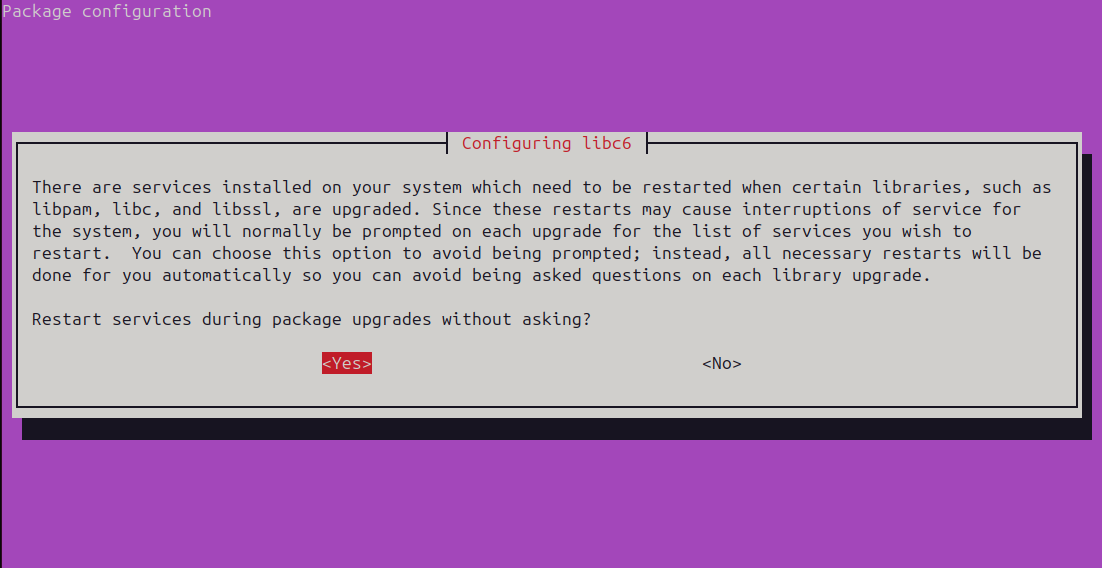
The script will ask for permission to automatically restart services during the update. Select "Yes".
During the update, you'll be prompted to perform actions on configuration files — select "No" to these. For example:
Configuration file '/etc/exim4/exim4.conf.template'
 ==> Modified (by you or by a script) since installation.
 ==> Package distributor has shipped an updated version.
   What would you like to do about it ?  Your options are:
    Y or I  : install the package maintainer's version
    N or O  : keep your currently-installed version
      D     : show the differences between the versions
      Z     : start a shell to examine the situation
 The default action is to keep your current version.
*** exim4.conf.template (Y/I/N/O/D/Z) [default=N] ? N
Prompts may also appear in a separate terminal window; for these prompts, select "Keep the local version currently installed".
When the installer asks to update the phpMyAdmin database configuration in a separate window, select "No".

After updating the system, the installer will request a reboot, which you must agree to:
System upgrade is complete.

Restart required

To finish the upgrade, a restart is required.
If you select 'y' the system will be restarted.

Continue [yN] y
After the upgrade
Check the current OS version with the following the command:
lsb_release -a
The output should be as follows:
Distributor ID: Ubuntu
Description:    Ubuntu 22.04.5 LTS
Release:        22.04
Codename:       jammy
Remove unnecessary packages:
apt autoremove
When using apt autoremove, carefully read the packages that will be removed. Never use the -y switch with this command!
Replace the files with disabled repositories at /etc/apt/sources.list.d/:
cd /etc/apt/sources.list.d/
mv exosoft.list.distUpgrade exosoft.list
mv ispmanager-repo-nginx.list.distUpgrade ispmanager-repo-nginx.list
mv ispmanager-repo-roundcube.list.distUpgrade ispmanager-repo-roundcube.list
mv ispsystem-base.list.distUpgrade ispsystem-base.list
mv ispsystem.list.distUpgrade ispsystem.list
Run update for all packages:
apt update && apt upgrade -y
Restart the server once the update is completed.
Possible issues
The panel is not loading
If, after following all the instructions, the panel's web interface is not loading, there may be a libssl package conflict. Check for multiple libssl packages:
dpkg -l | grep libssl
To resolve the conflict, remove the outdated libssl file:
rm /lib/x86_64-linux-gnu/libssl.so.1.1
Then reinstall the panel packages:
apt install --reinstall $(dpkg -l | grep -E "coremanager|ispmanager" | awk '{print $2}' )
During installation, decline all system prompts to reset configuration files.
Sites section unavailable
The Sites section may be unavailable because Apache is attempting to load the libphp7.4.so module for native PHP 7.4, which was used in Ubuntu 20.04.
To fix this error, comment out the line containing the LoadModule directive in the file /etc/apache2/mods-enabled/php7.4.load. After making the changes, the file contents should look like this:
# Conflicts: php5
# Depends: mpm_prefork
# LoadModule php7_module /usr/lib/apache2/modules/libphp7.4.so
Restart the web server and the control panel:
service apache2 restart
/usr/local/mgr5/sbin/mgrctl -m ispmgr -R