Reselling ispmanager modules through HostBill
HostBill offers the ispmanager reselling module, which automates the resale of ispmanager modules.
Module features
| Features | Partner | Client |
|---|---|---|
| Order | ||
| Renew | ||
| Suspend | ||
| Change plan | ||
| View license name, key, and IP | ||
| Change billing period | ||
| View license change history |
Module requirements
The ispmanager reselling module is available for free.
Module installation
- Log in to the HostBill server with the administrator account via SSH.
Download the module to the HostBill root directory:
wget-P /ROOT/HOSTBILL/ https://static.ispmanager.com/static/files/hostbill/ispmanager_reselling.zipGo to the HostBill root directory:
cd /ROOT/HOSTBILL/Unzip the archive:
unzip ispmanager_reselling.zip
Module activation
- Log in to HostBill with your administrator account at https://YOUR_DOMAIN/admin.
- Go to the Settings → Modules → Hosting Modules section.
In the Inactive tab, select the ispmanager_reselling module and click Activate.

Setting up connection to ispmanager
- Log in to HostBill with your administrator account at https://YOUR_DOMAIN/admin.
Go to the Settings → Apps Connections → Add new Connection section.

In the Application field, select ispmanager_reselling.

Fill out the connection details. Required fields are marked with asterisks.
- Name* — an arbitrary name under which the connection will be saved in HostBill. This name will only be visible to the HostBill administrator.
- Hostname* — the domain name of your ispmanager account — eu.ispmanager.com.
- Username* — the username in your ispmanager account.
- Password* — the user's password in your ispmanager account.
Leave unchanged.
- Click Test Configuration to check the connection. If the connection is successful, a notification with the status Success will be displayed.
- Click Add New Connection.
Creating services
Creation of services is available after creating at least one order page.
Order page
Order pages allow you to group services in the HostBill client area.
To create an order page:
- Log in to HostBill with an administrator account at https://YOUR_DOMAIN/admin.
- Go to Settings → Products & Services.
- Click Add new order page.
- Fill in the fields. Required fields are marked with asterisks.
- Name* — the name of the order page that will be displayed in the HostBill client area. For example, "ispmanager SSL certificates"
- Order page URL — click Edit to edit the automatically generated order page URL.
- This category will contain* — select Products.
- Order type* — select SSL Certificates.
Cart Template — select a cart template from the standard options or click Here to purchase a premium template. Click Preview to see a preview.

- Description — a description of the services that will be posted on the order page for the client area.
- Advanced : Order scenario — select an order scenario, the sequence of steps a client must complete when ordering services at the order page. Learn more about order scenarios in the official HostBill documentation.
- Click Add new order page.
Services
- Log in to HostBill with an administrator account at https://YOUR_DOMAIN/admin.
- Go to Settings → Products & Services.
- Select the previously created order page.
- Click:
- Add new product — to create a new service manually.
Import products — to create a new service based on a JSON template. Use this option if you already have a similar service in HostBill. The existing service must be exported first.
How to export an existing service in HostBill- Log in to HostBill with an administrator account at https://YOUR_DOMAIN/admin.
- Go to Settings → Products & Services.
- Select the previously created order page.
- On the order page, select the service you would like to export and use as a template.
On the General tab, click Export Product.
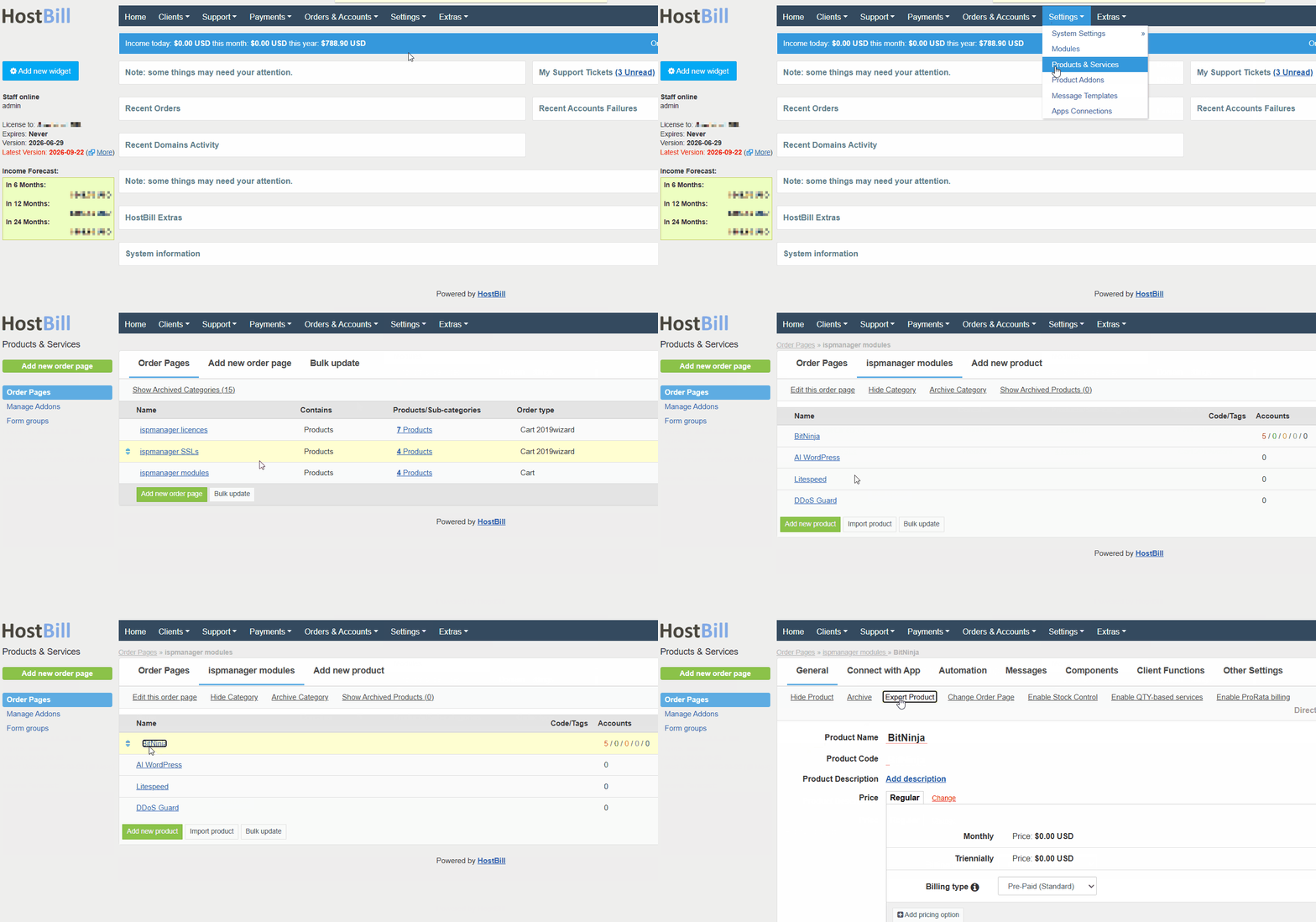
The file will be automatically downloaded to your computer.
Fill in or edit the fields on the tabs. Required fields are marked with asterisks.
General — main settings- Product Name* — name of the service.
- Product Code — an internal service code that is visible only to the HostBill administrator.
- Product Description — click Add description to add a description of the service, which will be displayed on the service card in the HostBill client area.
Price* — payment type:
The service will be available for free.
The service will be available by subscription.
Select a billing period*:
Please use the billing periods available for a specific service in your ispmanager account. If you select other periods, your order will not be processed.
- Monthly
- Quarterly
- Semi-Annually
- Annually
- Setup Fee — a one-time payment for opening a service
- Upgrade Fee — a one-time payment for upgrading a service
- Billing Type* — select payment method:
- Pre-paid
- Post-paid
- Hybrid — prepayment applies to the purchase of services, while post-payment applies to upgrading the service plan.
- For each billing period and cost, create a separate price by clicking the Add pricing option.
- Tax — a tax that will be added to the service price. To enable tax, select the Yes option and select a tax group from the Tax Group list.

- Tags — tags for designating a service that are visible only to the HostBill administrator.
Connect with App — connection settings for ispmanagerApp* — select ispmanager_reselling from the list.

- App Connection* — select a previously created connection so that the client module is automatically ordered in ispmanager when the service is ordered.
Automation — automated actions with customer orders- Auto-create — ordering a module in ispmanager:
- When the order is placed
- When the first payment is received
- After payment received, process by cron
- Automatic Upgrades — plan upgrade/downgrade:
- When the order is placed
- After receiving payment
- Automatic Renew
- Renew account automatically after receiving payment
- When renewal invoice is issued
- Automatic Suspension
- Autosuspend account after X days past due date
- Automatic Unsuspension
- Unsuspend account automatically after receiving due payment
- Automatic Termination
- Automatically terminate account after X days past due date
- Automatically cancel related unpaid invoices
- Auto-cancel unpaid orders
- Cancel unpaid orders X days since creation
- Generate invoices
- X days before the due date for product/service
- Advanced due date settings
- Invoice is expected to be paid X days before the due date for service/product
- First invoice due date set to X days after order
- Move due date X days into future for recurring invoices
- Adjust Initial Period — shift the service start date to the time of payment. If the order is paid late, the service will begin on the payment date, not the order date.
Messages — notifications for the client and HostBill administratorTo customize the notification, click Change and select a notification template from the list.

To create a notification template, go to the Settings → Message Templates section.
- Client email notifications
- Initial Order
- Account created email
- Account suspended email
- Account unsuspended email
- Account terminated email
- Reminder of the service expiration
- Client: Success upgrade
- Admin email notifications
- Staff: Success upgrade
- Staff: Failed upgrade
- Client mobile notifications
- Account created email
Components — additional services available when ordering an SSL certificateOnly Forms are supported for ispmanager modules.
Forms allow you to receive and store information about clients and services in the HostBill administrative and client areas.
To add your own form or field, click one of the three buttons and configure it:
- Add new form field
- Import — import a form as a JSON or YML file
- Copy from product — copy a form from another product or service
For more information on configuration of forms, please refer to the official HostBill documentation.
Client Functions — actions with the ordered service available to clients in the HostBill client areaTo enable an action, click Enable next to the action. To enable all actions, click Enable all.

Enabled actions will be available for the client's active orders in their HostBill personal account in the Services section.
Available actions:
- License details — view information about the license.
- Change Billing Cycle — change the billing period, for example, from "monthly" to "semi-annually." This option is available if multiple billing periods are configured for the license service.
- Change Label — change the label that is diplayed next to the service you ordered.
- Change Ownership — transfer ownership of the license service to another HostBill user.
- Contracts — view the agreements accepted when ordering the license service. Available if agreement acceptance is configured for the service.
- Edit Forms — view and edit responses in forms added on the Component → Forms tab.
- Logs — view the log of actions with the service, such as activation, renewal, and termination.
- Manual Service Renew — early service renewal.
- Related Emails — view emails related to the service.
- Related Invoices — view invoices for the service.
- Related Services — view related services. Related services are configured on the Component → Forms → Custom/Extra field types → Related services tab.
- Service Auto Renewal — view the service's automatic renewal date, configure the renewal, and configure the payment method.
- Service notes — view service notes left for the client by the HostBill administrator.
- Status Updates — view the service status.
Other actions are not supported for SSL certificates.
Other Settings — settings for cancellations, limits, etc.- Limit Per Customer — the maximum number of service orders available to one customer. To apply the limit, click Yes and specify the number of services in the One customer is allowed to order X products of this type field.
- Allow Cancellations — allow the customer to cancel the order:
- Yes, client can cancel service using this product
- Yes, client can cancel service after/for X days since account creation
- No, client cannot cancel service with this product
- Allowed Cancellation Types — allowed types of cancellations:
- Immediate
- End of billing period
- Pro-rate cancellations — cancellation with recalculation of the service cost
- No — prohibit
- Yes, for pre-paid services (for immediate cancelations)
- Yes, for post-paid services
- Full Month Billing — a billing model in which the client pays the full monthly cost regardless of the service activation date. Subsequent payments are made at the beginning of each month.
- Enabled
- Disabled
- Contract template — user agreement template. Select an agreement from the list or click See all contract templates to customize agreements.
- Client area Layout — the layout of the menu in the HostBill client area:
- Left menu
- Right menu
- Top menu
- Custom username — automatic username generation. To configure this option, click Enable and specify a naming pattern in the Username generation pattern field.
- Starting price calculation method — the service price displayed in the HostBill client area if add-ons are configured on the Components tab:
- Calculate using lowest possible component prices
- Calculate using default components value
- Upgrades — plan upgrades and downgrades:
- Available Upgrades — select the services the client can switch to from the current one
- Upgrade pro-rata — plan change with price recalculation
- Seconds — recalculate based on the number of seconds remaining until the next payment date
- Hours — recalculate based on the number of hours remaining until the next payment date
- Days — recalculate based on the number of days remaining until the next payment date
- Queue Pro-rata Charges — for prepaid services, queue the recalculated charges:
- Disabled — invoice for the past period immediately
- Enabled — queue the invoice for the past period
- Credit on Downgrade — credit the difference to the client's HostBill account when switching to a cheaper plan:
- Default, use system billing settings
- No, do not credit customer pro-rated amount on package downgrade
- Yes, credit customer pro-rated amount on package downgrade
- Yes, credit customer pro-rated amount on package downgrade, only after client doesn't have unpaid invoices (credit downgrade queue)
- Credit note on Downgrade
- Default, use system billing settings
- No, do not issue credit notes on downgrades
- Yes, issue credit notes on downgrades
- Out-of-stock Upgrade — switching to the current service when it is out of stock:
- No, prevent upgrades to this product when it is out of stock
- Yes, allow upgrades to this product even when it is out of stock
- Click Save Changes.
- Create a separate service for each ispmanager plan.
Actions with modules
- Log in to HostBill with your administrator account at https://YOUR_DOMAIN/admin.
- Go to the Orders and Accounts → Orders → Active Orders section for active orders and to the Pending Orders section for orders that await approval.
- Click on the required order in the list.
In the form that opens, in the Order items block, click on the service.
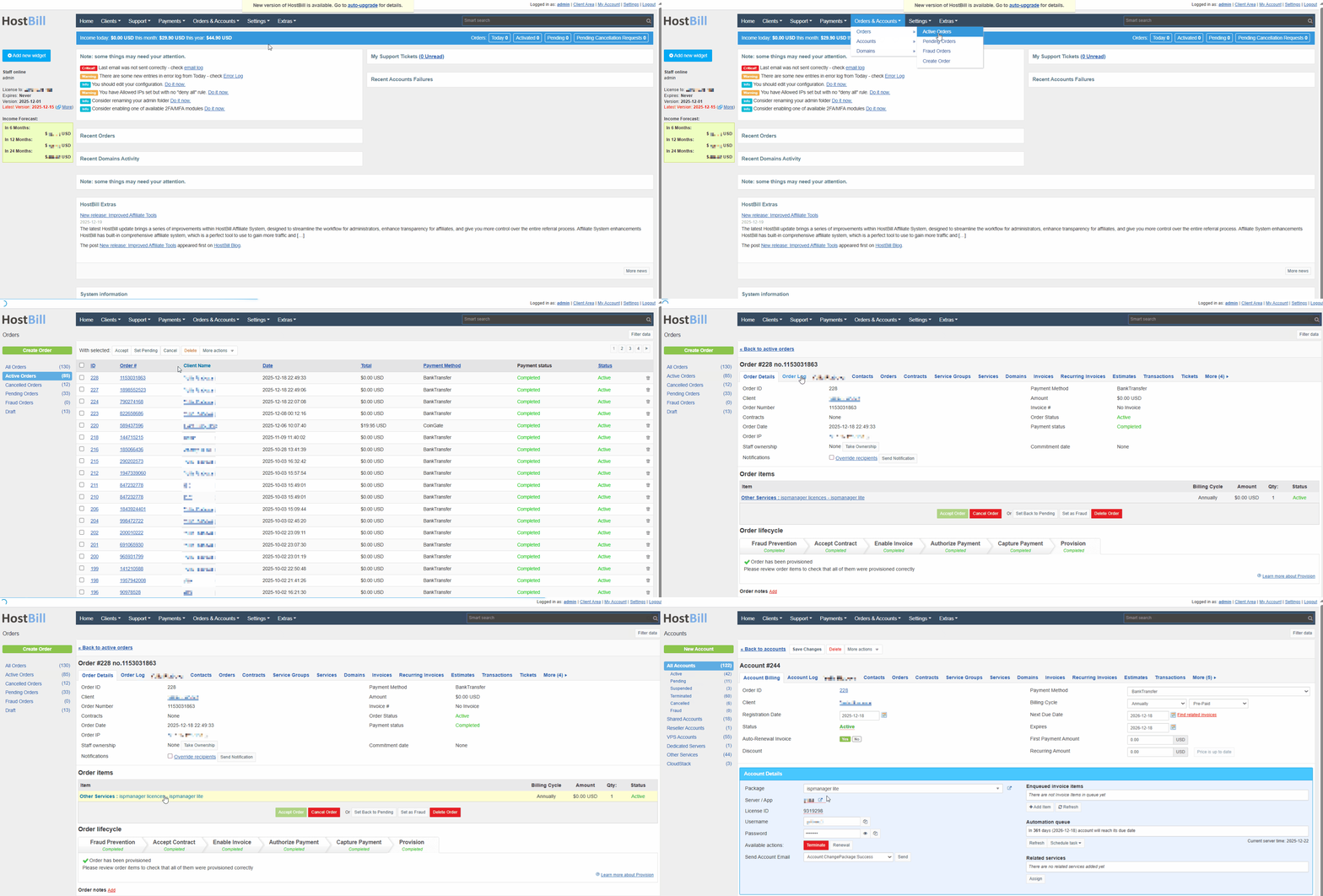
- Perform the required action:
- Create —order a license.
- Terminate — deactivate a license. Funds are not automatically refunded if a license is deactivated before its expiration date.
- Renewal — renew a license.
- Package — switch to a plan selected from the list.
- Billing cycle — change the billing period.
More about actions with services in the HostBill documentation.
- Click Save Changes.
For more information about all the features that can be enabled clients, see the Create Services → Services section in the Client Functions tab.
- Log in to HostBill with your client account at https://YOUR_DOMAIN/index.php.
- In the menu on the left, in the Services section, select the service order page.
In the list that opens, select the required service.
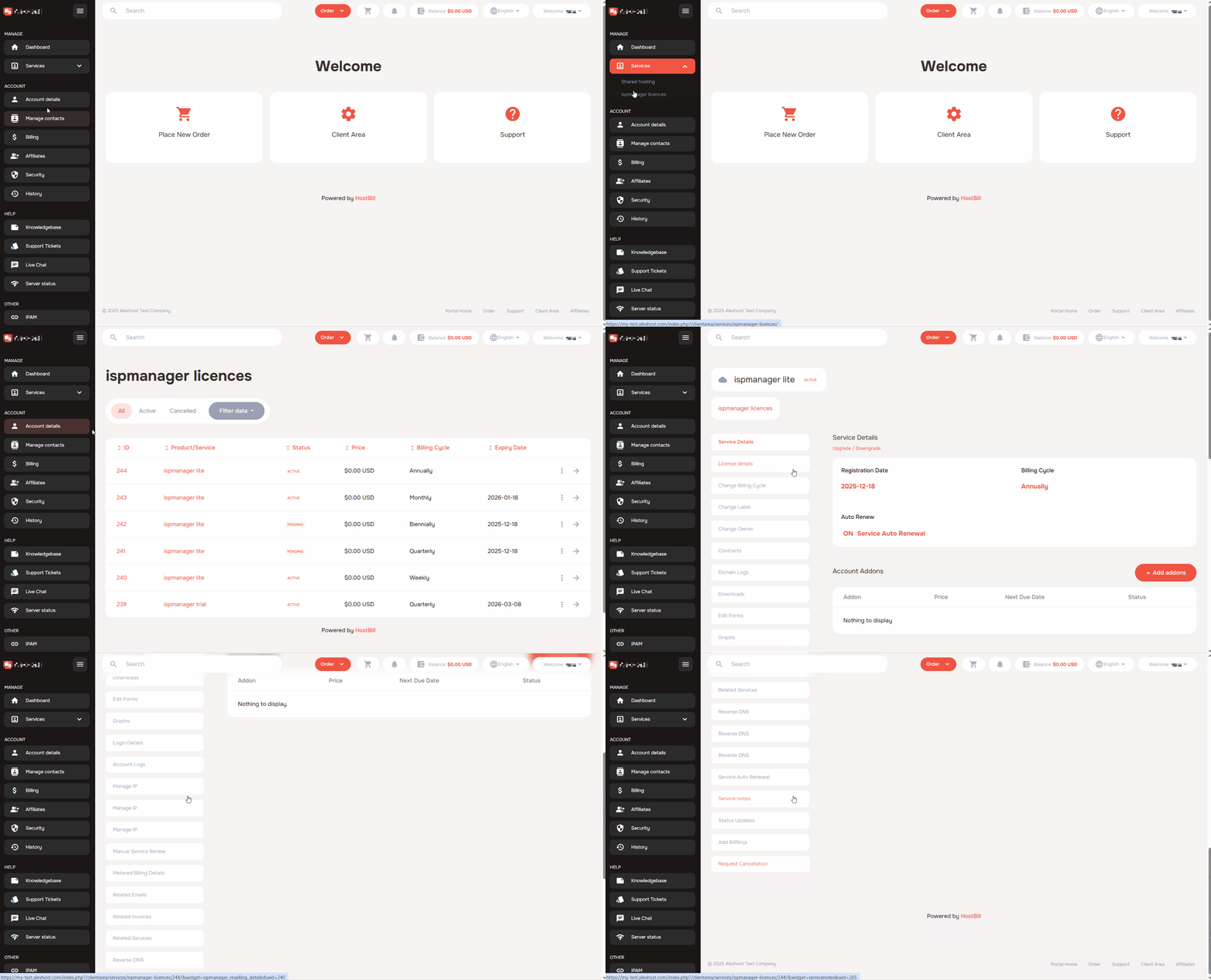
- Perform the required action:
- Upgrade/Downgrade — change the license plan
- License Details — view license information: name, IP address, key, etc.
- Change Billing Cycle — change the billing period
- Account Logs — view the license's change history
- Manual Service Renew — request license renewal
- Service Auto Renewal —view auto-renewal information and change settings
- Request Cancellation — request license deactivation