Reselling ispmanager modules via API
ispmanager modules are paid extensions to the panel's functionality, purchased in your client area under Licenses → ispmanager modules. Module licenses are valid only on servers running ispmanager, their installation and configuration are performed through the panel's web interface.
Automating the resale of ispmanager modules using the API allows for flexible sales and customer service management, as well as adapting the process to your needs and business strategy.
Resale mechanics
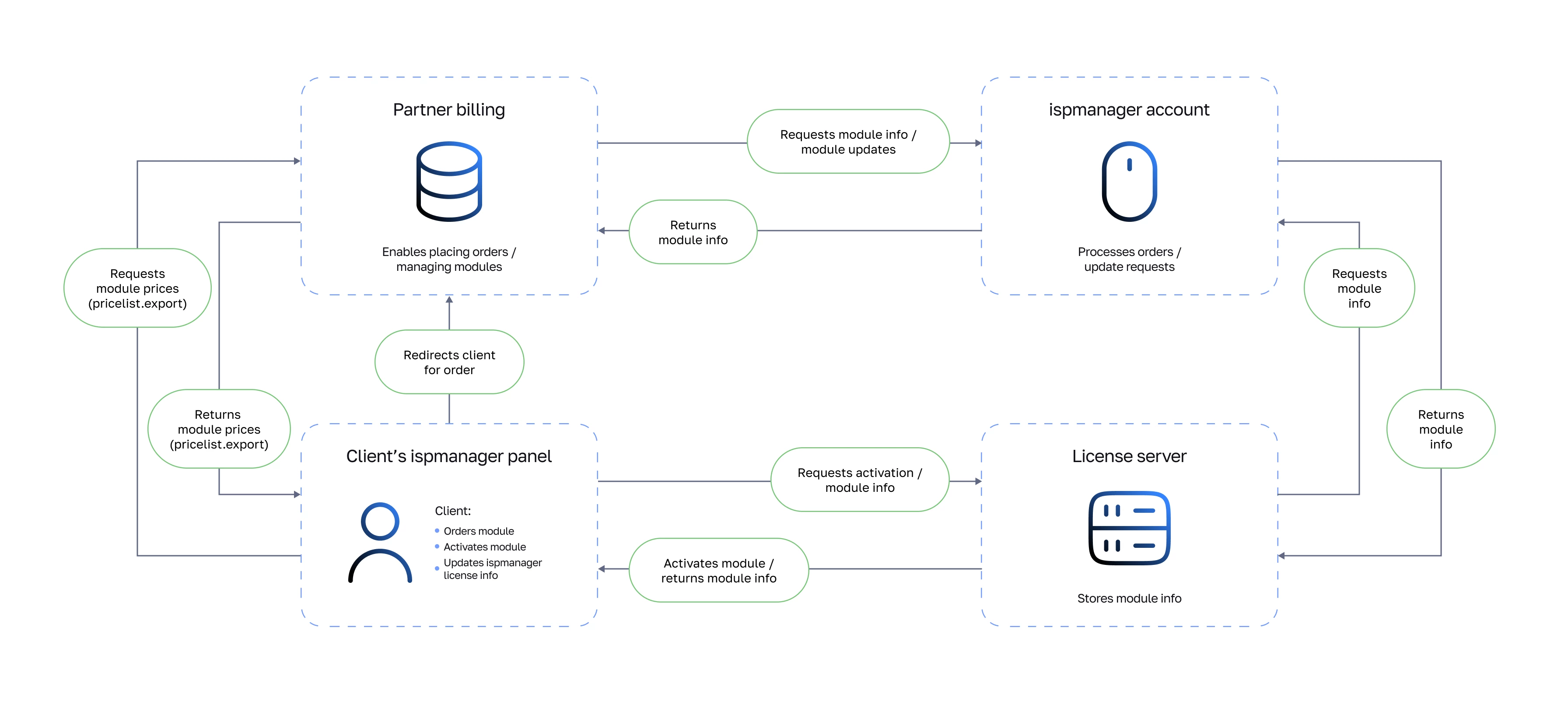
- Module selection and order. In the ispmanager panel, the end customer sees the prices for modules installed by the partner. They select the desired module and click the Buy button.
- Redirection to partner billing. After clicking the Buy button, they are automatically redirected to the partner's billing. Here the end customer continues the order process and pays for the selected module.
- Module order in the ispmanager client area. The partner processes the end customer's order and purchases the module in the ispmanager personal account. This can be done by setting up automation via the API or by making a purchase manually through the client area.
- Updating module information in the panel. After the order is successfully processed, the ispmanager panel updates the license data and receives information about the purchased module. This ensures proper activation and use of the module by the end customer.
- Module activation and management. The end customer activates the module in the panel and manages it through their client area in the partner billing system.
Step 1. Setting up the pricelist.export function
To display partner module prices to end customers in the ispmanager panel, implement processing of GET requests for pricing in partner billing.
Request example:
https://api.PARTNER_BILLING.com/?func=pricelist.export&itemtype=addition&out=xml- itemtype — product type filter. Possible values:
- addition — modules
Additional parameters:
- onlyavailable=on — filter for available modules only
Next, the ispmanager panel expects a response in XML format. For example:
<doc>
  <pricelist>
    <id>23221</id>
<name>DDoS-GUARD</name>
   <intname>DDoSGUARD</intname>
    <additionintname>DDoSGUARD</additionintname>
    <price currency="USD">
      <period cost="15.0000" type="month" length="1">monthly</period>
    </price>
  </pricelist>
</doc>- id — module plan identifier
- additionintname — module service name, providing information about the module type or category
- price — module cost for the specified time period. When purchasing and loading prices, it is always used with the monthly price parameters type="month" and length="1"
- intname — another module service name, providing information about the module type or category
- name — module name
If the module's pricing is missing from the XML response, the module will not be displayed in the ispmanager panel web interface, and the Buy button will not be displayed.
Unsupported modules will not be displayed, even if their prices are specified in the XML. For example, the LiteSpeed WebHost Essential module for ispmanager host will not be displayed in ispmanager lite. Custom modules incompatible with ispmanager cannot be added.
Step 2. Order processing
When a module is purchased, a request is generated in the ispmanager panel for the partner's billing system. For example:
https://URL_PARTNER_BILLING/?module=MODULE_SERVICE_NAME&license=LICENSE_ID&ip=<license_IP>&module_id=MODULE_IDThis request can be processed automatically via the API or manually.
- Log in to your ispmanager client area and order the license module manually.
- Process the order in partner billing.
Below are the features for automatic ordering and module management in the ispmanager system using the API.
All functions support GET and POST requests.
All requests are processed using your real data in your real account. Therefore, if you complete an order with the skipbasket=on parameter, the order will be completed immediately, and funds will be debited from your account balance.
To complete the request, select the API address of your ispmanager account through which the resale will be processed:
Step 3. Updating license information
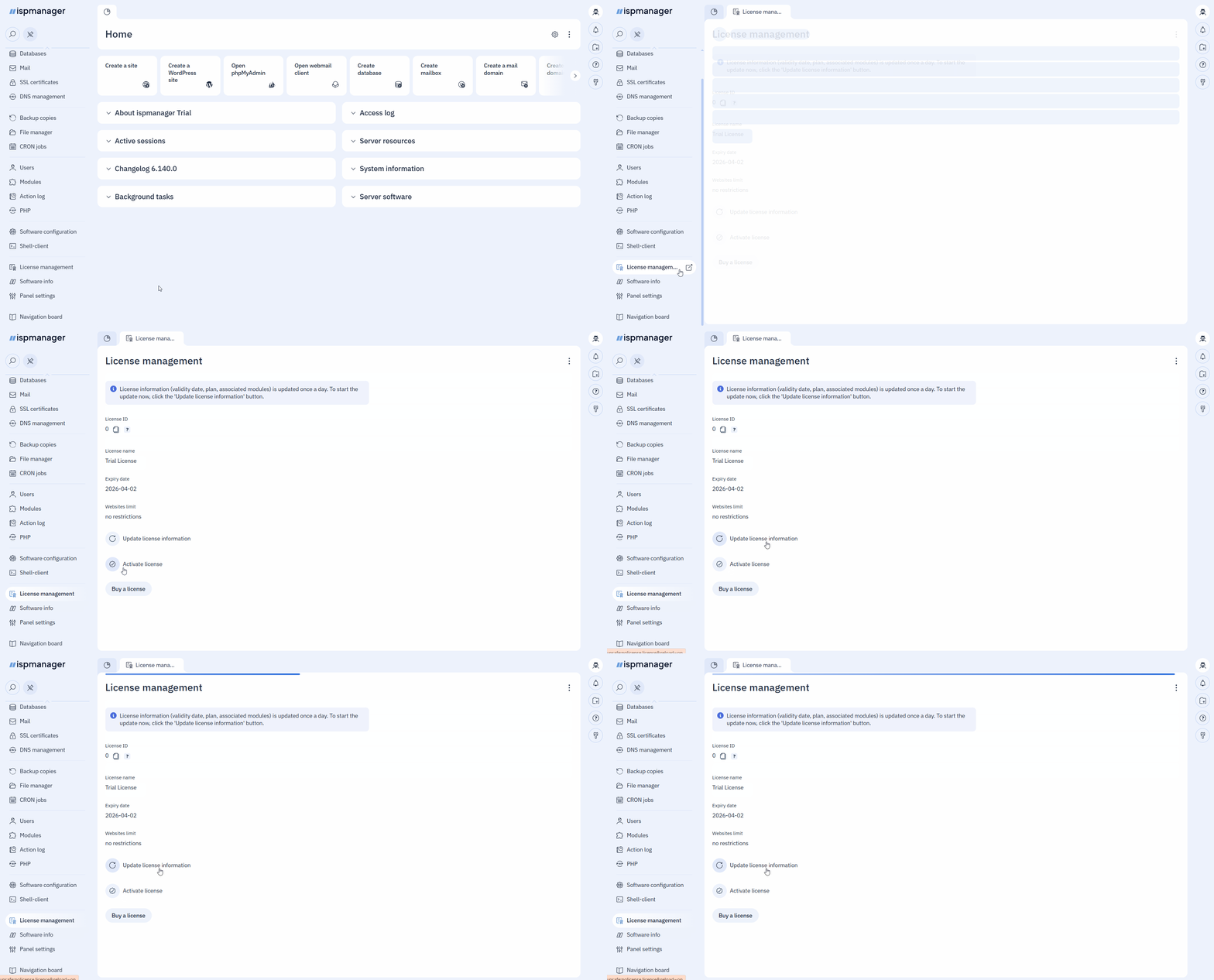
License information and purchased modules are updated automatically once per day. To update license information immediately, update the data manually in the License management section of the ispmanager panel: