Exim: filtering emails without SPF using Spamassassin
For an Exim mailbox, there are two ways to configure Spamassassin to filter incoming emails from domains without SPF. You will need:
- install and configure Spamassassin
- install Sieve
- create an email filtering rule
First, make sure you have Spamassassin, Dovecot, and Sieve installed. Under Software configuration - Mail server, install any necessary software, if needed.
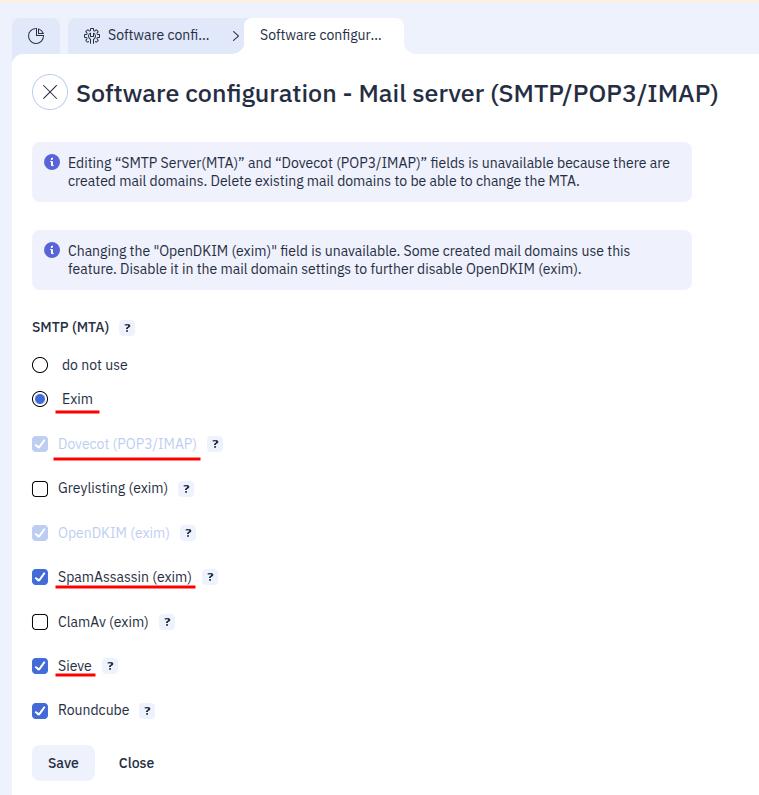
Please note that many domains of small organizations do not use SPF records, and emails from such domains will be filtered!
Filtering by X-Spam_report
It is recommended to filter by the X-Spam_report header, as it contains precise information about the presence or absence of SPF.
In ispmanager 6 panel, this can be done in the Mail section by selecting the desired mailbox and opening Filter settings from the context menu.
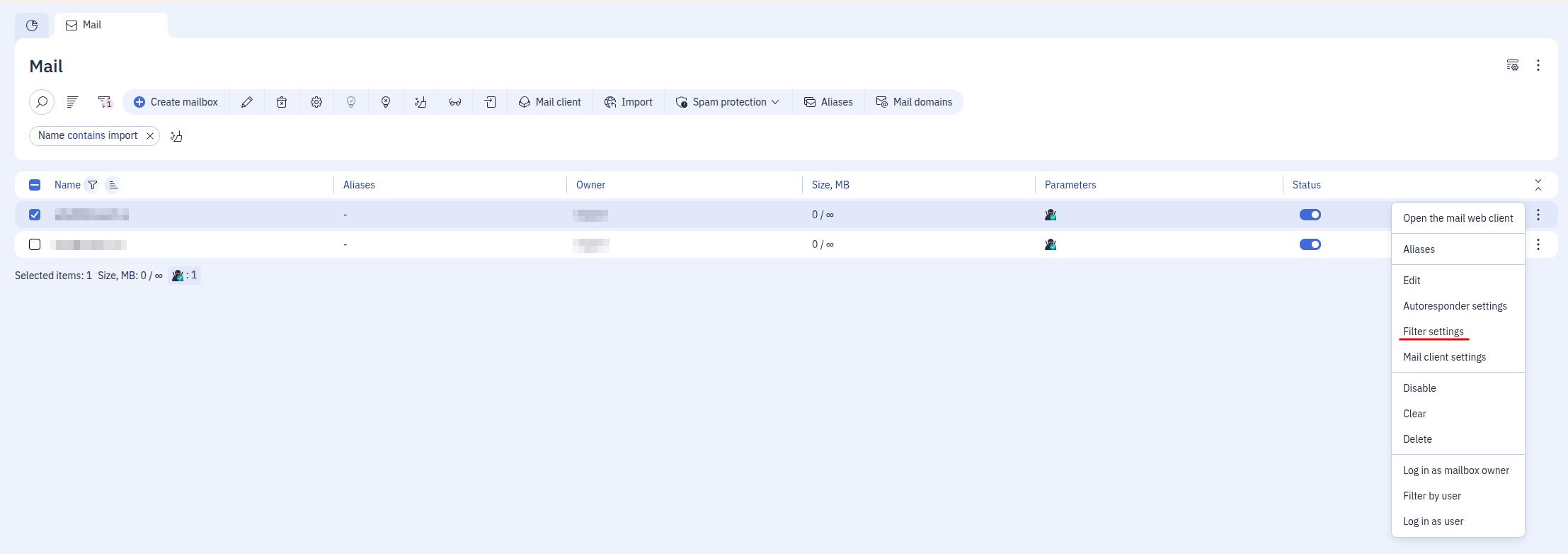
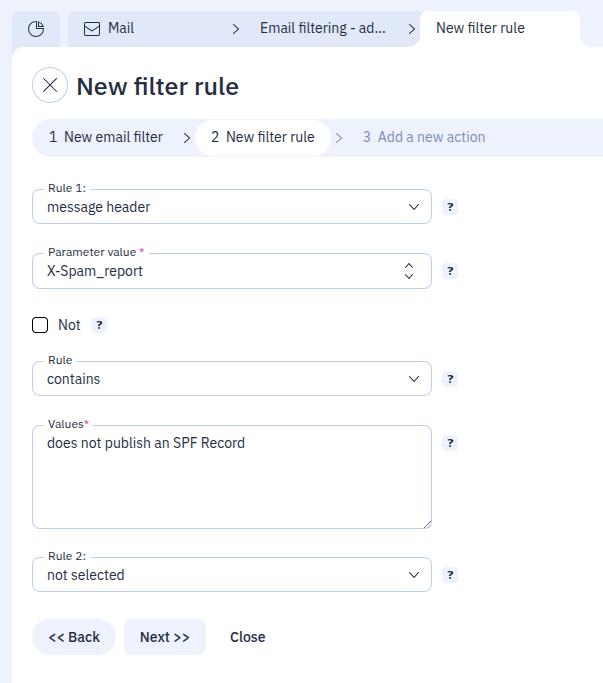
Click Create filter, give it a name, and fill in the condition fields as below:
- Condition — message headers
- Parameter value — X-Spam_report
- Condition — contains
- Values — does not publish an SPF Record
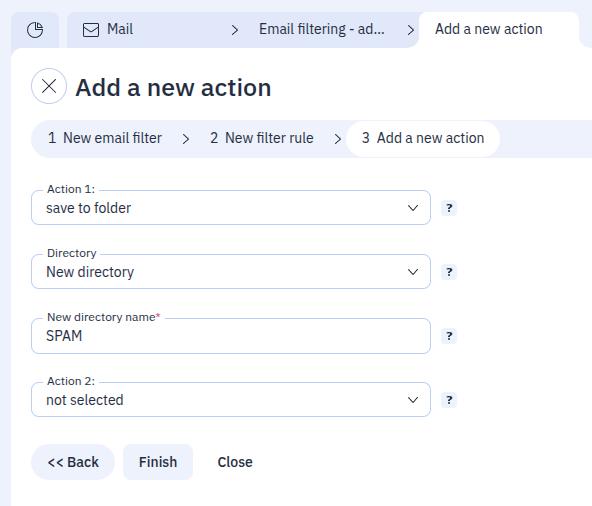
Next, select the action to take on the sorted email. For example, you can save it to a separate SPAM folder.
Filtering by X-Spam_Score
To filter emails without an SPF record by email rating, add the following lines to the /etc/mail/spamassassin/local.cf configuration file to increase the required email rating threshold:
score SPF_NONE 3.0
score SPF_HELO_NONE 1.0
Next, in the ispmanager 6 panel, create a sorting rule in the Mail section by selecting the desired mailbox and opening Filter settings from the context menu.
Click Create filter, give it a name, and fill in the condition fields as below:
- Condition — message headers
- Parameter value — X-Spam_Score
- Condition — matches regex
- Values —
^([6-9]|[1-9]|[0-9]+)(\.[0-9]+)?$|^5\.[0-9]*[1-9][0-9]*$
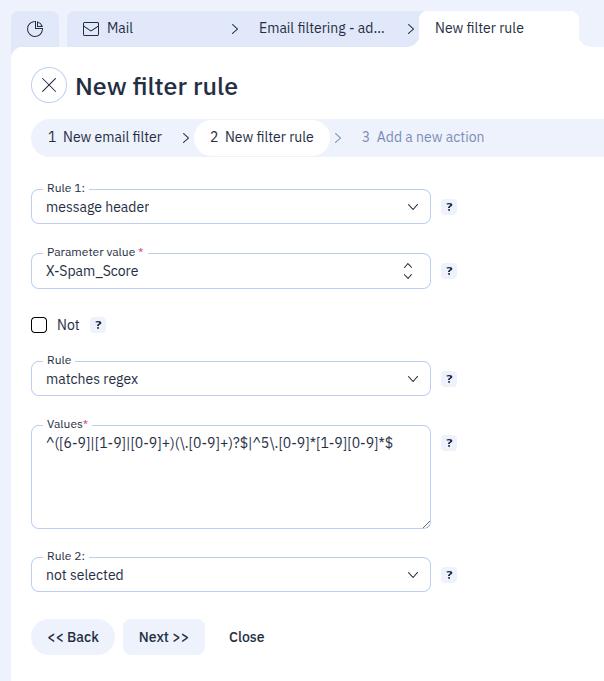
Next, select the action to take on the sorted email. For example, you can save it to a separate SPAM folder.