Upgrading Debian 11 to Debian 12 with ispmanager 6 installed
The instructions below provide an experimental method for upgrading from outdated Debian 11 to supported Debian 12 without migrating data from ispmanager 6 to a new server.
Ispmanager 6 does not officially support any major OS version upgrades!
Preparation
The first step is to back up all data on the server. We also highly recommend creating a backup or a snapshot of the entire server.
To properly upgrade a major version, you need the latest available minor OS version, as well as the latest available software versions. Run the following command:
apt update && apt upgrade -y && apt dist-upgrade
After a successful upgrade, restart the server and remove unnecessary packages:
apt autoremove
When using apt autoremove, carefully review the packages that will be removed. Never use the -y switch with this command!
The next step is to change the release in the repository files so the system has access to Debian 12 packages:
sed -i "s/bullseye/bookworm/g" /etc/apt/sources.list && sed -i "s/bullseye/bookworm/g" /etc/apt/sources.list.d/*
Now update package list from new repository:
apt update
If the GPG key does not match, following errors will occur when updating repository information:
W: GPG error: http://download.ispmanager.com/repo/debian 6-stable6-bookworm InRelease: The following signatures couldn't be verified because the public key is not available: NO_PUBKEY 9A312E132B8F88E7
E: The repository 'http://download.ispmanager.com/repo/debian 6-stable6-bookworm InRelease' is not signed.
To fix the GPG key, execute these commands in this order:
curl -fL https://download.ispmanager.com/repo/ispmanager.gpg -o /root/newkey.key
gpg --show-keys --with-fingerprint /root/newkey.key
cp /root/newkey.key /etc/apt/trusted.gpg.d/ispmanager.gpg
cp -a /etc/apt/trusted.gpg.d/ispmanager.gpg etc/apt/trusted.gpg.d/ispmanager.gpg.old
Update package list from new repository:
apt update
Get the information about the upcoming upgrade (new packages list, upgradable packages list, required free space):
apt -o APT::Get::Trivial-Only=true full-upgrade
If it is required, free space by removing unnecessary packages:
apt autoremove
apt clean
Minimal upgrade
Upgrade installed packages:
apt upgrade --without-new-pkgs
Answer "Y" to the installation prompt:
Do you want to continue? [Y/n] Y
During the update you'll be provided with list of changes. You can quit the document and continue with updating by pressing Q.
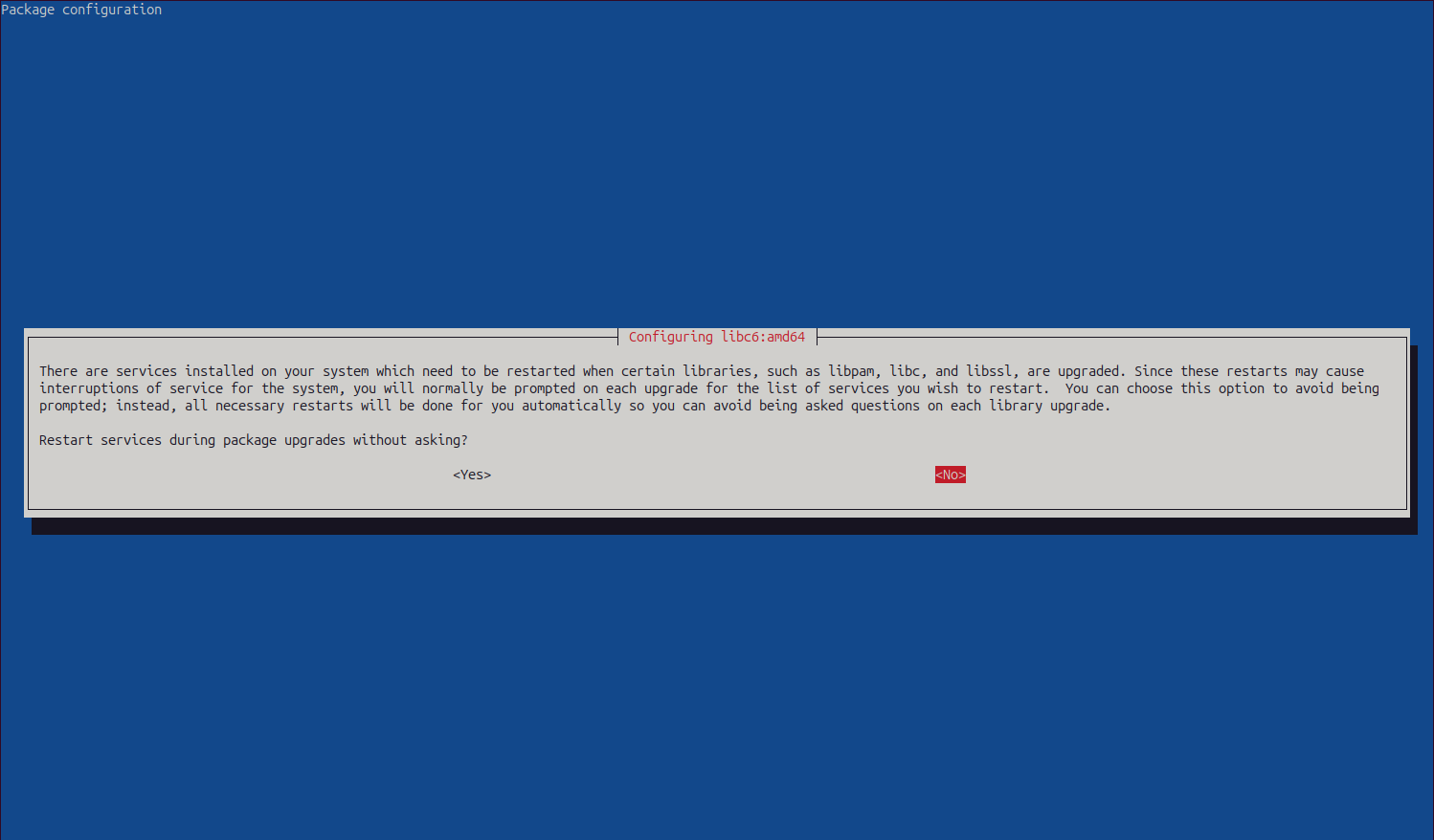
The script will ask for permission to automatically restart services during the update. Select "Yes".
A bit after you'll be prompted to perform actions on the Exim configuration file — select "No" to this:
Configuration file '/etc/exim4/exim4.conf.template'
 ==> Modified (by you or by a script) since installation.
 ==> Package distributor has shipped an updated version.
   What would you like to do about it ?  Your options are:
    Y or I  : install the package maintainer's version
    N or O  : keep your currently-installed version
      D     : show the differences between the versions
      Z     : start a shell to examine the situation
 The default action is to keep your current version.
*** exim4.conf.template (Y/I/N/O/D/Z) [default=N] ? N
Full upgrade
After successful minimal upgrade, you can launch the full upgrade to the Debian 12:
apt full-upgrade
Answer "Y" to the installation prompt:
Do you want to continue? [Y/n] Y
During the update you'll be provided with list of changes. You can quit the document and continue with updating by pressing Q.
The script might ask for permission to automatically restart services during the update. Select "Yes".
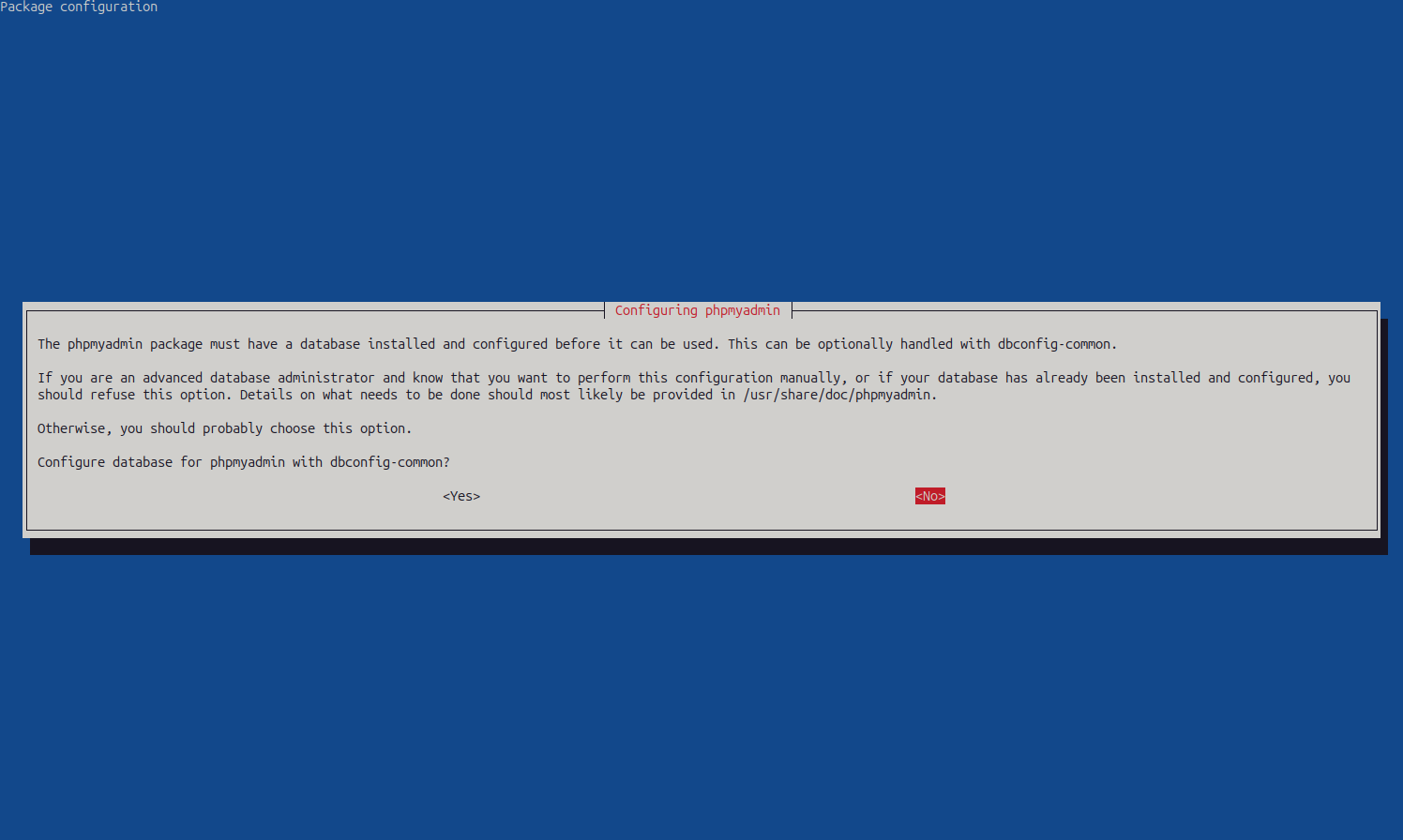
When the installer asks to update the phpMyAdmin database configuration in a separate window, select "No".
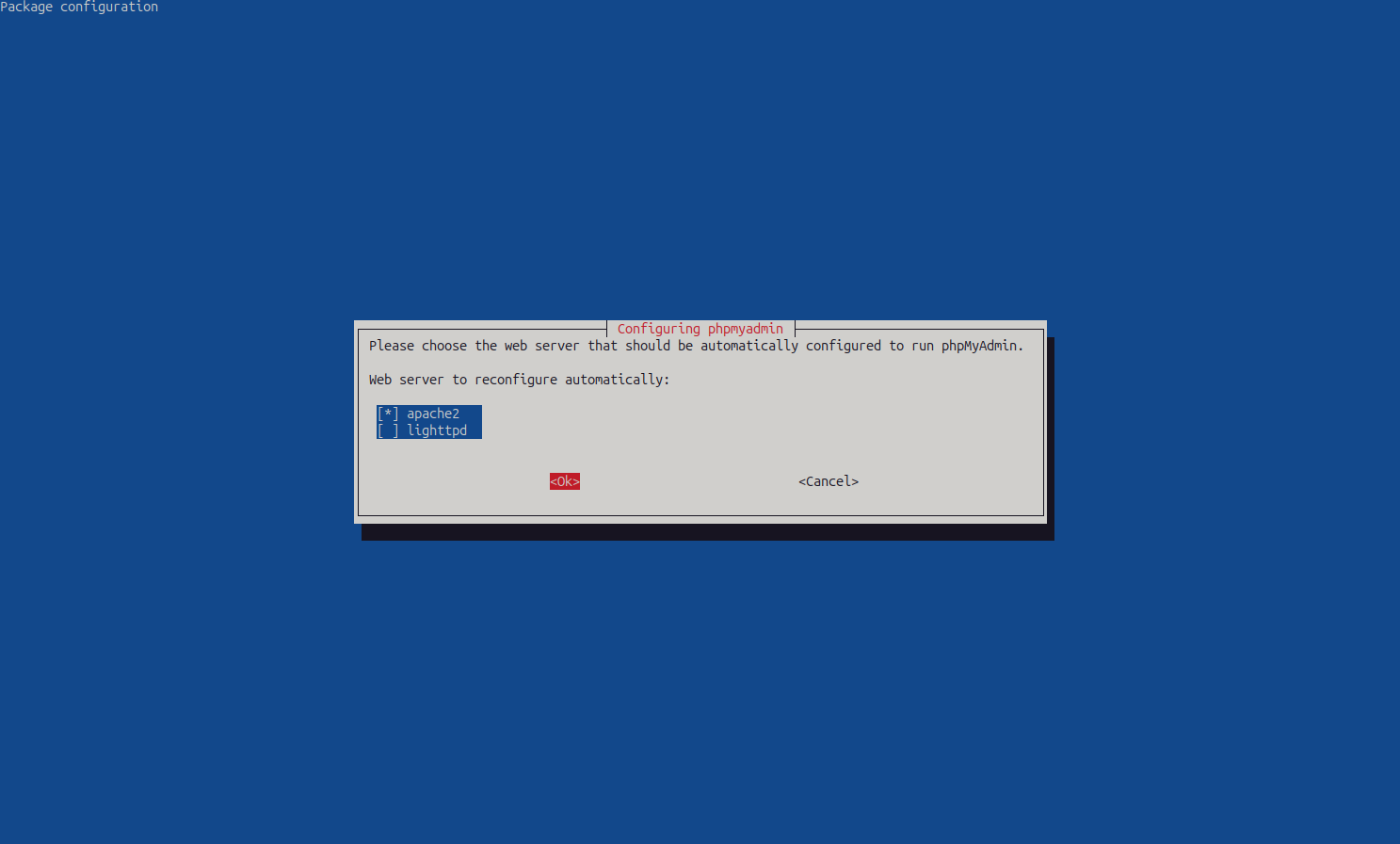
Next the script will ask for a web server to run phpMyAdmin. Select "apache2":
During the update, you'll be prompted to perform actions on configuration files — select "No" to these. For example:
Configuration file '/etc/exim4/exim4.conf.template'
 ==> Modified (by you or by a script) since installation.
 ==> Package distributor has shipped an updated version.
   What would you like to do about it ?  Your options are:
    Y or I  : install the package maintainer's version
    N or O  : keep your currently-installed version
      D     : show the differences between the versions
      Z     : start a shell to examine the situation
 The default action is to keep your current version.
*** exim4.conf.template (Y/I/N/O/D/Z) [default=N] ? N
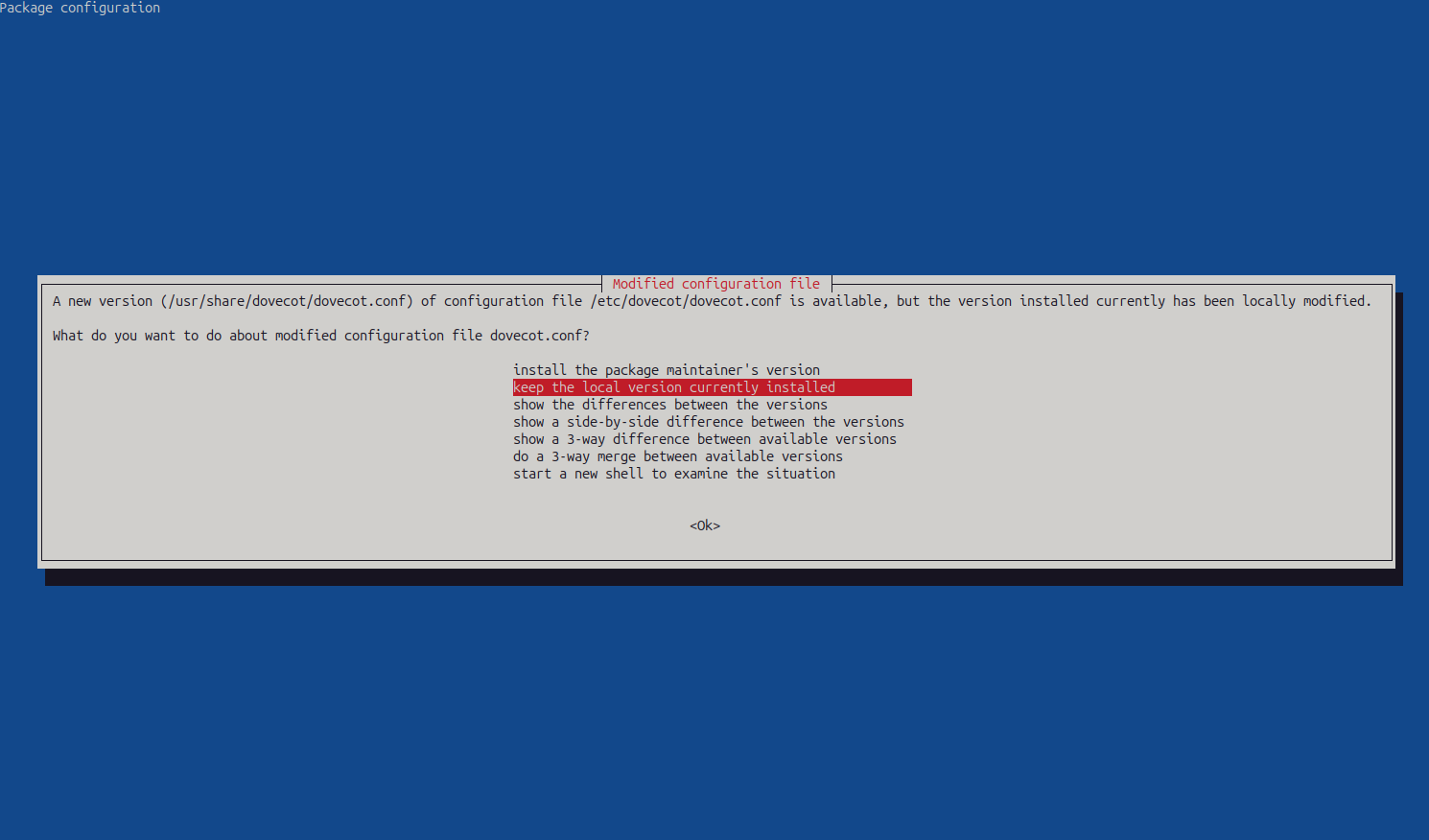
Prompts may also appear in a separate terminal window; for these prompts, select "Keep the local version currently installed".
Reboot the server after upgrade will be done:
reboot
After the upgrade
Unlock the ispmanager 6 panel after reboot:
/usr/local/mgr5/sbin/mgrctl -m core -u
Check the current OS version with the following the command:
lsb_release -a
The output should be as follows:
Distributor ID:	Debian
Description:	Debian GNU/Linux 12 (bookworm)
Release:	12
Codename:	bookworm
Remove unnecessary packages:
apt autoremove
When using apt autoremove, carefully read the packages that will be removed. Never use the -y switch with this command!