Reselling ispmanager licenses through HostBill
The ispmanager reselling module in HostBill automates the reselling of ispmanager licenses.
Module features
| Feature | Partner | Client |
|---|---|---|
| Order | ||
| Renewal | ||
| Cancellation | ||
| Tariff plan change | ||
| Updating license name and IP address | ||
| Generating new license key | ||
| Change of billing period | ||
| Viewing license history |
Module requirements
The ispmanager reselling module is available for free.
Installing the module
- Download the module using the link.
- Log in to HostBill with an administrator account at https://YOUR_DOMAIN/admin or via SSH.
- Unzip the module archive into the HostBill root directory.
Activating the module
- Log in to HostBill with an administrator account at https://YOUR_DOMAIN/admin.
- Go to the Settings section→ Modules → Hosting Modules.
- In the Inactive tab, find the ispmanager_reselling module and click Activate.

Setting up connection to ispmanager
- Log in to HostBill with an administrator account at https://YOUR_DOMAIN/admin.
Go to the Settings section → Apps Connections → Add new Connection.
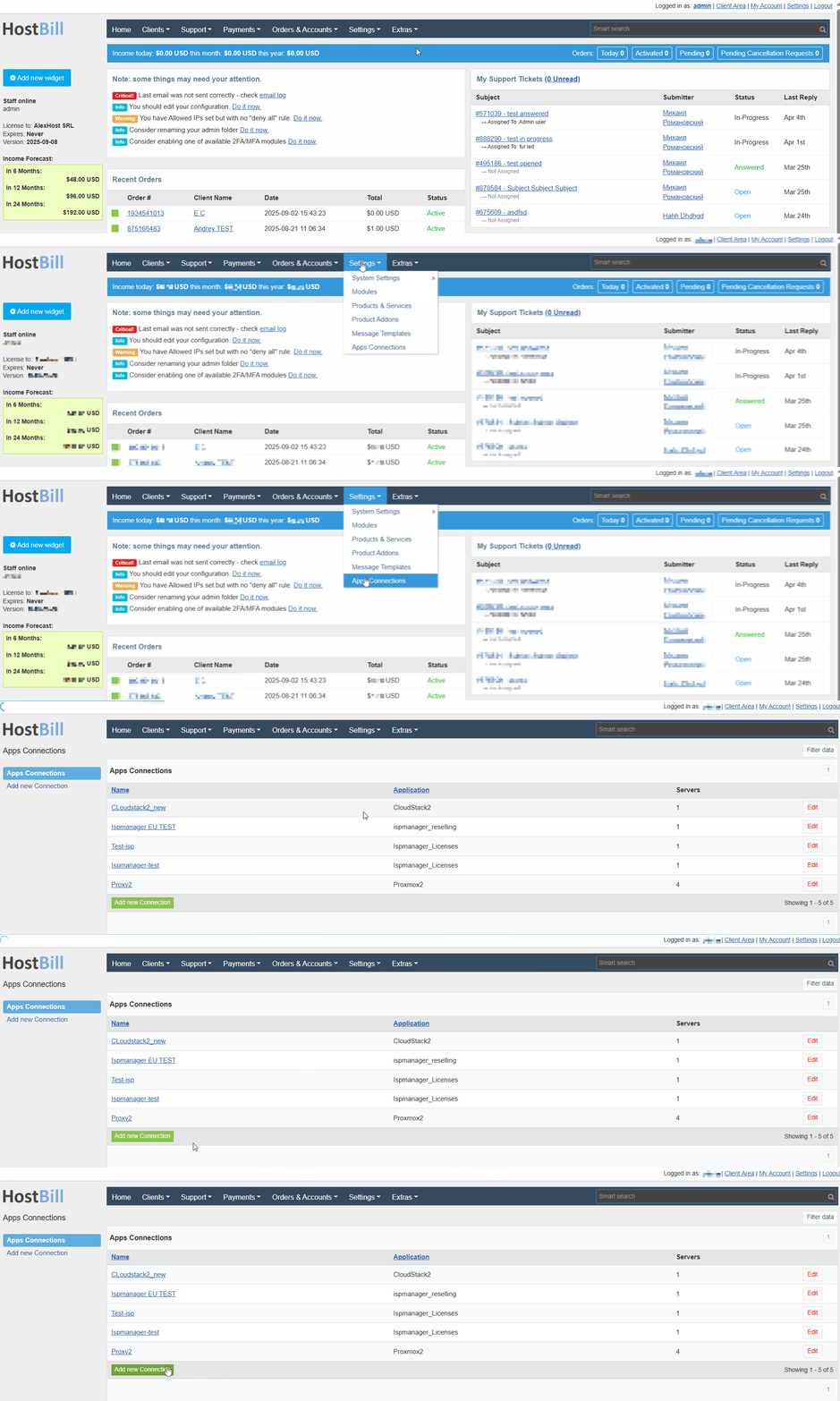
- In the Application field, select ispmanager_reselling.

Fill in the connection details. Required fields are marked with asterisks.
- Name* — an arbitrary name under which the server with ispmanager will be saved in HostBill. The server name will only be visible to the HostBill administrator.
- Hostname* — the domain name for your ispmanager account — eu.ispmanager.com.
- Username* — username for access to the ispmanager client area.
- Password* — password for access to the ispmanager client area.
Leave unchanged.
- Click Test Configuration to check the connection. If the connection is successful, a notification with the status Success will be displayed.
- Click Add New Connection.
Creating services in HostBill
Creation of services is available after creating at least one order page.
Order pages
Order pages allow you to group services in the HostBill client area.
To create an order page:
- Log in to HostBill with an administrator account at https://YOUR_DOMAIN/admin.
- Go to Settings → Products & Services.
- Click Add new order page.
- Please fill in the fields. Required fields are marked with asterisks.
- Name* — the name of the order page that will be displayed in the HostBill client area. For example, "ispmanager licenses".
- Order page URL — click Edit to edit the automatically generated order page URL.
- This category will contain* — select Products.
- Order type* — select Other Services.
- Cart Template — select a cart template from the standard options or click Here to purchase a premium template. Click Preview to see a preview.

- Description — a description of the services that will be posted on the order page for the client area.
- Advanced : Order scenario — select an order scenario, the sequence of steps a client must complete when ordering services at the order page. Learn more about order scenarios in the official HostBill documentation.
- Click Add new order page.
Services
You can create a separate service for each ispmanager plan or one common service with a plan selector. The second option is especially convenient when offering ispmanager licences together with VPS/VDS hosting, because it allows creating just one bundle per hosting plan instead of three — one for each paid ispmanager plan.
- Log in to HostBill with an administrator account at https://YOUR_DOMAIN/admin.
- Go to Settings → Products & Services.
- Select the previously created order page.
- Click:
- Add new product — to add a new service manually.
Import products — to create a new service based on a JSON template. Use this option if you already have a similar service in HostBill. The existing service must be exported first.
How to export an existing service in HostBill- Log in to HostBill with an administrator account at https://YOUR_DOMAIN/admin.
- Go to Settings → Products & Services.
- Select the previously created order page.
- On the order page, select the service you would like to export and use as a template.
On the General tab, click Export Product.
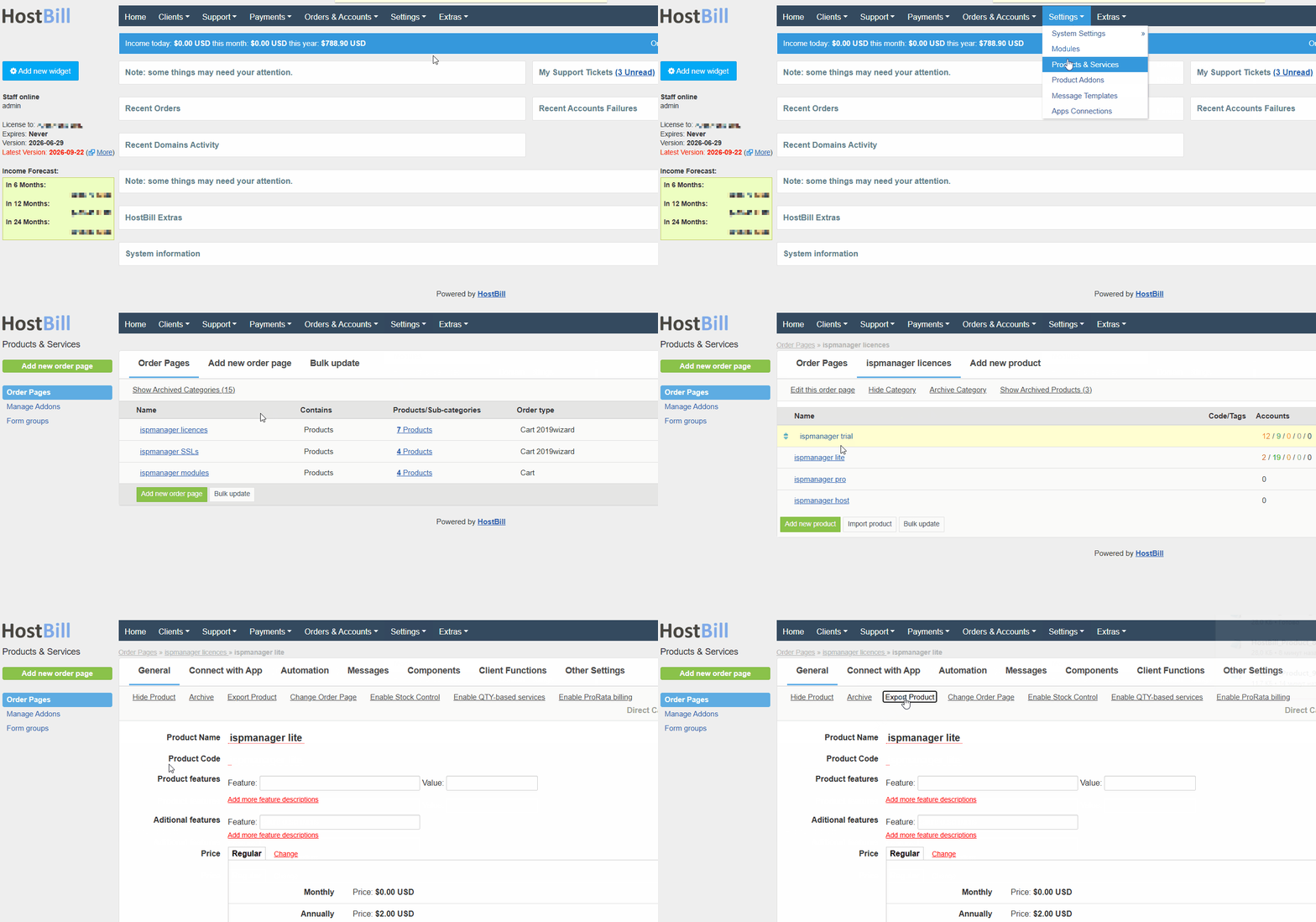
The file will be automatically downloaded to your computer.
Fill in or edit the fields on the tabs. Required fields are marked with asterisks.
General — main settings- Product Name* — name of the service.
- Product Code — an internal service code that is visible only to the HostBill administrator.
- Product Description — click Add description to add a description of the service, which will be displayed on the service card in the HostBill client area.
Price* — payment type:
The service will be available free of charge.
A one-time payment will be available for the service.
- Price — cost of the service
- Setup Fee — a one-time payment for opening a service.
The service will be available by subscription.
Select a billing period*.
Use the "Monthly" and "Annually" billing options. Selecting other periods will result in an error when ordering a license.
- Monthly
- Annually
- Price — cost of the service
- Setup Fee — a one-time payment for opening a service
- Upgrade Fee — a one-time payment for upgrading a service
- Billing Type* — select payment method:
- Pre-paid
- Post-paid
- Hybrid — a hybrid: prepayment is required for purchasing services, and postpayment is required for service upgrades.
- For each billing period and cost, create a separate price by clicking the Add pricing option.
Not supported for ispmanager licenses.
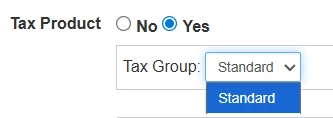
- Tax — a tax that will be added to the service price. To enable tax, select the Yes option and select a tax group from the Tax Group list.
- Tags — tags for designating a service that are visible only to the HostBill administrator.
Connect with App — connection settings for ispmanager- App* — select ispmanager_reselling from the list.

- App Connection* — to automatically order a license for the client in ispmanager when ordering a service, select the previously created connection.
- Get values from server* — click to import tariff plans from ispmanager.
- Product ID* — select the desired tariff plan from the list.
Automation — automated actions with customer orders- Auto-create — ordering a license in ispmanager:
- When the order is placed
- When the first payment is received
- After payment received, process by cron — a periodic task after payment is received
- Automatic Upgrades — upgrading or downgrading a tariff plan
- When the order is placed
- After receiving payment
- Automatic Renew — renewal of the license
- Renew account automatically after receiving payment
- When renewal invoice is issued
- Automatic Suspension
- Autosuspend account after X days past due date
- Automatic Unsuspension
- Unsuspend account automatically after receiving due payment
- Automatic Termination
- Automatically terminate account after X days past due date
- Automatically cancel related unpaid invoices
- Auto-cancel unpaid orders
- Cancel unpaid orders X days since creation
- Generate invoices — issuing invoices for payment:
- X days before the due date for product/service
- Advanced due date settings :
- Invoice is expected to be paid X days before the due date for service/product
- First invoice due date set to X days after order
- Move due date X days into future for recurring invoices
- Adjust Initial Period — adjust the activation date of the license if the order was paid late, so that the client receives the service for the full period
Messages — notifications for the client and HostBill administratorTo customize a notification, click Change and select a notification template from the list.

You can create notification templates in the HostBill Settings → Email Templates section.
- Client email notifications:
- Initial Order
Account created email
ExampleTo send the client the name and key of the purchased license along with the ispmanager panel URL:
- Create fields for the license name, key and IP address on the Components → Forms tab.
- Use the following variables in the account created email template:
- {$service.forms.licname.value} — license name
- {$service.forms.lickey.value} — license key
- https://{$service.forms.ip.value}:1500 — ispmanager panel URL
- Account suspended email
- Account unsuspended email
- Account terminated email
- Reminder of the service expiration
- Client: Successful upgrade
- Admin email notifications
- Staff: Success Upgrade
- Staff: Failed Upgrade
- Client mobile notifications
- Account created email
Components — additional services available when ordering a licenseForms allow adding custom fields for the service, for example a field for the license IP address, name and key. To add these fields:
- Click Add new form field.
- Select the Text input field type.
- Click Create new field.
- Fill in the fields. Required fields are marked with asterisks.
Basic Settings tab:
- Field name* — the name which will show on the order page in the HostBill client area, for example "ispmanager"
- Description — field description for the HostBill client
- Admin only description — field description for the HostBill administrator
- Form group — leave unchanged
Before moving on to the next tab, click Save Changes.
Input settings tab:
- Unique — check the box to enable only unique values for the field
- Regular expression — enter a regular expression to validate the input value
Leave the rest of the fields unchanged.
- Advanced tab:
- Variable name* — enter:
ip— for the IP addresslicname— for the license namelickey— for the license key
- Admin only — leave unchanged.
- Required field — check the box to make the field required.
- Client edit — check the box to allow clients to edit the field in their HostBill client area after the order.
- Show in cart* — check the box for the license name and IP address fields to enable them on the HostBill order page.
- Hide if empty — check the box to hide the field in the HostBill client area if it has not been filled.
- Searchable — leave unchanged.
- Show in Invoice — leave unchanged.
- CSS Class — CSS class that will be applied to the field.
- Category Name — leave unchanged.
- Variable name* — enter:
- Admin Access tab:
- All staff members — all administrators will have access to the field in the HostBill admin area
- Selected staff members — only selected administrators will have access to the field in the HostBill admin area
- Click Save Changes.
For more information on how to configure forms, please see the official HostBill documentation.
Include an addon into your license order: an addon that will be available for purchase along with the license for an additional fee.
To order an addon, click Assign addon(s), select the addon from the Addon list and click Add.

Addons can be created in the HostBill Settings → Product Addons.
Set up domain name registration or transfer as an addon to your license order, or allow customers to order licenses with their own domain or without specifying a domain.
- Hostname:
- Require hostname for this product* — check this box to make the Hostname field mandatory when ordering a license.
- Validation — checking the host name specified by the client:
- Do not validate provided hostname
- Check if provided hostname is valid DNS name
- Check if provided hostname is valid domain name
- Check if provided hostname is valid FQDN
- Auto-generate hostname — check the Enable box to generate the hostname automatically.
- Auto-hostname pattern — a template for generating a hostname
- Enable domain options — click Yes to configure domains when ordering a license:
- Offer the following domain registration/transfer options — select an existing domain order page from the list or click Create new domain order page to create a new one
- Allow using own domain
- Only if domain was/will be registered with us
- Offer subdomain — check the box to provide subdomains to the client and enter the domain in which the subdomains will be created in the field
Add another service to your license order that will be available for an additional fee and will be placed as a separate order. To add a service, click Enable sub-products and select a service from the list.
Client Functions — actions with the ordered service available to clients in the HostBill client areaTo enable an action, click Enable next to the action. To enable all actions, click Enable all.

Enabled actions will be available for the client's active orders in their HostBill personal account in the Services section.
Available actions:
- License details — view and update license information, such as the name, key and IP address.
- Change Billing Cycle — change the billing period for the service. This option is available if multiple billing periods are enabled for the license service.
- Change Label — change the label that appears next to the service you ordered.
- Change Ownership — transfer ownership of the license service to another HostBill user.
- Contracts — view the agreements accepted when ordering the license service. Available if agreement acceptance is configured for the service.
- Domain Logs — not applicable.
- Downloads — not applicable.
- Edit Forms — view and edit responses to forms added in the Component → Forms tab.
- Graphs — not applicable.
- Login Details — not applicable.
- Logs — view a log of service actions, such as activation, renewal, and suspension.
- Manage IP — not applicable.
Manual Service Renew — early service renewal.
DetailsWhen renewing the service manually from the HostBill client area, the service will only renew in HostBill. To renew it in ispmanager, the HostBill administrator must click Renewal in the service profile in the admin area:

- Metered Billing Details — not applicable.
Related Emails — view emails related to the service.
DetailsViewing emails is available if logging is enabled for the client email templates:

- Related Invoices — view invoices for the service.
- Related Services — view related services. Related services are configured in the Component → Forms → Custom/Extra field types → Related Services tab.
- Reverse DNS — not applicable.
- Service Auto Renewal — view the service's automatic renewal date, configure the renewal, and configure the payment method.
- Service notes — view service notes left for the client by the HostBill administrator.
- Status Updates — not applicable.
- Update EPP code — not applicable.
- New Direct link — view a direct link to the server with the ispmanager panel, if the panel was ordered with the server. To configure the link, click Edit:

Other Settings — settings for cancellations, upgrades, downgrades, etc.- Limit Per Customer – limit on the number of licenses ordered:
- One customer is allowed to order X products of this type
- Allow Cancellations — allow the customer to cancel the order:
- Yes, client can cancel service using this product
- Yes, client can cancel service after/for X days since account creation
- No, client cannot cancel service with this product
- Allowed Cancellation Types — allowed types of cancellations:
- Immediate
- End of billing period
- Pro-rate cancellations — cancellation with recalculation of the service cost
- No — prohibit
- Yes, for pre-paid services (for immediate cancellations)
- Yes, for post-paid services
- Full Month Billing — a billing model in which the client pays the full monthly fee, regardless of the service activation date. Subsequent payments are made at the beginning of each month.
- Enabled
- Disabled
- Contract template — agreement template:
- See all contract templates
- Client area Layout — the appearance of the client's personal account:
- Left menu — menu for actions on the left
- Right menu — menu for actions on the right
- Top menu — the menu of actions at the top
- Custom username:
- Username generation pattern — a template for generating usernames
- Upgrades — service upgrades
- Available Upgrades — select the services that will be available for the current service as an upgrade
- Upgrade pro-rata — upgrade with recalculation of service cost
- Seconds — recalculate taking into account the number of seconds until the next payment date
- Hours — recalculate taking into account the number of hours until the next payment date
- Days — recalculate taking into account the number of days until the next payment date
- Queue Pro-rata Charges — queue recalculated payments:
- Disabled — issue an invoice for the past period immediately
- Enabled — queue the invoice for the past period
- Credit on Downgrade — credit the payment amount to the client's HostBill account upon downgrading
- Default, use system billing settings
- No, do not credit customer pro-rated amount on package downgrade
- Yes, credit customer pro-rated amount on package downgrade
- Yes, credit customer pro-rated amount on package downgrade, only after client doesn't have unpaid invoices (credit downgrade queue)
- Credit note on Downgrade
- Default, use system billing settings
- No, do not issue credit notes on downgrades
- Yes, issue credit notes on downgrades
- Out-of-stock Upgrade — an upgrade to a current service if it is not available
- No, prevent upgrades to this product when it is out of stock
- Yes, allow upgrades to this product even when it is out of stock
- Click Save Changes.
- Create a separate service for each ispmanager tariff plan.
- Log in to HostBill with an administrator account at https://YOUR_DOMAIN/admin.
- Go to Settings → Products & Services.
- Select the previously created order page.
- Click:
- Add new product — to add a new service manually.
Import products — to create a new service based on a JSON template. Use this option if you already have a similar service in HostBill. The existing service must be exported first.
How to export an existing service in HostBill- Log in to HostBill with an administrator account at https://YOUR_DOMAIN/admin.
- Go to Settings → Products & Services.
- Select the previously created order page.
- On the order page, select the service you would like to export and use as a template.
On the General tab, click Export Product.
The file will be automatically downloaded to your computer.
Fill in or edit the fields on the tabs. Required fields are marked with asterisks.
General — main settings- Product Name* — name of the service.
- Product Code — an internal service code that is visible only to the HostBill administrator.
- Product Description — click Add description to add a description of the service, which will be displayed on the service card in the HostBill client area.
Price* — payment type:
The service will be available free of charge.
A one-time payment will be available for the service.
The service will be available by subscription.
Select a billing period*.
Use the "Monthly" and "Annually" billing options. Selecting other periods will result in an error when ordering a license.
- Monthly
- Annually
- Billing Type* — select payment method:
- Pre-paid
- Post-paid
- Hybrid — a hybrid: prepayment is required for purchasing services, and postpayment is required for service upgrades.
- For each billing period and cost, create a separate price by clicking the Add pricing option.
Not supported for ispmanager licenses.
Leave the Price, Setup Fee and Upgrade Fee unchanged. These fields are configured on the Components using forms.
- Tax — a tax that will be added to the service price. To enable tax, select the Yes option and select a tax group from the Tax Group list.
- Tags — tags for designating a service that are visible only to the HostBill administrator.
Connect with App — connection settings for ispmanager- App* — select ispmanager_reselling from the list.
- App Connection* — to automatically order a license for the client in ispmanager when ordering a service, select the previously created connection.
Tariff plans are configured on the Components tab using forms.
Automation — automated actions with customer orders- Auto-create — ordering a license in ispmanager:
- When the order is placed
- When the first payment is received
- After payment received, process by cron — a periodic task after payment is received
- Automatic Upgrades — upgrading or downgrading a tariff plan
- When the order is placed
- After receiving payment
- Automatic Renew — renewal of the license
- Renew account automatically after receiving payment
- When renewal invoice is issued
- Automatic Suspension
- Autosuspend account after X days past due date
- Automatic Unsuspension
- Unsuspend account automatically after receiving due payment
- Automatic Termination
- Automatically terminate account after X days past due date
- Automatically cancel related unpaid invoices
- Auto-cancel unpaid orders
- Cancel unpaid orders X days since creation
- Generate invoices — issuing invoices for payment:
- X days before the due date for product/service
- Advanced due date settings :
- Invoice is expected to be paid X days before the due date for service/product
- First invoice due date set to X days after order
- Move due date X days into future for recurring invoices
- Adjust Initial Period — adjust the activation date of the license if the order was paid late, so that the client receives the service for the full period
Messages — notifications for the client and HostBill administratorTo customize a notification, click Change and select a notification template from the list.
You can create notification templates in the HostBill Settings → Email Templates section.
- Client email notifications:
- Initial Order
Account created email
ExampleTo send the client the name and key of the purchased license along with the ispmanager panel URL:
- Create fields for the license name, key and IP address on the Components → Forms tab.
- Use the following variables in the account created email template:
- {$service.forms.licname.value} — license name
- {$service.forms.lickey.value} — license key
- https://{$service.forms.ip.value}:1500 — ispmanager panel URL
- Account suspended email
- Account unsuspended email
- Account terminated email
- Reminder of the service expiration
- Client: Successful upgrade
- Admin email notifications
- Staff: Success Upgrade
- Staff: Failed Upgrade
- Client mobile notifications
- Account created email
Components — additional services available when ordering a licenseForms allow adding custom fields for the service, for example a field for the license IP address, name, key and plan selection.
Configuring plan selection field- Click Add new form field.
- Select the Dropdown field type.
- Click Create new field.
- Fill in the fields. Required fields are marked with asterisks.
Basic Settings tab:
- Field name* — the name which will show on the order page in the HostBill client area, for example "ispmanager plan"
- Description — field description for the HostBill client
- Admin only description — field description for the HostBill administrator
- Form group — leave unchanged
Before moving on to the next tab, click Save Changes.
- Values tab:
- Enter the ispmanager plan name, for example "ispmanager lite". To configure the plan, click the gear icon next to the field and fill in the fields:
- Value passed to App* — ispmanager plan IDs
- Value description — plan description for the HostBill client
- Set as default item — check the box to make the plan be selected by default when ispmanager is ordered
To configure pricing and billing, click the dollar icon next to the field. Check the Enable pricing options box and fill in the fields for each billing period:
Only the payment types and billing periods that were enabled in the Price block on the General tab will be available for setup.
- Price — cost of the service
- Setup Fee — a one-time payment for opening a service
- Upgrade Fee — a one-time payment for upgrading a service
Click Save Changes.
To add another ispmanager plan, enter its name in the field under the existing plan, click Add and repeat the setup:

- Enter the ispmanager plan name, for example "ispmanager lite". To configure the plan, click the gear icon next to the field and fill in the fields:
- Field Logic tab — leave unchanged.
- Additional Settings tab — leave unchanged.
- Advanced tab:
- Variable name* — enter
pricelist. - Admin only — leave unchanged.
- Required field — leave unchanged.
- Allow Downgrades/Allow Upgrades — check the box to enable changing the plan for the client.
- Show in cart* — check the box to enable the plan selection field on the HostBill order page.
- Don't discount — check the box so that promotional codes do not apply to ispmanager licenses.
- Show in Invoice — show the selected plan in the invoice during the order:
- Default — if the plan is paid or has been activated in the cart and is not an empty value
- Priced — if the plan is paid
- Force — always show the plan even if it is free or an empty value
- Hidden — never show the plan
- Upgrade setup fee — a setup payment when changing the plan:
- No — no fee will be charged
- Price difference — if the setup fee for the new plan is higher than for the old one, the client will be charged the difference between them
- Full — the client will be charged the full amount of the setup fee for the new plan
- Upgrade fee/Downgrade fee — additional fee for changing the plan
- Upgrade pro-rata — enable or disable pro-rata billing when changing the plan.
- CSS Class — CSS class that will be applied to the field.
- Category Name — leave unchanged.
- Variable name* — enter
- Click Save Changes.
Configuring license IP address, name and key fields- Click Add new form field.
- Select the Text input field type.
- Click Create new field.
- Fill in the fields. Required fields are marked with asterisks.
Basic Settings tab:
- Field name* — the name which will show on the order page in the HostBill client area, for example "License name"
- Description — field description for the HostBill client
- Admin only description — field description for the HostBill administrator
- Form group — leave unchanged
Before moving on to the next tab, click Save Changes.
Input settings tab:
- Unique — check the box to enable only unique values for the field
- Regular expression — enter a regular expression to validate the input value
Leave the rest of the fields unchanged.
- Advanced tab:
- Variable name* — enter:
ip— for the IP addresslicname— for the license namelickey— for the license key
- Admin only — leave unchanged.
- Required field — check the box to make the field required.
- Client edit — check the box to allow clients to edit the field in their HostBill client area after the order.
- Show in cart* — check the box for the license name and IP address fields to enable them on the HostBill order page.
- Hide if empty — check the box to hide the field in the HostBill client area if it has not been filled.
- Searchable — leave unchanged.
- Show in Invoice — leave unchanged.
- CSS Class — CSS class that will be applied to the field.
- Category Name — leave unchanged.
- Variable name* — enter:
- Admin Access tab:
- All staff members — all administrators will have access to the field in the HostBill admin area
- Selected staff members — only selected administrators will have access to the field in the HostBill admin area
- Click Save Changes.
For more information on how to configure forms, please see the official HostBill documentation.
Include an addon into your license order: an addon that will be available for purchase along with the license for an additional fee.
To order an addon, click Assign addon(s), select the addon from the Addon list and click Add.
Addons can be created in the HostBill Settings → Product Addons.
Set up domain name registration or transfer as an addon to your license order, or allow customers to order licenses with their own domain or without specifying a domain.
- Hostname:
- Require hostname for this product* — check this box to make the Hostname field mandatory when ordering a license.
- Validation — checking the host name specified by the client:
- Do not validate provided hostname
- Check if provided hostname is valid DNS name
- Check if provided hostname is valid domain name
- Check if provided hostname is valid FQDN
- Auto-generate hostname — check the Enable box to generate the hostname automatically.
- Auto-hostname pattern — a template for generating a hostname
- Enable domain options — click Yes to configure domains when ordering a license:
- Offer the following domain registration/transfer options — select an existing domain order page from the list or click Create new domain order page to create a new one
- Allow using own domain
- Only if domain was/will be registered with us
- Offer subdomain — check the box to provide subdomains to the client and enter the domain in which the subdomains will be created in the field
Add another service to your license order that will be available for an additional fee and will be placed as a separate order. To add a service, click Enable sub-products and select a service from the list.
Client Functions — actions with the ordered service available to clients in the HostBill client areaTo enable an action, click Enable next to the action. To enable all actions, click Enable all.
Enabled actions will be available for the client's active orders in their HostBill personal account in the Services section.
Available actions:
- License details — view and update license information, such as the name, key and IP address.
- Change Billing Cycle — change the billing period for the service. This option is available if multiple billing periods are enabled for the license service.
- Change Label — change the label that appears next to the service you ordered.
- Change Ownership — transfer ownership of the license service to another HostBill user.
- Contracts — view the agreements accepted when ordering the license service. Available if agreement acceptance is configured for the service.
- Domain Logs — not applicable.
- Downloads — not applicable.
- Edit Forms — view and edit responses to forms added in the Component → Forms tab.
- Graphs — not applicable.
- Login Details — not applicable.
- Logs — view a log of service actions, such as activation, renewal, and suspension.
- Manage IP — not applicable.
Manual Service Renew — early service renewal.
DetailsWhen renewing the service manually from the HostBill client area, the service will only renew in HostBill. To renew it in ispmanager, the HostBill administrator must click Renewal in the service profile in the admin area:
- Metered Billing Details — not applicable.
Related Emails — view emails related to the service.
DetailsViewing emails is available if logging is enabled for the client email templates:
- Related Invoices — view invoices for the service.
- Related Services — view related services. Related services are configured in the Component → Forms → Custom/Extra field types → Related Services tab.
- Reverse DNS — not applicable.
- Service Auto Renewal — view the service's automatic renewal date, configure the renewal, and configure the payment method.
- Service notes — view service notes left for the client by the HostBill administrator.
- Status Updates — not applicable.
- Update EPP code — not applicable.
- New Direct link — view a direct link to the server with the ispmanager panel, if the panel was ordered with the server. To configure the link, click Edit:
Other Settings — settings for cancellations, upgrades, downgrades, etc.- Limit Per Customer – limit on the number of licenses ordered:
- One customer is allowed to order X products of this type
- Allow Cancellations — allow the customer to cancel the order:
- Yes, client can cancel service using this product
- Yes, client can cancel service after/for X days since account creation
- No, client cannot cancel service with this product
- Allowed Cancellation Types — allowed types of cancellations:
- Immediate
- End of billing period
- Pro-rate cancellations — cancellation with recalculation of the service cost
- No — prohibit
- Yes, for pre-paid services (for immediate cancellations)
- Yes, for post-paid services
- Full Month Billing — a billing model in which the client pays the full monthly fee, regardless of the service activation date. Subsequent payments are made at the beginning of each month.
- Enabled
- Disabled
- Contract template — agreement template:
- See all contract templates
- Client area Layout — the appearance of the client's personal account:
- Left menu — menu for actions on the left
- Right menu — menu for actions on the right
- Top menu — the menu of actions at the top
- Custom username:
- Username generation pattern — a template for generating usernames
- Upgrades — service upgrades
- Available Upgrades — leave unchanged. Upgrades and downgrades are configured on the Components → Forms tab.
- Upgrade pro-rata — upgrade with recalculation of service cost
- Seconds — recalculate taking into account the number of seconds until the next payment date
- Hours — recalculate taking into account the number of hours until the next payment date
- Days — recalculate taking into account the number of days until the next payment date
- Queue Pro-rata Charges — queue recalculated payments:
- Disabled — issue an invoice for the past period immediately
- Enabled — queue the invoice for the past period
- Credit on Downgrade — credit the payment amount to the client's HostBill account upon downgrading
- Default, use system billing settings
- No, do not credit customer pro-rated amount on package downgrade
- Yes, credit customer pro-rated amount on package downgrade
- Yes, credit customer pro-rated amount on package downgrade, only after client doesn't have unpaid invoices (credit downgrade queue)
- Credit note on Downgrade
- Default, use system billing settings
- No, do not issue credit notes on downgrades
- Yes, issue credit notes on downgrades
- Out-of-stock Upgrade — an upgrade to a current service if it is not available
- No, prevent upgrades to this product when it is out of stock
- Yes, allow upgrades to this product even when it is out of stock
- Click Save Changes.
Reselling licenses as part of VPS/VDS hosting
Reselling ispmanager licenses together with VPS/VDS hosting can be configured in two ways:
- using bundles — in this case the ispmanager panel will be mandatory for order as part of the bundle
- using sub-products — when ordering VPS/VDS hsoting, the ispmanager panel will be offered as an option and not mandatory for order
Configuration:
- Log in to HostBill with an administrator account at https://YOUR_DOMAIN/admin.
- Create a VPS/VDS hosting service.
- Create an ispmanager license.
Set up the reselling:
Create an order page for the service bundle.
How to create an order page for a service bundle- Go to Settings → Products & Services.
- Click Add new order page.
- Please fill in the fields. Required fields are marked with asterisks.
- Name* — the name of the order page that will be displayed in the HostBill client area.
- Order page URL — click Edit to edit the automatically generated order page URL.
- This category will contain* — select Products.
- Order type* — select Bundles.
- Cart Template — select a cart template from the standard options or click Here to purchase a premium template. Click Preview to see a preview.

- Description — a description of the services that will be posted on the order page for the client area.
- Advanced : Order scenario — select an order scenario, the sequence of steps a client must complete when ordering services at the order page. Learn more about order scenarios in the official HostBill documentation.
- Click Add new order page.
Create a service bundle.
How to create a service bundle- On the created order page, click Add new product.
Fill in the fields. Required fields are marked with asterisks.
General — main settings- Product Name* — name of the service.
- Product Code — an internal service code that is visible only to the HostBill administrator.
- Product features — basic features available when ordering a service bundle. To add a feature, specify it in the Feature field. To add more features, click Add more feature descriptions.
- Additional features — additional features available when ordering a service bundle. To add a feature, specify it in the Feature field. To add more additional features, click Add more feature descriptions.
- Price* — payment type:
- Leave the price unchanged to set the bundle price equal to the sum of its included services. Changing the price of an individual service will also change the bundle price. You can set a separate billing period for each service in the bundle.
Check the Set fixed price box to set the bundle price to a fixed price, independent of the cost of its included services. All services in the bundle will share the same billing period.
The service will be available free of charge.
A one-time payment will be available for the service.
- Price — cost of the service
- Setup Fee — a one-time payment for opening a service.
The service will be available by subscription.
Select a billing period*.
Use the "Monthly" and "Annually" billing options. Selecting other periods will result in an error when ordering a license.
- Monthly
- Annually
- Price — cost of the service
- Setup Fee — a one-time payment for opening a service.
- Upgrade Fee — a one-time payment for upgrading a service
- Billing Type* — select payment method:
- Pre-paid
- Post-paid
- Hybrid — a hybrid: prepayment is required for purchasing services, and postpayment is required for service upgrades.
- For each payment period and cost, create a separate price by clicking the Add pricing option.
- Items — services included in the bundle. Add the created VPS server and ispmanager panel services. To add a service, select Products from the list and the desired service.

- Tax — a tax that will be added to the service price. To enable tax, select the Yes option and select a tax group from the Tax Group list.
- Tags — tags for designating a service that are visible only to the HostBill administrator.
Connect with App — connection settingsLeave unchanged.
Configure the parameters in the Automation, Messages, Components, Client Functions, and Other Settings tabs in the same way as for a regular service.
- Save the changes.
- Create a separate bundle for each ispmanaager tariff plan.
- In the VPS/VDS hosting plan go to the Components → Sub-products tab.
- Click Enable Sub-products.
- Select the ispmanager license from the drop-down list.

When ordering a VPS/VDS hosting plan with an ispmanager license, the server IP address will be automatically added for the license and it will be activated automatically.
Test license order
To check that the service is available to customers and orders are being processed correctly, please place a test order:
Create a test license.
To avoid funds being debited from your ispmanager account when placing a test order, use the free ispmanager trial plan for the test license in the module settings.
Log in to HostBill with a test client account at https://YOUR_DOMAIN/index.php or create a new account.
How to create a client account in HostBill- Click Login/Register → Create Account in the upper right corner of the interface.

- Fill in the fields. Required fields are marked with asterisks. The information may be fictitious. The list of fields may differ if it was changed in the Clients → Registration Fields section.
- Email Address*
- Password
- Repeat Password — confirm your password.
- First Name — client's name.
- Last Name — client's last name.
- Organization — the name of the company if the Organization account type is selected.
- Address 1
- Address 2
- City
- State/Region — region/territory/district/region.
- Zip Code
- Country
- Phone Number
- Account type:
- Private — for an individual
- Organization — for a legal entity
- Save the changes.
- Click Login/Register → Create Account in the upper right corner of the interface.
Order a test license.
How to order a license in HostBillThe appearance and set of fields for the test service may differ depending on the settings selected when creating the order and service page.
- Click Order and select a service category.
- Select a service and click Continue.
- Fill in the required fields and click Checkout.
- Please check that your order details are correct and confirm your order.
- If successful, an order confirmation with its number will be displayed.

If the Auto-create option was enabled on the Automation tab when creating a service, an ispmanager license for the test account will be ordered automatically. Otherwise, confirm the order.
How to confirm an orderGo to Orders & Accounts → Orders → Pending Orders, select the desired service and click Accept.

You will receive an email from ispmanager with your license number, the ordered license will appear in your ispmanager account in the Licenses section.
If necessary, remove the test order.
How to delete a test order in HostBill- In the HostBill navigation area, go to Orders & Accounts → Orders → Active Orders.
- Select the desired order and click Delete.
- To delete a user account from the ispmanager panel, select the Delete all order related data from HostBill and terminate accounts if any option in the confirmation window.

Available actions with licenses
- Log in to HostBill with an administrator account at https://YOUR_DOMAIN/admin.
- Go to Orders and Accounts → Orders → Active Orders for active orders and to Pending Orders for orders that wait for approval.
- Click on the required order from the list.
- Click on the service in the form that opens in the Order items section.

- Execute the required action:
- Account Details:
- Synchronize — synchronize the license IP address, name and key with the license details in your ispmanager account.
- Create — order a license.
- Terminate — deactivate a license. If you deactivate a license before its expiration date, your funds will not be refunded automatically.
- Renewal — renew a license.
- Package — change the tariff plan to the one selected from the list.
- Billing cycle — change the billing period.
- Service Actions:
- Generate a new key — generate a new license key
- Account Details:
- Click Save Changes.
For more information on available actions with licenses, please refer to the official HostBill documentation.
For more information on all the features that can be enabled for a client, see the Create Services → Services section on the Client Functions tab.
- Log in to HostBill with your client account at https://YOUR_DOMAIN/index.php.
- Select the service order page in the menu on the left side under Services.
- In the list that opens, select the desired service.

- Execute the required action:
- Upgrade/Downgrade — change the license plan
- License Details — view and update license information: name, IP address and key.
- Change Billing Cycle — change the billing period
- Account Logs — view the license history
- Manual Service Renew — request a license renewal
- Service Auto Renewal — view automatic renewal information and change its settings
- Request Cancellation — request a license deactivation
- Save the changes.