Reselling ispmanager SSL certificates through BILLmanager
BILLmanager offers automated reselling of SSL certificates.
Integration features
| Features | Clients | Administrators |
| Create, manage, and delete an SSL resale service | ||
| Create, manage, and delete additional resources for the SSL certificate resale service | ||
| Order an SSL certificate | ||
| Manage (editing contact information, order status, certificate information, request data, deletion of key) and delete orders |
Requirements for SSL certificate resale
To set up the integration, the latest versions of the ispmanager 6 panel and the BILLmanager platform are required.
Creating and configuring an SSL processing module
To set up the integration, start by connecting the processing module in BILLmanager:
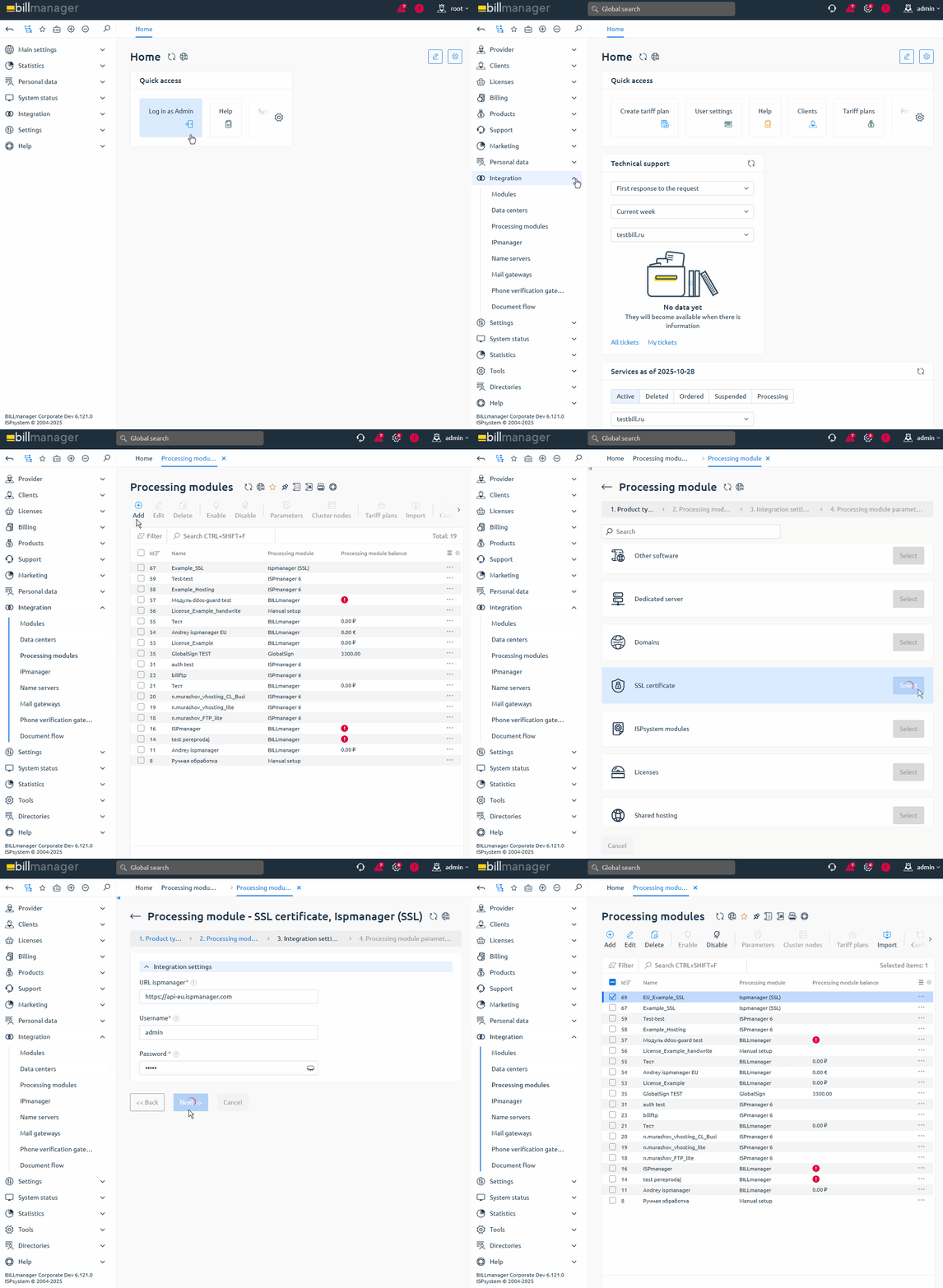
- Log in to BILLmanager as an administrator at https://YOUR_DOMAIN/billmgr.
- Go to Integration → Processing modules.
- On the toolbar, click Add.
- At the Product type step, select SSL certificate.
- At the Processing module step, select Ispmanager (SSL).
- At the Integration settings step, enter the following data:
- URL ispmanager — the address of the ispmanager billing system which will provide SSL certificates: https://api-eu.ispmanager.com
- Username — the login of the account under which purchases will be made in the ispmanager client area
Password — the password of the account under which purchases will be made in the ispmanager client area
If 2FA is enabled for your account in your ispmanager client area, you'll see an error in BILLmanager when connecting the processing module. Disable 2FA or use a different account for integration.
- Click Next.
- At the Processing module parameters step, specify the details:
Data center — a set of servers connected from the BILLmanager side
How to create a data center- Go to Integration → Data centers.
- On the toolbar, click Add.
- In the settings, enter the data center details:
- Name — data center name displayed in the interface for a specific localization
- External data center id — leave blank
- Sorting order — priority of the data center among others connected in BILLmanager. Sorting uses natural integers from 1 to N (the lowest number has the highest priority)
- Click Ok.
- Name — name of the processing module displayed in the interface for a specific localization
Department — department in BILLmanager processing module tasks will be assigned to. Example: “Technical department”, “Sales department”, or “Service processing department”. Tasks will only be visible to the selected department.
How to create a responsible department- Go to Provider → Departments.
- On the toolbar, click Add.
- In the settings, enter the following department details:
- Main settings:
- Name — department name displayed in the interface for a specific localization
- Business hours — department working hours that define its response time. To select a schedule, create one under Provider → Business hours.
- Show in support center — check this box to make the department available for clients when submitting a support request. This enables Department settings.
- Task localization — localization used for task notifications assigned to the department. Additional languages are available if added under Settings → Localizations.
- Department settings:
- Available to clients of the selected provider — providers whose clients will see this department when creating a request.
- Head of department — head of the support department. To select an employee, create one under Provider → Employees.
- Ticket category description — short description of the department and its responsibilities, shown to clients when selecting a department.
- Sort — priority of the department among others in BILLmanager. Sorting uses natural integers from 1 to N (the lowest number has the highest priority).
- Main settings:
- Sorting — the priority of the processing module among others connected to BILLmanager. Sorting uses natural integers from 1 to N (the lowest number has the highest priority).
- Processing module minimal balance — the minimum handler balance required for successful service renewal. An ispmanager account with a positive balance is required. The value is specified in the currency of the ispmanager account balance. The currencies of the selling and reselling platforms must match.
- Click Finish.
After creating a processing module (certification center), import the necessary tariff plans.
SSL tariff management
To enable your clients to order an SSL certificate, import, configure, and enable tariff plans.
Importing a tariff
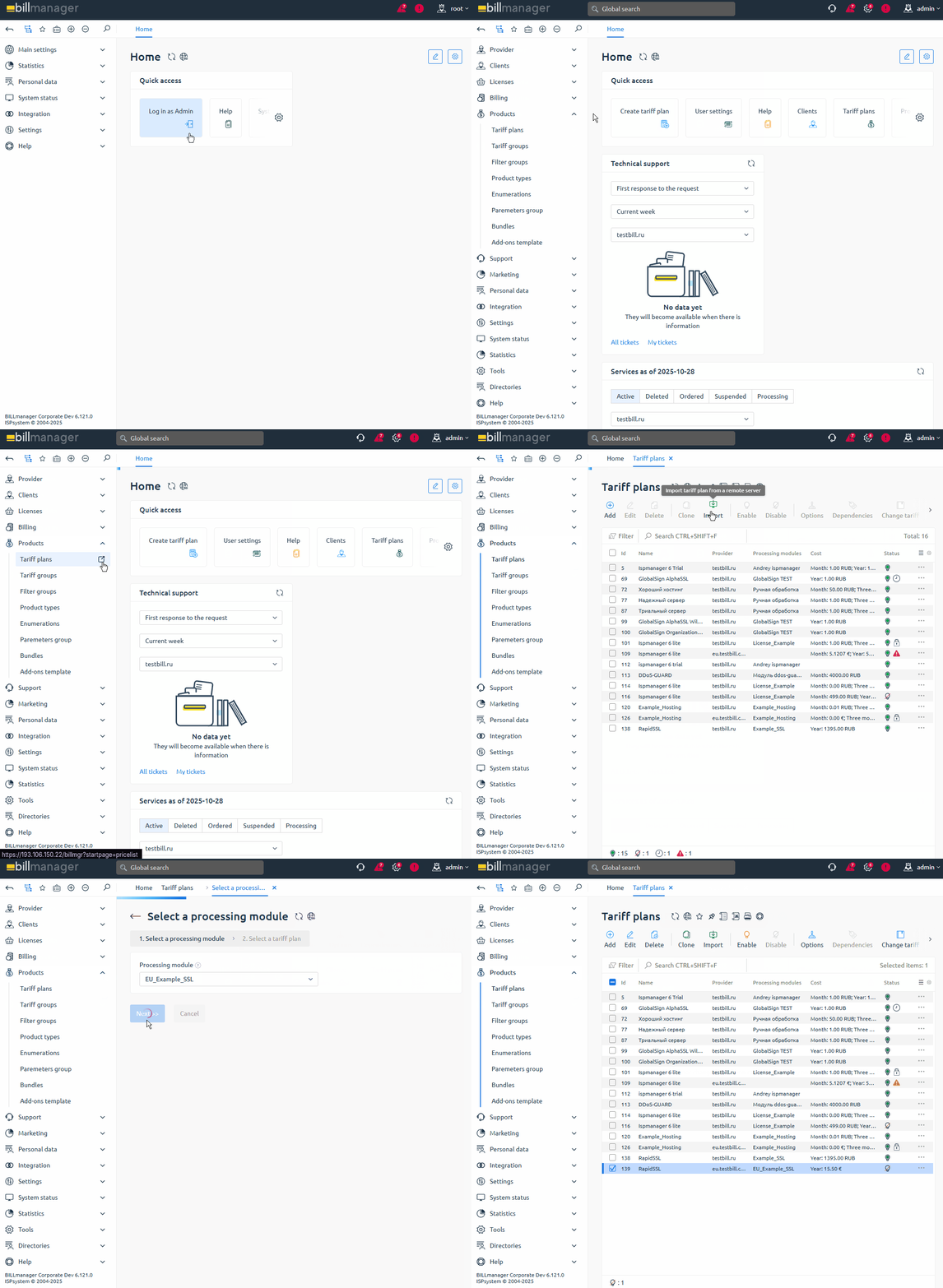
- Log in to BILLmanageras an administrator at https://YOUR_DOMAIN/billmgr.
- Go to Products → Tariff plans.
- On the toolbar, click Import.
- Select the previously created processing module in the settings.
- Click Next.
- Import the required tariff plans sequentially:
- Product type — SSL certificate is set by default
- Tariff plan — SSL certificate tariff ID from the ispmanager billing system
Provider — select a provider to import your tariff plan. This will allow you to brand your sales services, separate certificate sales, separate clients, and process payments in different currencies.
How to create a provider- Go to Provider → Providers.
- On the toolbar, click Add.
- Enter the details to create a provider:
- Main settings:
- Name — name of the provider
- Upload icon 16x16 — an image that will be used in the list of available providers. Maximum size: 16x16 pixels
- Email for notifications — the email address from which notifications will be sent to clients. To ensure successful notification sending, set up an external mail server and outgoing email gateway.
- Support email — the email address from which notifications will be sent: about user activation, payer activation, and password recovery. Leave blank to send notifications from the Email for notifications.
- Web-site URL — the address of your website
- Billing URL — a public address with access to BILLmanager
- Help URL — the address of the page that will be opened for the client from the Help → Help section
Currency — the currency used for settling orders with clients of one provider. After creating a provider, you can change the currency. New accounts in the new currency will be created for all clients. Clients who already had an account registered in the old currency will retain their account.
If there are active payments or uncovered expenses in the system, the currency change will not be available.
- Default Country — the default country and interface localization
- Methods of registration and authorization:
- By phone number — enable phone number authorization. When registering or logging into BILLmanager, you will be asked for a confirmation code via an SMS. If your phone number is not provided or not confirmed, you will need to log in with your username and password.
- Number of code entry attempts — the limit on the number of times an incorrect code can be entered. Once the limit is reached, a new confirmation code will be required.
Number of code retrieval attempts — the limit on the number of times a new confirmation code can be sent to a phone number. Once the limit is reached, a timeout will be required before another authorization attempt can be made.
For more information on employee registration and authorization methods, please refer to the official ISPsystem documentation.
- By phone number — enable phone number authorization. When registering or logging into BILLmanager, you will be asked for a confirmation code via an SMS. If your phone number is not provided or not confirmed, you will need to log in with your username and password.
- Main settings:
- Click Finish.
After the import, a new tariff plan with the selected SSL certificate will appear on the list. The yearly price will be set automatically. This will allow to activate the tariff plan immediately and start reselling certificates.
If necessary, adjust the tariff plan settings.
Configuring a tariff
- Log in to BILLmanager as an administrator at https://YOUR_DOMAIN/billmgr.
- Go to Products → Tariff plans.
- Select and Edit an existing tariff plan.
Set the necessary configuration options in the blocks:
Main settings- Name — the plan name in the interface with a specific localization. Additional languages are available if added in Settings → Localizations.
- Certificate Authority — select the processing module created earlier
- Charge daily — daily charges for certificate use. If enabled, the following options are available:
Calculate daily cost depending on order period — the daily charge amount will not depend on the number of days in the month. The daily cost will be calculated based on the number of days in the order period.
ExampleIn January, a client orders a monthly service. The daily charge is $0.1. Without this option, the charge will be $3.1 for 31 days of the month. With this option, the cost will be calculated based on the number of days in the service period (30 days). Thus, the client will pay $3 for 30 days of service use.
- Allow clients to resume/suspend services — the client will have the right to enable and disable the ordered certificate. Not set by default.
- Charge client after suspension — if enabled, the client pays for the certificate's downtime. If disabled, the client will be refunded for the certificate's downtime. Not set by default. Not set by default.
- Calendar-based charges — the service term will be aligned with the calendar month. Not available when using the Charge daily option.
Pro-rata day — if a customer orders a service on the day of the month before the transition day, the service term will be calculated until the end of the current month. If a service is ordered on the transition day or later, the service term will be calculated until the end of the following month. The order or renewal price will be adjusted accordingly. Default value: 15.
ExampleThe Pro-rata day is set to 15. The service the client ordered on July 12 will be active until August 1. The service the client ordered on July 17 will be active until September 1.
- Quick order Additional settings order a certificate without specifying parameters. Allows you to defer configuration until you order the service. Not set by default.
- Service activation notification template — a notification template with instructions on how to use the certificate. The notification is sent to the client via email after the service is activated and is also repeated in BILLmanager. Available if the template has been previously added in Settings → Message templates.
- Service agreement — a service agreement template that the client must agree to when ordering a certificate. Available if a template has been added in Settings → Document templates.
Additional settingsCertificate type — a certificate selected from the list of ispmanager SSL certificates
Prices- One year — the cost of the certificate or its renewal for a year.
- Disable the "Yearly" period — check this box if you want to prohibit ordering a certificate for a year.
- Setup fee — additional charge when purchasing a certificate.
- Renewal with special price — a separate price for renewing your certificate for a selected period. If you check this box, the following options are available:
- Renew for 1 year — the cost of renewing a certificate for one year
PolicyAllow for client groups — customer groups that can order and change tariffs.
How to create a client group- Go to Clients → Client groups.
- On the toolbar, click Add.
- Set the required settings:
- Name — name of the client group
- Allow service suspension/activation — check this box to allow group clients to activate and suspend certificates.
- Allow service deletion — check the box to allow clients in the group to remove SSL certificates.
- Ignore the number of services on client's account — check the box to override the policy for the Number of services available for order in the tariff settings.
- Click Ok.
- Forbid to client groups — groups of customers who cannot order or change their tariffs.
- Minimum order period — the minimum service usage period after ordering. If this option is set, the following is available:
- Minimum period length — the number of days or months in the minimum order period.
- Number of services available for order — the number of certificates available for order per client. If a client reaches the limit, ordering certificates for this tariff plan will be unavailable.
- Simultaneous services order — the client can add multiple services to the cart simultaneously. If you check this box, the following option will be available:
- Maximum number of services — the number of services added to the cart simultaneously. Large numbers of services ordered simultaneously may impact BILLmanager performance .
- Late renewal fee — a penalty for late certificate renewal. The penalty is charged when the client renews the certificate. Available values:
- Without fee — late renewal of a certificate is not subject to a penalty
- Fixed amount — a fixed penalty amount is added to the renewal cost
Percent from the price for late renewal — a percentage of the cost of the overdue period is added to the cost of the renewal
ExampleA 50% fine is imposed for late renewal of a certificate.
The certificate expired on September 1, and renewal is scheduled for September 5.
To calculate the fine, the system will calculate the service cost for each day (even if the certificate was purchased for a year). Let's say the fine is $0.1 per day. The late fee will then be calculated:5 days x $0.1 = $0.5
The total fine amount is $0.25, since the fine percentage is 50%.
Renew from suspension date — the service term will be calculated from the date of suspension, not the renewal date. This means the penalty is calculated based on the service term, not the monetary amount.
ExampleThe certificate expired on August 3, and renewal is only available on August 15. After renewal, the certificate will be activated until September 3, not September 15.
- Auto-deletion period — the number of days set for the automatic deletion of unrenewed certificates. Leave blank to use the auto-deletion period specified in the Service type settings (SSL certificate). If the auto-deletion period is not specified in the service type, expired services will not be deleted.
- Suspend service on weekends — overrides the certificate shutdown policy. Available values:
- Use product type settings — the tariff will use the policies from the settings of the corresponding product type.
- Suspend services — tariff services will be stopped on weekends (Saturday, Sunday) if the client does not have a sufficient account balance to pay for the extension
- Do not suspend services — services under this tariff plan will not be suspended on weekends (Saturday, Sunday) if client does not have a sufficient account balance to renew them. If there is a penalty for renewing a suspended service, funds for the additional days of service will be debited from the customer's account when paying for the service renewal.
- Tariff change policy — the billing policy used when changing a service's tariff. Available values:
- Change period — when changing the tariff, the validity period of the service will be recalculated upwards when switching to a cheaper tariff, or downwards when switching to a more expensive tariff
- Add funds/refund — when upgrading to a more expensive tariff, the customer will be required to pay the difference in price for the remaining service period. When downgrading to a cheaper tariff, the customer will be refunded the difference in price for the remaining service period.
- Tariff cannot be changed — switching to another tariff will be impossible
- Extra charge only, no refund upon downgrade — when switching to a higher plan, the customer will need to pay the difference in price for the remaining service period. When switching to a lower tariff, there will be no refund, but the customer will be able to use the previous plan without any additional payment.
- Full payment for a new tariff plan — the client will be charged the full cost of the new plan, and the service validity period will be calculated based on the selected order period from the date of the plan change.
- Renew from — the service renewal policy for a new tariff plan. Available values:
- current date — the service is extended from the current date.
- service expiration date — the service is extended from the expiration date.
- Renew from — the service renewal policy for a new tariff plan. Available values:
- Additional resources order policy — a method for calculating the cost of additional resources when ordering a certificate during its validity period. To use this option, create and configure additional resources. Available values:
Price before a service expiration date — the cost of addons is calculated until the certificate expiration date
ExampleThe certificate is valid until November 30. Additional service resources must be ordered on November 15. The cost of these addons will be calculated for 15 days only.
Full price over the whole period — the full cost of add-ons, regardless of the certificate expiration date. The most recently paid or renewed certificate period is selected for the addon.
ExamplesExample 1:
Additional resources are being ordered for the service on November 10. Previously, the certificate was purchased for a month until November 20. The add-ons will only be active for 10 days, but will be paid for at full price.
Example 2:
A customer used the service for three months, renewing it each time for a month. Seeing that the service was about to expire again, the customer renewed the service for another three months. After using the service for two months, they decided to order additional resources. If the Full price over the whole period option is used, the cost of the add-ons will be charged for three months. Even if there's one month left on the service, this will not affect the cost of the add-ons.
- Addon cancellation policy — cancellation of tariff plan add-ons. A refund for the remaining service term or service removal without compensation is possible.
- Tariff plan end date — date after which it is impossible to order or renew the tariff.
- Notes — here you can add text notes about the tariff plan. Visible only to company employees.
Service order configuration- Sort — sorts tariffs from the list by priority. Sorting uses natural integers from 1 to N (the lowest number has the highest priority). If tariff values are the same, they are sorted alphabetically.
- Upload icon — an image for a specific tariff in the BILLmanager interface.
- Show addon icons — the rule for displaying icons for add-ons to the tariff plan.
- Tariff description — a plan description in the BILLmanager interface linked to the active localization. Markdown markup is available.
- Labels — a list of values required for customers to filter tariffs. Each value is specified in a new line.
- Click Ok.
Once configuration is completed, enable the tariff plan.
Enabling a tariff
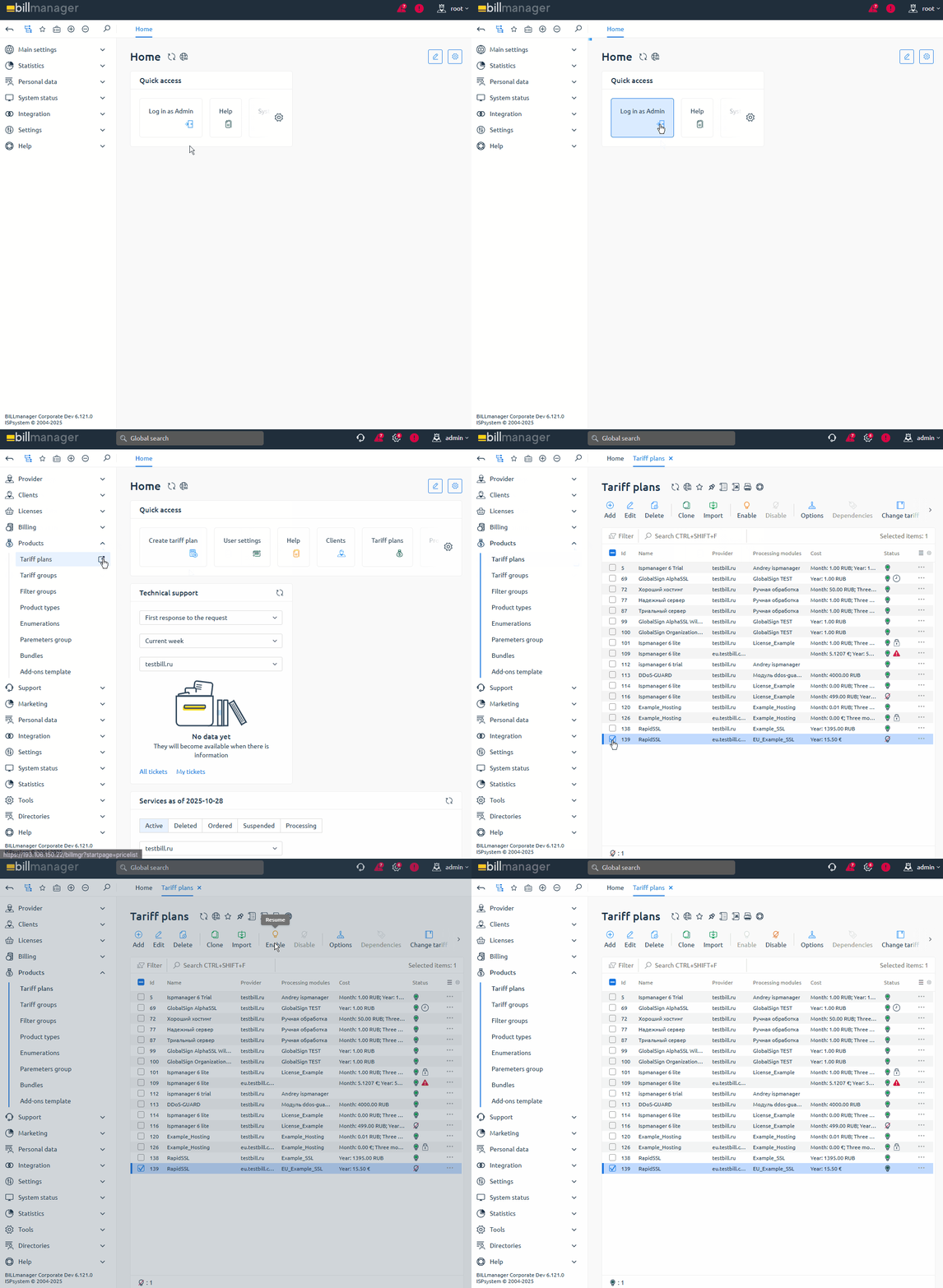
- Log in to BILLmanager as an administrator at https://YOUR_DOMAIN/billmgr.
- Go to Products → Tariff plans.
- In the list, click on the imported tariff plan.
- On the toolbar, click Enable.
- Confirm enabling of the tariff plan.
If needed, repeat the process for all created tariff plans.