Reselling ispmanager SSL certificates through WHMCS
Ispmanager NOC module for WHMCS offers automated reselling of SSL certificates.
Module features
| Feature | Partner | Client |
|---|---|---|
| Ordering an SSL certificate | ||
| Viewing the domain validation DNS record | ||
| Requesting domain validation/resending a domain validation email | ||
| Downloading an SSL certificate, CSR and private key | ||
| Renewing the service in WHMCS | ||
| Renewing an SSL certificate | ||
| Reissuing an SSL certificate | ||
| Terminating an SSL certificate | ||
| Viewing the SSL certificate history | ||
| Viewing the ispmanager instruction on how to issue and install an SSL certificate |
Module requirements
The recommended WHMCS version is 8.9 or higher.
The ispmanager NOC module is available for free after installation.
Module installation
- Connect to the WHMCS server via SSH.
Go to the modules directory. The modules directory is located in the directory where WHMCS was installed to.
cd /ROOT_WHMCS/modules/Download the ispmanager NOC module:
wget https://www.ispmanager.com/static/files/whmcs/whmcs_ispmanager_noc.zipIf the terminal does not read the wget utilityInstall the utility:
For Debian-based operating systemsapt install wgetFor RHEL-based operating systemsyum install wgetUnpack the module in the modules directory:
unzip whmcs_ispmanager_noc.zipIf the terminal does not read the unzip utilityInstall the utility:
For Debian-based operating systemsapt install unzipFor RHEL-based operating systemsyum install unzip
After unpacking, the module will be automatically activated and available for use. To verify:
- Log in to WHMCS as an administrator account at https://YOUR_DOMAIN/admin.
- Go to Configurations → Apps & Integrations.
- Search for "ispmanager." The ispmanager NOC module marked as Active should appear on the list.

Setting up integration between WHMCS and ispmanager
To resell SSL certificates, set up integration between WHMCS and ispmanager. First, create a server in WHMCS and specify your ispmanager account credentials. If you use multiple ispmanager accounts for reselling, create a server for each.
Next, to automatically order SSL certificates, link the created server to SSL certificates in the service settings. Linking is only available for:
- the default server for the module
- servers in a group
If you use a single ispmanager account to resell SSL certificates, licenses, and ispmanager modules, simply designate the ispmanager server as the default.
If you use multiple accounts, create a separate group for each ispmanager server.
Creating a server
- If you don't have an ispmanager account yet, create one.
- Log in to WHMCS as an administrator at https://YOUR_DOMAIN/admin.
- Go to Configurations → System Settings.
- Select the Servers section.
- Click Add New Server.

- Fill in the fields. Required fields are marked with asterisks.
- Module* — select "ispmanager NOC"
- Hostname or IP Address* — enter the domain name of your ispmanager account — eu.ispmanager.com
- Username* — username in your ispmanager account
- Password* — user password in your ispmanager account
- Access Hash — leave blank
- Click Continue.
- Fill in the rest of the fields. Required fields are marked with asterisks.
- General information:
- Name* — an arbitrary name under which the ispmanager server will be saved in WHMCS. The server name will only be viewable by the WHMCS administrator.
- Assigned IP Addresses — leave this field blank.
- Monthly Cost — leave this field blank.
- Datacenter/NOC — leave this field blank.
Maximum No. of Accounts — the limit on the number of SSL certificates available for resale using the server. This value is used to calculate the server occupancy rate in the group when distributing ordered SSL certificates among the servers. If the server is not added to the group or is the only server in the group, this value is not applied.
The actual number of SSL certificates available for resale is not limited.
- Server Status Address — leave this field blank.
- Enable/Disable — server status: enabled/disabled. A disabled server cannot be connected to a new service when creating it. Existing services linked to a disabled server will remain available for ordering, but an SSL certificate will not be automatically ordered for them.
- Nameservers — leave these fields blank.
- SSO Access Control — single sign-on access:
- Unrestricted — unlimited: allow all WHMCS administrators to automatically log in to the ispmanager dashboard.
- Restricted — limited: allow automatic authorization to the ispmanager dashboard only for WHMCS administrators and users with the specified role:
- Full Administrator — full administrator
- Sales Operator — sales department operator
- Support Operator — technical support operator
- General information:
- Click Save Changes.
Creating a server group
Create a server group if you use multiple ispmanager accounts for reselling. This will allow you to link the group to SSL certificates in the service settings and automate their ordering.
- Log in to WHMCS as an administrator at https://YOUR_DOMAIN/admin.
- Go to Configurations → System Settings.
- Select the Servers section.
- Click Create New Group.
- Fill in the fields:
- Name — the name under which the group will be saved in WHMCS. The group name will only be viewable to the WHMCS administrator.
Fill Type — the rule by which a server in the group will be selected for ordering SSL certificates if the group contains multiple servers.
- Add to the least full server — SSL certificates will be ordered through the server with the most amount of available space.
- Fill active server until full then switch to next least used — if the default server is not in the group, SSL certificates will be ordered through the default server or the first server in the alphabetical order until it is full, then through the server with the most amount of available space.
Server capacity is calculated based on the ratio of existing orders to the maximum allowed number of orders.
Selected Servers — servers in a group. To add a server to a group, select it in the left column and click Add:

- Click Save Changes.
Default server
Each module in WHMCS is assigned a default server. The default server is used:
- if a server group is not specified in the module settings when creating a service (None option is selected)
- as a priority within a server group
A single server is automatically designated as the default server.
If there are multiple servers, to designate one as the default server, click its name in the list. An asterisk will appear next to the default server:

Creating services in WHMCS
Creation of services is available after creating at least one service group.
Service groups
When adding services to groups on the customer order page, the services will be grouped into groups in the Categories section.
- Log in to WHMCS as an administrator at https://YOUR_DOMAIN/admin.
- Go to Configurations → System Settings.
- Select the Products/Services section.
Click Create a New Group.
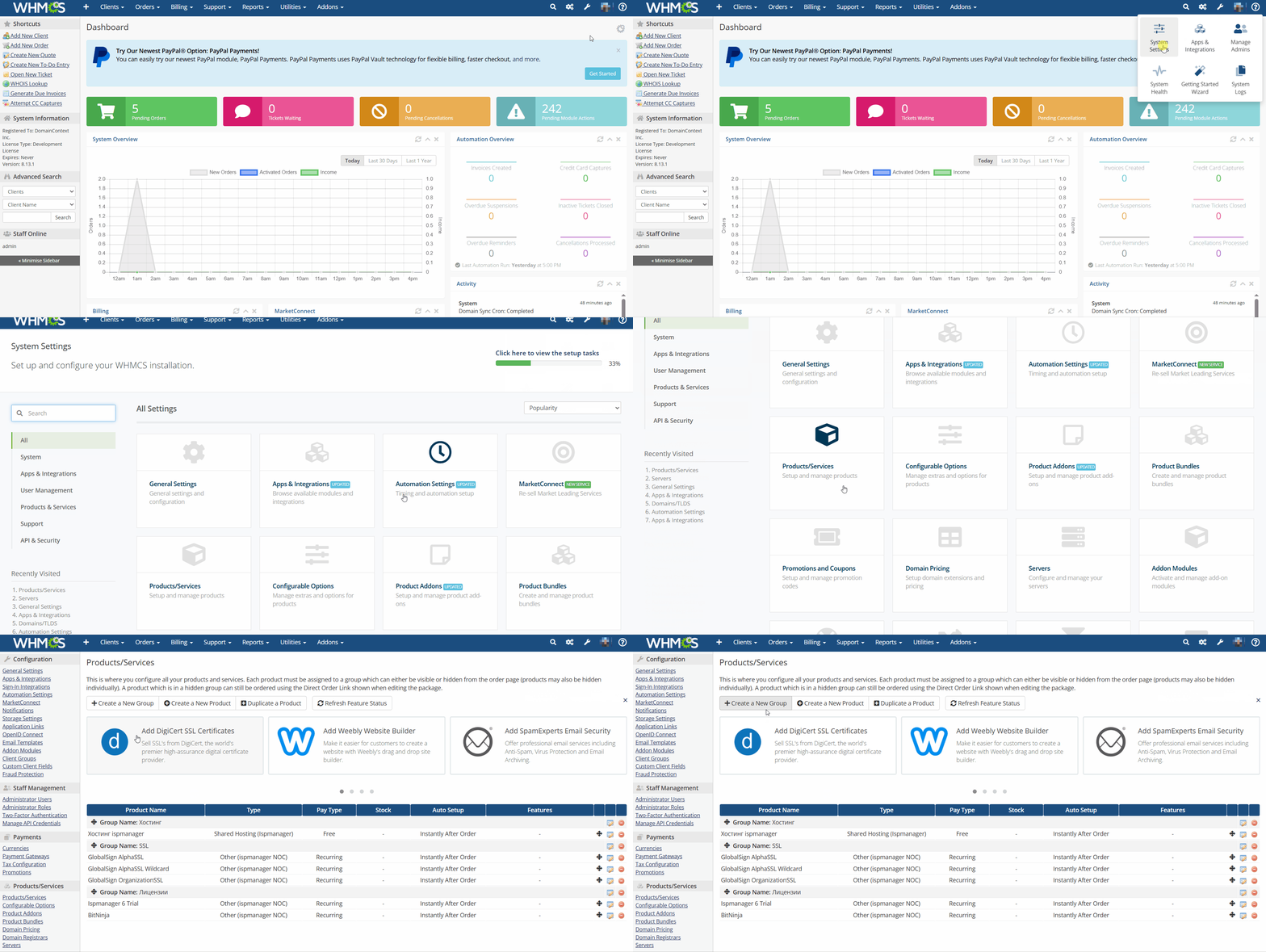
- Fill in the fields. Required fields are marked with asterisks.
- Product Group Name* — the name of the service group under which it will be displayed in the WHMCS client area. For example, "SSL certificates".
- URL — a link to the group in the WHMCS client area. If hidden, the group will be accessible via the specified link.
- Product Group Headline — the title under which the group will be displayed in the WHMCS client area. For example, "SSL certificates for sites and mail."
- Product Group Tagline — the subtitle under which the group will be displayed in the WHMCS client area. For example, "DV-/OV/-EV certificates"
Group Features — features available to the customer when ordering any service from the group.
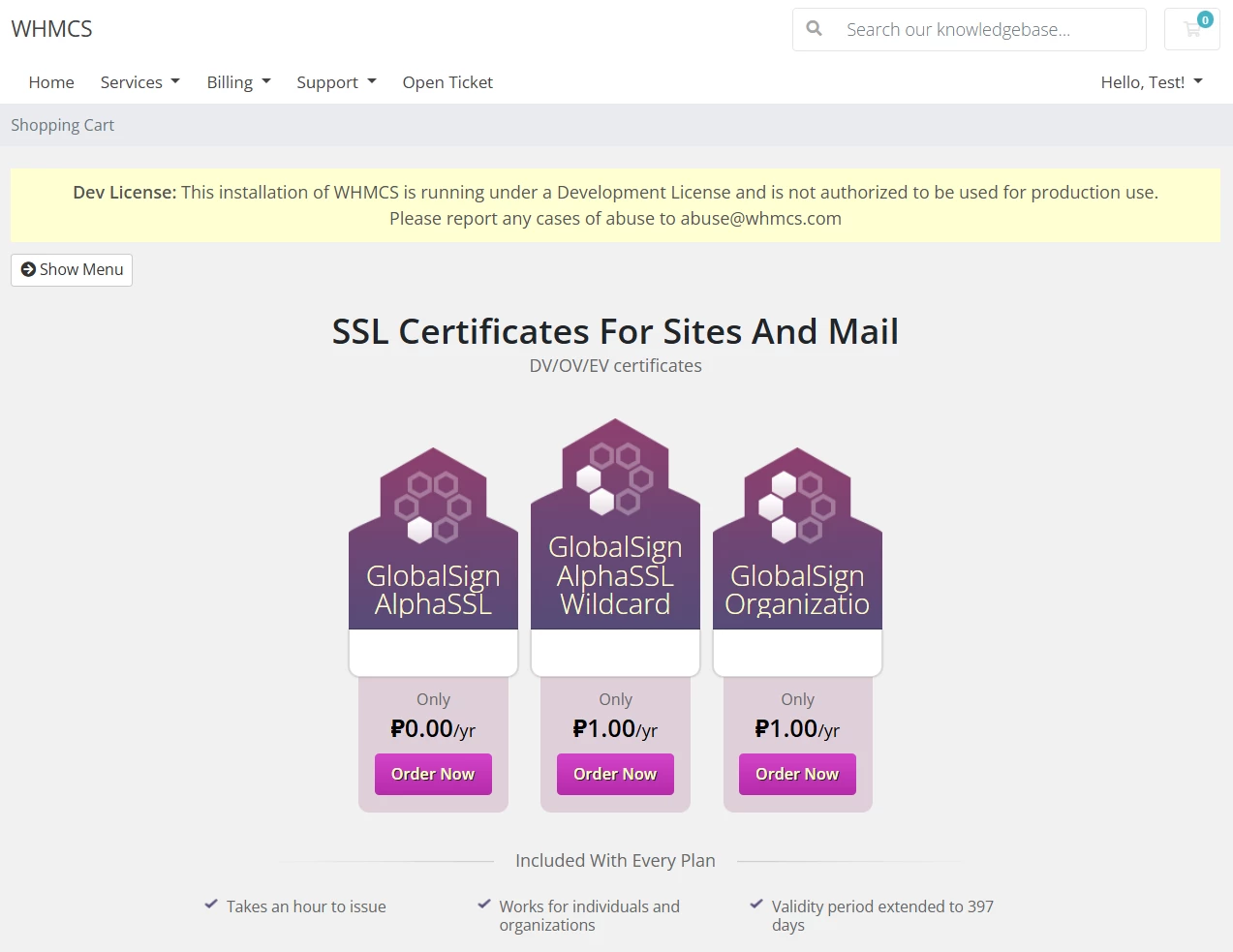
- Order Form Template — an order page template. The template becomes available for selection when editing a group after it's created.
- Use System Default (Standard Cart) — use the standard order page.
- Use Specific Template — select a different order page for the service.
- Available Payment Gateways — select available payment gateways.
- Hidden — check the box to hide the service group from the WHMCS client area. The group will only be accessible via a direct link.
- Click Save Changes.
Services
For more information on service configuration, please refer to the official WHMCS documentation.
- Log in to WHMCS as an administrator at https://YOUR_DOMAIN/admin.
- Go to Configurations → System Settings.
- Select the Products/Services section.
- Click Create a New Product.
- Fill in the fields. Required fields are marked with asterisks.
- Product Type* — select Other
- Product Group* — service group
- Product Name* — service name under which it will be displayed in the WHMCS client area
- URL — a link to the service in the WHMCS client area. If hidden, the group will be accessible via the specified link.
- Module — select "ispmanager NOC"
- Create as Hidden:
- ON — the service will be hidden from the WHMCS client area and accessible only via a direct link
- OFF — the service will appear in the WHMCS client area immediately after creation
- Click Continue.
Configure the remaining service settings. Required fields are marked with asterisks.
Details- Product Tagline — the slogan with which the service will be displayed as a recommended feature in the WHMCS client area when ordering another service. For example, "Protect your domain."
- Product Short Description — a short description with which the service will be displayed as a recommended feature in the WHMCS client area when ordering another service. For example, "Suitable for individuals and legal entities."
- Product Description — the description with which the service will be displayed on the order page, for example, a list of features.
Product Color — the theme color with which the service will be displayed as a recommended feature in the WHMCS client area.
For a service to be displayed as a recommended feature when ordering another service, it must be added as a recommended feature in the other service's settings on the Cross-sells tab.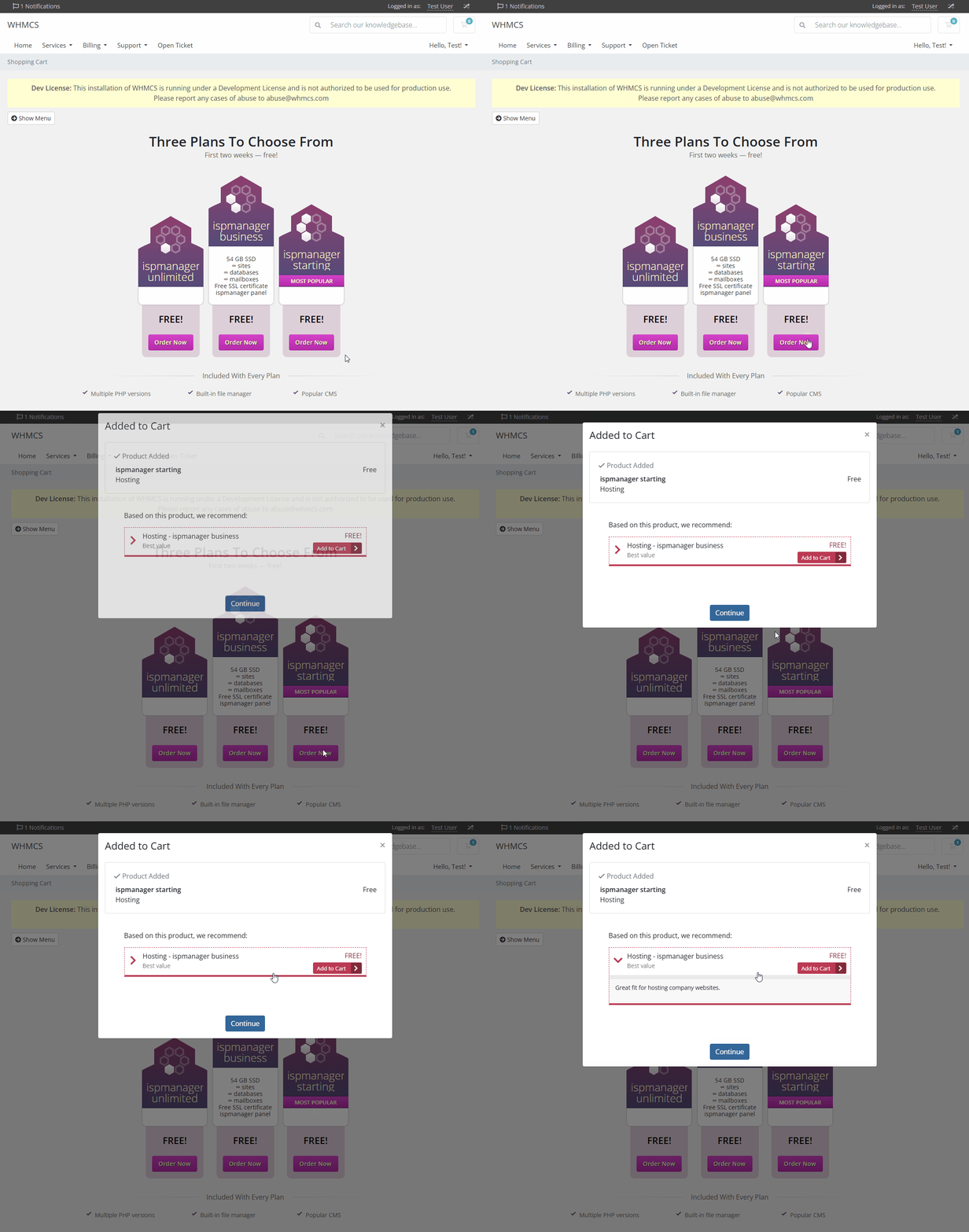
Welcome Email — a welcome email template that will be automatically sent to the customer upon service activation.
- None — the email will not be sent automatically.
- Other Product/Service Welcome Email — the default template "Other Product/Service Welcome Email" will be used.
Editing the default template and creating your own templates is available in Configuration → System Settings → Email Templates.
- Require Domain — leave blank.
- Stock Control — check this box to limit the number of services available for ordering and enter the available quantity in the field. Once this quantity is reached, the service will no longer be available for ordering.
- Apply Tax — add a tax to the service price. To configure taxes, go to Configuration → System Settings → Tax Configuration.
- Featured — check this box to display the service as the most popular on the order page. Not available for all order page templates.
- Hidden — check this box to hide the service from the WHMCS client area. The service will be available for ordering via a direct link.
- Retired — check this box to make the service unavailable for ordering from either the WHMCS client or administrative areas, including via a direct link.
PricingPayment Type* — select Recurring and set the billing cycles and price.
DetailsAvailable billing cycles differ from certificate to certificate. If an unsupported billing cycle is selected for a certificate, certificate activation will fail.
Available billing cycles for certificatesCertificate Annually Biennially Triennially GlobalSign AlphaSSL GlobalSign AlphaSSL Wildcard GlobalSign DomainSSL GlobalSign DomainSSL Wildcard GlobalSign OrganizationSSL GlobalSign OrganizationSSL Wildcard GlobalSign EV SSL Sectigo (ex Comodo) PositiveSSL Sectigo (ex Comodo) PositiveSSL Wildcard Sectigo (ex Comodo) PositiveSSL Multi Domain (включено 3 домена) Sectigo (ex Comodo) Essential SSL Sectigo (ex Comodo) Essential SSL Wildcard Sectigo (ex Comodo) Instant SSL Sectigo (ex Comodo) Premium Wildcard Sectigo (ex Comodo) EV SSL certificate RapidSSL RapidSSL Wildcard Thawte SSL123 Thawte SSL123 Wildcard Thawte SSL Web Server Thawte SSL Web Server with EV GeoTrust QuickSSL Premium GeoTrust True BusinessID GeoTrust True BusinessID Wildсard GeoTrust True BusinessID with EV DigiCert Secure Site DigiCert Secure Site with EV Digicert Secure Site Pro Digicert Secure Site Pro with EV When ordering a certificate with a "Biennually" and "Triennually" billing cycles, it will need to be renewed/reissued manually every year.
Check the Enable box next to the desired payment period to activate that billing cycle:
- Annually
- Biennially
- Triennially
For every active period specify:
- Setup Fee — the cost of the service
- Price — a one-time fee for opening the service

- Allow multiple quantities — allow ordering multiple services of this type:
- No — do not allow
- Yes - Multiple services — when ordering multiple services, each service will be processed as a separate order with a price equal to the service price.
- Yes - Scaling service — when ordering multiple services, all services will be processed as a single order with a price equal to the service price multiplied by the number of services.
- Recurring Cycles Limit — the number of times a service with the "Recurring" payment type selected will renew. Once this limit is reached, the customer's service will be automatically canceled. If the value is 0, the service will renew indefinitely until manually canceled.
- Auto terminate/Fixed term — the number of days after which the service will be automatically canceled.
- Termination email — a template for the email that will be automatically sent to the client upon automatic cancellation of the service if the Auto terminate/Fixed term parameter is configured. Creating and editing templates is available in the Configuration → System Settings → Email Templates section.
- Pro-rata billing — do not check this box
On-Demand Renewals* — early renewal of the service in WHMCS:
SSL certificates must be renewed manually not earlier than 30 days before they expire.
- Use System Default — use the global settings specified in the Ordering tab under Configuration → System Settings → General Settings.
- Use Product-Specific Configuration — override the global settings for the service. Check the box Check to allow clients to place renewal orders early and specify the maximum number of days before the due date that clients can order renewals for each billing period. To disable early renewals for a specific period, enter 0.
Module Settings- Server Group* — the server or group of ispmanager servers. Select a group from the list or None if the default server will be used for the service.
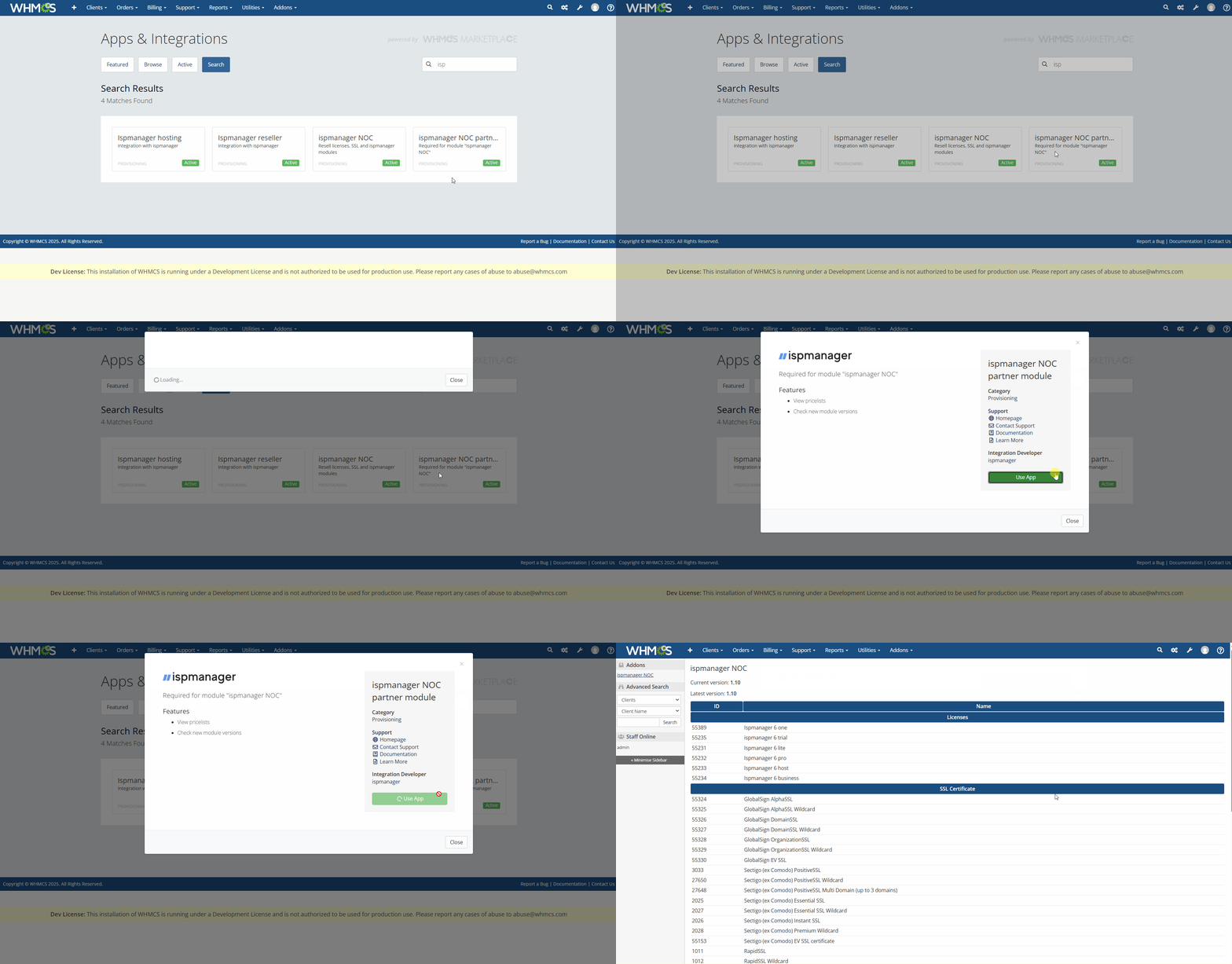
Product ID* — enter the ID of the desired ispmanager plan.
How to find the ispmanager tariff IDTo ensure the ID list is displayed correctly, set the server that will be used to provide the service as the default server.
- Go to Configurations → Apps & Integrations.
- Search "ispmanager."
- Select the ispmanager NOC partner module from the list.
In the form that opens, click Use app. A list of SSL certificates with IDs will open. The SSL certificate IDs will be listed in the "SSL Certificate" section, in the "ID" column.
- Admin phone — enter your phone number so that it is used instead of the client's phone number when issuing an SSL certificate. If this field is left blank, the client's phone number from that client's WHMCS account will be used. If neither phone number is specified, the certificate activation will fail.
Set up automatization options:
- Automatically setup the product as soon as an order is placed
- Automatically setup the product as soon as the first payment is received
- Automatically setup the product when you manually accept a pending order
- Do not automatically setup this product
Custom FieldsCustom fields allow you to retrieve and store information about clients and services in the WHMCS administrative and client areas, such as the client's domain or domain ownership verification method.
For SSL certificates, the following fields are automatically created. By default, all fields except Order ID and Organization DUNS are required when placing an order.
- CN|Domain — the domain for which the certificate will be ordered. In order for the certificate to work both for domains like example.com and www.example.com, enter the domain in the www.example.com format. For a Wildcard certificate, the domain must be entered as *.example.com.
- field_country|Country
- ST|Region — only Latin letters are supported.
- L|City — only Latin letters are supported.
- O|Organization — client's full name.
- approver_method|Approver method — domain control validation method. Available methods vary from certificate to certificate and may include:
auth_email|By email — email-based validation. To use this method, one of the following mailboxes must be available on the client's domain:
- admin@
- administrator@
- hostmaster@
- postmaster@
- webmaster@
An email from a certification authority containing a verification link will be sent to the client's email address selected from the Approver email list.
- auth_dnstxt|By DNS TXT record — DNS-based validation.
The client will be required to create a TXT record with a unique value from their WHMCS account for their domain.
- order_id|Order ID — the order ID. The ID is automatically generated by ispmanager and displayed in your ispmanager account.
- approver_email|Approver email — the email address the verification link will be sent to when email-based validation is used.
- CN|Domain — the domain for which the certificate will be ordered. In order for the certificate to work both for domains like example.com and www.example.com, enter the domain in the www.example.com format. For a Wildcard certificate, the domain must be entered as *.example.com.
- field_country|Country
- ST|Region — only Latin letters are supported.
- L|City — only Latin letters are supported.
- O|Organization — the full name of the organization the certificate is being ordered for. The name must be exactly the same as in the legal entity's registration certificate. Only Latin letters are supported.
- approver_method|Approver method — domain control validation method. Available method:
auth_email|By email — email-based validation. To use this method, one of the following mailboxes must be available on the client's domain:
- admin@
- administrator@
- hostmaster@
- postmaster@
- webmaster@
An email from a certification authority containing a verification link will be sent to the client's email address selected from the Approver email list.
- order_id|Order ID — the order ID. The ID is automatically generated by ispmanager and displayed in your ispmanager account.
- approver_email|Approver email — the email address the validation details will be sent to when email-based validation is used.
- org_name|Organization name — the full name of the organization the certificate will be ordered for. The name must be the same as in the legal entity's registration certificate. Only Latin letters are supported.
- org_country|Organization country
- org_state|Organization region — only Latin letters are supported.
- org_city|Organization city — only Latin letters are supported.
- org_postcode|Organization ZIP code
- org_address|Organization address — only Latin letters are supported.
- org_phone|Organization phone
- org_duns|Organization DUNS
- CN|Domain — the domain for which the certificate will be ordered. In order for the certificate to work both for domains like example.com and www.example.com, enter the domain in the www.example.com format.
- field_country|Country
- ST|Region — only Latin letters are supported.
- L|City — only Latin letters are supported.
- O|Organization — the full name of the organization the certificate is being ordered for. The name must be exactly the same as in the legal entity's registration certificate, including the legal form. Only Latin letters are supported.
- approver_method|Approver method — domain control validation method. Available method:
auth_email|By email — email-based validation. To use this method, one of the following mailboxes must be available on the client's domain:
- admin@
- administrator@
- hostmaster@
- postmaster@
- webmaster@
An email from a certification authority containing a verification link will be sent to the client's email address selected from the Approver email list.
- order_id|Order ID — the order ID. The ID is automatically generated by ispmanager and displayed in your ispmanager account.
- approver_email|Approver email — the email address the validation details will be sent to when email-based validation is used.
- org_name|Organization name — the full name of the organization the certificate will be ordered for. The name must be the same as in the legal entity's registration certificate. Only Latin letters are supported.
- org_country|Organization country
- org_state|Organization region — only Latin letters are supported.
- org_city|Organization city — only Latin letters are supported.
- org_postcode|Organization ZIP code
- org_address|Organization address — only Latin letters are supported.
- org_phone|Organization phone
- org_duns|Organization DUNS
To add a custom field, specify its parameters in the Add New Custom Field block:
- Field Name
- Display Order — the field display order. By default, fields are displayed in the order they are added.
- Field Type:
- Text Area
- Text Box
- Link/URL
- Password
- Drop Down
- Checkbox
- Description — field description for the client.
Validation — a regular expression for validating the entered value.
ExampleTo validate that a field contains only Latin letters, use the expression:
/^[a-z\d -_]+$/i- Select Options — specify options for the drop-down list field, separated by commas.
- Admin Only — check the box to hide the field from the WHMCS client area. The field will only be accessible to the WHMCS administrator.
- Required Field — check this box to make the field required.
- Show on Order Form — check this box to display the field on the service order page.
- Show on Invoice — check this box to display the field on invoices.
To save the field and add a new one, click Save Changes.
Configurable optionsLeave these fields unchanged.
UpgradesUpgrades and downgrades are not supported for SSL. Leave the fields unchanged.
Free DomainLeave these fields unchanged.
Cross-sellsRecommended products and services will be offered to the customer when ordering the current service.
To add a product or service to the recommended list, select it from the Product Cross-sells list and click Save Changes.
Recommendations can be activated and configured in Configuration → System Settings → General Settings on the Ordering tab.
Other- Custom Affiliate Payout — affiliate payouts:
- Use Default — use default payouts.
- Percentage — pay a percentage of the cost of services ordered by the referred client.
- Fixed Amount — pay a fixed amount.
- No Commission — do not pay affiliate payouts.
- Affiliate Pay Amount — the affiliate payout percentage or amount. By default, the amount will be paid regularly. To make the payment a one-time payment, check the One Time Payout box.
- Subdomain Options — leave this field blank.
- Associated Downloads — leave this field blank.
- Overages Billing — leave this field blank.
Links- Direct Shopping Cart Link — a direct link to the shopping cart with the added service
- Direct Shopping Cart Link Specifying Template — a direct link to the shopping cart with an added service and a custom order page template
- Direct Shopping Cart Link Including Domain — a direct link to the shopping cart with an added service, to the domain selection form
- Product Group Cart Link — a direct link to a group of services
- Product URLs — a direct link to the service
- Click Save Changes.
- Create a separate service for each tariff plan.
Test service order
If the service was created correctly, it will be available for ordering in the WHMCS client area. To verify:
Log in to WHMCS using a test client account at https://YOUR_DOMAIN/index.php or create a new account.
How to create a test client account in WHMCSClick Account → Register.
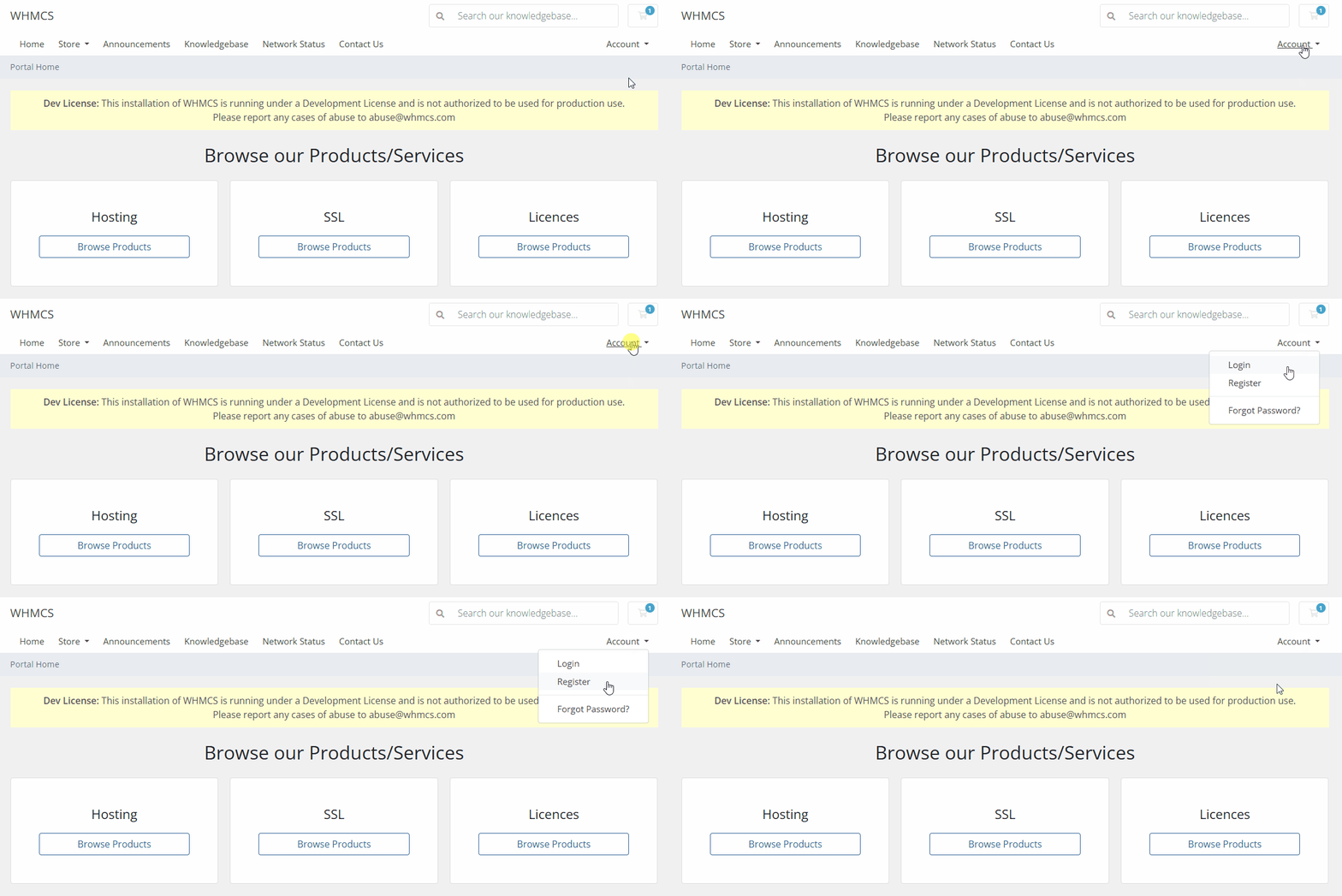
- Fill in the fields. Required fields are marked with asterisks. Data may be fictitious.
- Personal Information:
- First Name* — name of the test client
- Last Name* — last name of the test client
- Email Address* — email of the test client
- Phone Number — phone number of the test client
- Billing Address:
- Company Name — place of work
- Street Address
- Street Address 2
- City
- State
- Postcode
- Select a country from the list
- Additional Information:
- Select a currency from the list, such as USD or EUR
- Account Security:
- Password*
- Confirm Password*
- Generate Password
- Password Length
- Generated Password
- Generate New Password
- Copy
- Copy to Clipboard and Insert
- Personal Information:
- Click Register.
- Go to Services → Order New Services.
- Select a service group from the Categories menu. The service you created will be displayed on the page.
Actions with SSL certificates
- Log in to WHMCS as an administrator at https://YOUR_DOMAIN/admin.
- Go to Orders → List All Orders.
- Select an order from the list.
- In the Order Items table click Product/Service.
- In the form that opens perform required actions:
- Module Commands:
- Create — order an SSL certificate
- Renew — renew the SSL certificate
- Terminate — terminate the SSL certificate
- Reissue — reissue the SSL certificate
- Validation — start domain validation for DNS-based validation or request re-sending of a validation email for mail-based validation
Service commands:
- Download certificate — download the SSL certificate
- Download CSR — download the CSR
- Download private key — download the private key
- Instruction — view the ispmanager instruction on how to issue and install an SSL certificate
- History — view the SSL certificate history

- Module Commands:
- Save the changes.
- Log in to WHMCS as a client at https://YOUR_DOMAIN/index.php.
- Go to Services → My services.
- Select an order from the list.
- In the form that opens perform required actions:
- Actions menu:
- Download certificate — download the SSL certificate
- Download CSR — download the CSR
- Download private key — download the private key
- Reissue — reissue the SSL certificate
- Validation — start domain validation for DNS-based validation or request re-sending of a validation email for mail-based validation
- Renew Service — renew the service in WHMCS
- Request Cancellation — request the SSL certificate termination
- Manage tab — view the validation record if DNS-based validation is used
Additional Information tab — view the SSL certificate details: domain, country, validation method etc.

- Actions menu: