Mail domains
A mail domain is the part of an email address after the @ symbol. It indicates the server where the mailbox is located. For example:
- for user@gmail.com the mail domain is gmail.com
- for user@example.com the mail domain is example.com
In the ispmanager panel, a mail domain serves four main purposes:
- unites all mailboxes under a single name. For example, within the example.com domain, you can create mailboxes like info@example.com, support@example.com, and others
- applies uniform security settings to all mailboxes in the domain. It uses Greylisting blacklists and whitelists, filters spam with SpamAssassin, and checks attachments with ClamAV
- determines what to do with emails to non-existent addresses: display an error, delete the email, or forward it to another address
- uses an SSL certificate to encrypt email traffic
Requirements
To work with mail domains, install a mail server.
Creating a mail domain
If no limits are set in the user's settings, they can create an unlimited number of mail domains.
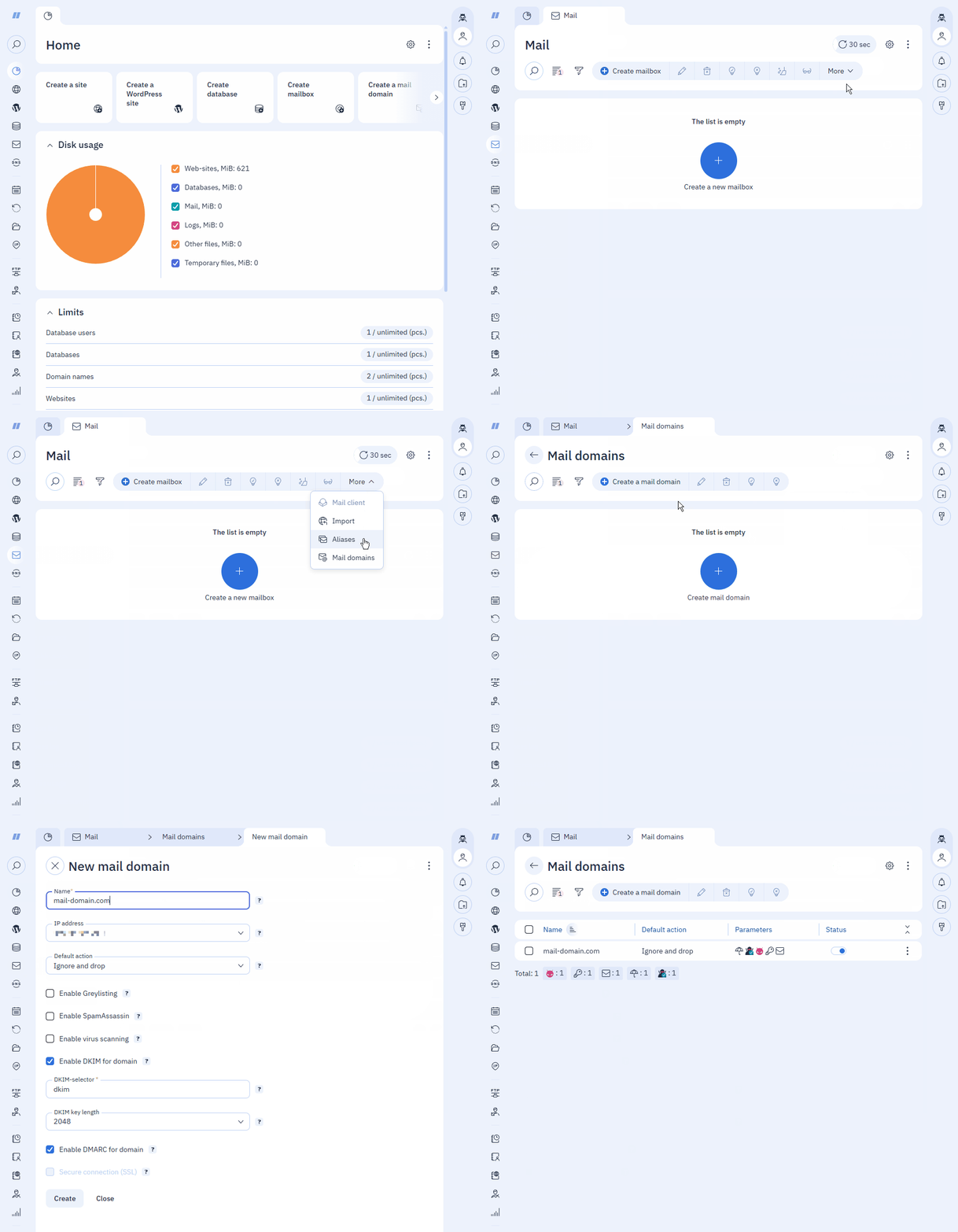
- Log in to ispmanager with the desired account.
- Go to the Mail section.
- On the toolbar, click Mail domains.
- On the toolbar, click
 Create a mail domain.
 - Fill in the fields:
- Name — the name of the mail domain
- Owner — the user who will own the mail domain. This field is not available to users.
- IP address — select the address emails will be sent from.
- Default action — the action performed by the mail server upon receiving an email sent to a non-existent mailbox for this email domain:
- Report error — the sender will receive an error stating that the mailbox does not exist.
- Ignore and delete — the sender will receive an error stating that the mailbox does not exist. The email will be accepted and deleted by the mail server.
- Forward to address — the email will be sent to the email address specified in the Forward to field.
Forward to domain — the mail server will retry searching for a mailbox from the mail domain specified in the Redirect to field.
Redirection will not work if you specify a mailbox alias in the Redirect to field.
- If necessary, set additional options:
- Enable Greylisting — a mail filter for spam protection via Greylisting. Once activated, it becomes available for mailboxes in the mail domain.
- Enable SpamAssassin — a mail filter for spam protection via SpamAssassin. Once activated, it becomes available for mailboxes in the mail domain.
- Enable virus scanning — email scanning via ClamAV antivirus software.
- Enable DKIM for a domain — a technology for protecting mailboxes from phishing. It verifies that emails are sent from the specified mail address. Once activated, a TXT record is automatically created for the mail domain:
- DKIM selector — an identifier published in the DNS records of this domain. It allows receiving mail servers to determine which key to use when verifying the DKIM signature. Default value: dkim
DKIM key length — the length of the generated key. Available values: 1024 and 2048
More about DKIM keysThe record is specified in the format:
KEY_NAME._domainkey.YOUR_DOMAIN. Record example: dkim._domainkey.example.com.Record parameters:
- v — protocol version. Required tag. Always set to DKIM1
- h — hash algorithm for transmitted data. Default: h=sha256. We do not recommend using h=sha1
- k — cryptographic key type. Default: k=rsa
- s — selector that specifies the service type. Multiple selectors can be specified. Examples: s=email (mail), s=* (all services)
- p — generated public key in Base64 encoding of 1024 or 2048 characters. Required tag
Parameters are specified separated by the ";" symbol. Default value:
v=DKIM1; h=sha256; k=rsa; s=email; p=PUBLIC_KEY.Keys are generated using the opendkim-genkey utility under the Exim user-owner of the mail domain:
bin/sh -c /usr/sbin/opendkim-genkey\ -D\ /etc/EXIM_DIRECTORY/ssl\ -d\ MAIL_DOMAIN_NAME\ -s\ dkim\ -rThe generated files are stored in the following directory:
- for RHEL-based operating systems:
/etc/exim/ssl - for Debian-based operating systems:
/etc/exim4/ssl
Directory files:
MAIL_DOMAIN_NAME.private— private keyMAIL_DOMAIN_NAME.txt— public key
- Enable DMARC for domain — a technology for protecting your email domain using DMARC. This sets the incoming email verification policy for the domain. Once enabled, a TXT record is automatically created for the email domain. The value is generated using a template from the DNS management →
 → DMARC record field.
 - Secure connection (SSL) — secures data transmission and encryption. A mail domain certificate is required for activation. This option is available if the mail domain owner has no restrictions on using SSL.
- Certificate alias — the default is: mail.MAIL_DOMAIN_NAME
- SSL certificate:
- New self-signed — a free, untrusted certificate. For public servers, the connection will be considered unsecure.
- New Let's Encrypt certificate — a free, trusted certificate.
- Email — the email address of the contact person.
- Save the changes.
Viewing mail domains
Created mail domains appear in the list in the Mail domains section. Viewing available:
- for a user — their own mail domains
- for a reseller — the mail domains of the reseller's users
- for an administrator — all mail domains
A reseller or administrator can configure the display of mail domains for a specific user. To do this:
- Select the user's email domain.
- Click
 .
. - In the context menu, select Filter by user.
Available actions
| Button | Description |
|---|---|
 | Change mail domain settings |
 | Delete a mail domain. Deleting a mail domain will clear your mailboxes, free up space, and restore disk quotas. Without a backup, it will be impossible to recover deleted emails. |
 | Enable mail domain |
 | Disable the mail domain. All mailboxes and associated features will be unavailable. |
 | Log in to the account with mail domain owner rights. Available for reseller-level accounts and above. |
 | Change the mail server SSL certificate |
 | Change the owner of a mail domain |
Configuration files
| RHEL-based operating systems | Debian-based operating systems | |
|---|---|---|
| Mail domain settings (Exim) | /etc/exim/domains | /etc/exim4/domains |
| Mapping of mail domains to IP addresses for email sending (Exim) | /etc/exim/domainips | /etc/exim4/domainips |
| Mail domain certificates (Exim) | /etc/exim/ssl | /etc/exim4/ssl |
| Mail domain certificates (Dovecot) | /etc/dovecot/certs | /etc/dovecot/certs |
Log
Creation, modification of parameters, deletion and other actions with mail domains are recorded in the main ispmanager log — /usr/local/mgr5/var/ispmgr.log.