Backup schedule
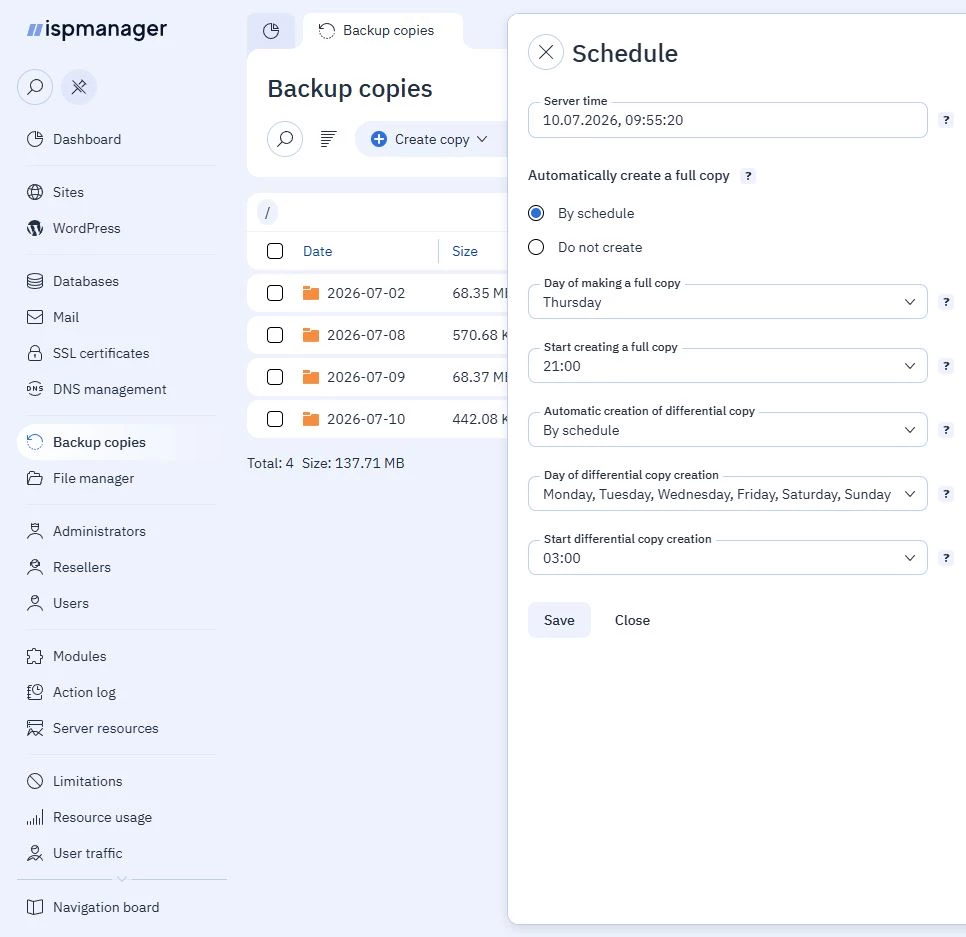
The Backup schedule in ispmanager allows you to enable or disable backups and set a convenient day and time to create a backup copy.
Schedule setup
- In the main menu of the panel, go to Backup copies.
- Click on the
 Schedule button on the toolbar.
 - Select the required parameter values and save the changes.
- Server time — displays the current time of the server. Useful if the time zone of the server is different from the time zone of your computer
- Automatically create a full copy — select one of the options:
- By schedule — enable scheduled backup creation
- Do not create — disable automatic creation of all types of backups
- Day of making a full copy — select one or more days to start a full backup. The first time you configure it, the current day of the week is suggested
- Start creating a full copy — specify the time at which to start a full backup. Available values: 00:00 to 23:00. The first time you configure it, the default value is 03:00
- Automatic creation of differential copy — enable or disable the automatic creation of differential backups. To do so, check or uncheck the appropriate box:
- By schedule — enable scheduled creation of differential copies
- Do not create — disable scheduled creation of differential copies
Day of differential copy creation — select the day on which to start the differential backup. Only days not selected for a full backup are available. The initial setup offers days of the week other than the current day
If there are no full copies for the past week, a full copy will be created instead of a differential copy.
Start differential copy creation — specify the time at which to start the differential backup. Available values: 00:00 to 23:00. The first time you configure it, the default value is 03:00
The schedule will be saved in the configuration file
/usr/local/mgr5/etc/backup.conf. In this case, a task of the form below is created for the Cron scheduler:
0 12,7 * * 1-6 /usr/local/mgr5/sbin/cron-ispmgr sbin/backup2 --mode schedule >/dev/null 2>&1