User backup storage
User storage is only available in ispmanager host.
In ispmanager, users can configure their own storage in addition to the primary storage configured by the administrator. This increases data security by duplicating backups from the panel's primary storage to an external user storage.
User storage does not differentiate functionally to the primary storage. The only difference is that it doesn't allow the use of a local directory on the server. Therefore, only external storage options are available: Dropbox, Google Drive, Amazon S3, FTP, SFTP, and S3-compatible storage.
Automatic backups will be saved to user storage if the administrator has enabled backups for the user and configured the schedule. Users can always create manual backups, regardless of the administrator's settings.
Configuration
To set up user storage:
- Log in to your user account.
- Go to the Backups section.
- Click
 on the toolbar.
 Check the Connect your storage box.
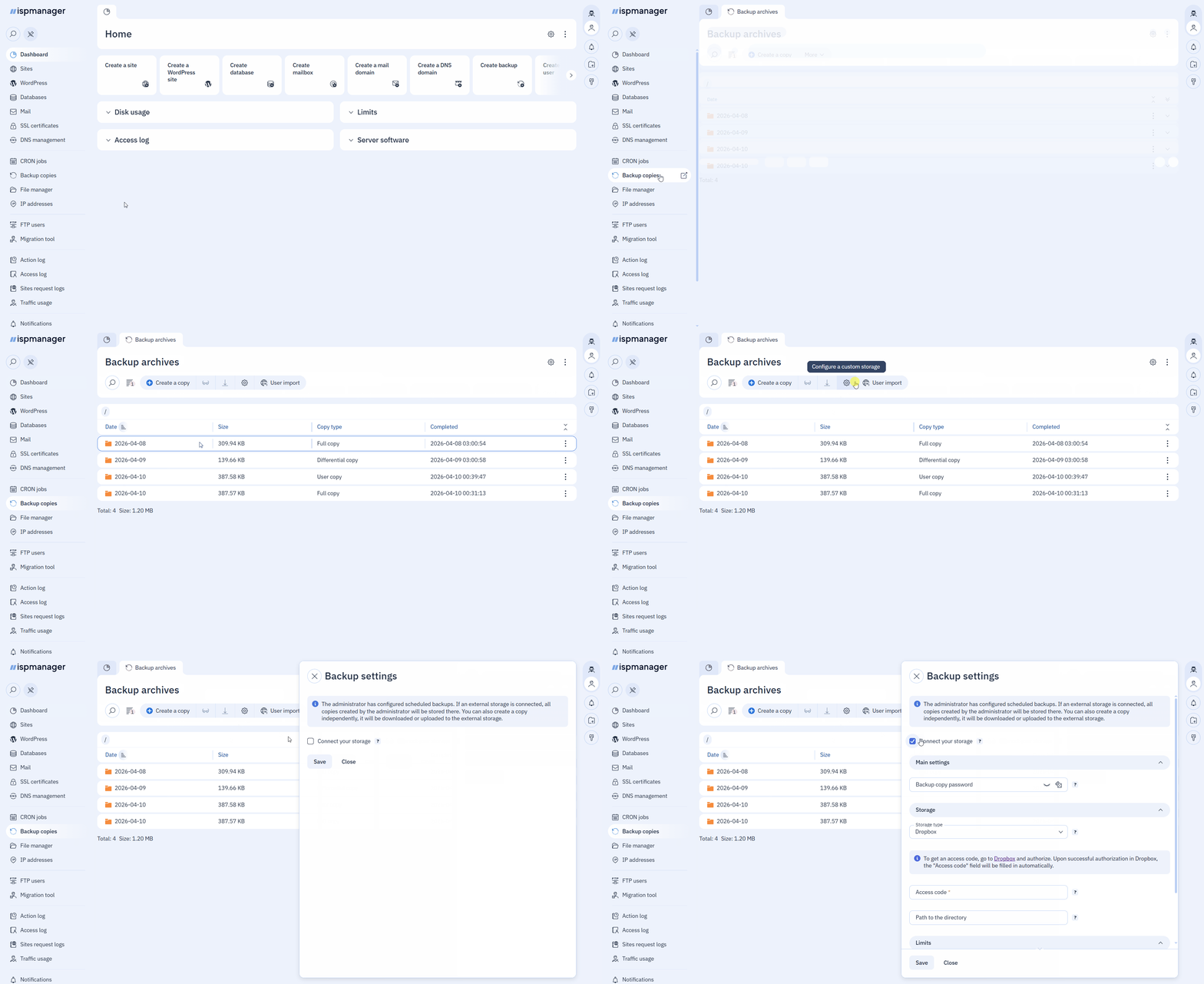
- Fill in the fields. Required fields are marked with asterisks.
- Main settings:
- Backup copy password — a password for encrypting backups. Encryption will protect your data if it is intercepted while uploading to or downloading from the storage. If left blank, your backups will not be encrypted. We recommend changing the password on the day when the full copy is created. If the full and a differential copy have different passwords, problems may occur when downloading or restoring from a differential copy.
- Storage:
Storage type — the storage where backups will be saved. Only one storage can be used at a time. If you change the storage, the backups in that storage will no longer be viewable in the backup list. Local storage is not supported to avoid increasing the user's server space usage.
DropboxAccess code* — Dropbox access code. Enter it manually or follow the link and sign in to Dropbox to have this field filled in automatically.
Path to directory — the Dropbox directory where the backups will be stored. If left blank, the app folder at
home/Applications/APP_NAMEwill be used.Google DriveAccess code* — Google Drive access code. Enter it manually or follow the link and log in to Google Drive to have this field filled in automatically.
Path to directory* — the Google Drive directory where the backups will be stored. Default value:
/ispmanager_backups.Amazon S3- Key ID*
- Secret key*
- Storage class*:
- Default
- Standard
- Standard-IA
- Glacier
- Bucket — name of the Amazon S3 backup container
- Bucket region — Amazon Web Services regional endpoint code
For more information on Amazon S3 settings, see the official documentation.
S3-compatible storageBefore continuing with setup, create a bucket in your S3 storage provider's account.
- Storage URL*
- Key ID*
- Secret key*
- Bucket — the name of the container for storing backups
- Storage сlass:
- Default
- Standard
- Standard-IA
- Glacier
- Bucket addressing model:
- subdomain — the bucket will be accessed using a URL in the form
http[s]://BUCKET.STORAGE_URL[:PORT][/PATH]. For example,https://bucket.example.com:5555/backup - URL path — the bucket will be accessed using a URL in the form
http[s]://STORAGE_URL[:PORT][/PATH]/BUCKET/. For example,https://example.com:7777/backup/bucket
- subdomain — the bucket will be accessed using a URL in the form
- Detect bucket region automatically
- Bucket region — the bucket region in the format us-east-1. This field is available if automatic region detection is not enabled.
FTP storage- Server IP address or domain* — the domain or IP address of the FTP server. The FTP server must be ProFTPd or PureFTPd, installed on a full-fledged Linux operating system.
- FTP port — the FTP server port number. The default value is 21.
- Path to directory — the directory on the server where the copies will be saved to. If left blank, the FTP user's root directory will be used.
- Username* — the FTP user.
- Password* — the FTP user's password.
SFTP storage (via SSH)- Server IP address or domain* — the domain or IP address of the SFTP server in the format
IP address/DOMAIN. The SFTP server must be a server running a full-fledged Linux operating system and an unmodified SSH service. It is also recommended that the operating systems of the server hosting the panel and the storage device match, as connecting from a newer operating system version to an older one may be impossible due to outdated security protocols. - SSH port — the SFTP server port number. The default value is 22.
- Path to directory* — the directory on the server where the backups will be stored.
- SFTP server authorization method:
- Administrator password authorization:
- Always use a password for access — check this box to always connect with a password. Otherwise, after the first password authentication, an SSH key will be generated and authentication will be performed with it.
- Username — the server administrator's username.
- Password — the server administrator's password.
- SSH key authorization:
- Username — the server administrator's username.
- Private key — the private SSH key. If you've already authorized with a password, the SSH key will be generated and entered automatically. If this is your first authorization, generate an SSH key pair manually, place the public key on the server hosting the SFTP server, and copy and paste the private key into this field.
- Administrator password authorization:
- Limits:
- Total storage capacity — the total amount of data to keep in your storage. We recommend entering a value manually for a more accurate calculation of available space. If, when specifying the storage size, existing backups would occupy more than the specified value, older copies will be deleted until their size reaches this limit.
- Number of full copies stored — the number of full backups stored in user storage. If left blank, the number will be unlimited. When using a custom value, it is recommended to specify at least 2.
- Number of differential copies stored — the number of differential backups stored in user storage. If left blank, the number will be unlimited. When using a custom value, it is recommended to specify at least 2.
- Main settings:
- Click Save.
After connecting a user storage, backups from the primary storage will no longer be visible. To return to the primary storage, disconnect the user storage.
If the connected storage already contains encrypted backups, the control panel will attempt to decrypt them with the current password. If decryption fails or the password is not set, set the old password for operations with the backups.
Administrator information
- User storage does not have its own schedule. Automatic backups are created according to the administrator's schedule and copied to the custom storage.
- If the user storage is connected on the same day as a differential backup is created, the latest full backup is also downloaded to the storage.
- If a schedule for automatic backups is not configured, the user will only be able to create manual backups.
- User storage settings do not affect the primary storage settings.
Technical details
user storage configuration file:
/usr/local/mgr5/etc/backup.conf.d/USERNAME.confConfiguration file example<?xml version="1.0" encoding="UTF-8"?> <doc> <params> <size_limit>3221225472</size_limit> <count_limit>7:7</count_limit> </params> <storage name="main"> <token> <arch_password>DXpc+4KArgISNKcsneCANFA4ZDO9Uc0JhfYrDhkoDj0XnemZP1EtFdVRUaT37C9G1GVpzNItk390EBMegbHzbqU5gm+ESaZ/KsrIKJ0wk8a4G/kFRFr68me4uxp+SelJpLaG1VurDvDwZ6xwkyD1SPCtb3gMmZQYj4TBUj5DH19k9qTVajHPsT1TebEeL+c2iT8P8Pcf7rxV735PWPuqwtdzXLXLaPnyNcSIArmF8FAf8nBA7fmxeqfHh4+eblamCnH26W17MwcIGXDT3xOCYKpfrzy4mL+2SkgeLPh/mjb9+n1Fhn3/rgZ9OIZiUEjfeVkhRZIurTPqpImU/QaFpg==</arch_password> <path>/</path> <token>YPBlMqjTWtcAAAAAAAAAAZ4c_tIZlPt47XVin264P4BQX2KVaEtDt4ACZg3MJarG$_REFRESH_$</token> <type>dropbox</type> </token> </storage> </doc>Parameters:
size_limit— maximum space that backups can occupy in storage, in bytescount_limit— number of backups stored in the format NUMBER OF FULL COPIES:NUMBER OF DIFFERENTIAL COPIESarch_password— encrypted backup passwordpath— directory in the storage where backups are savedtoken— access code for the storagetype— storage type
- the user's local directory, which contains backup information (info and index files):
/usr/local/mgr5/var/backup/ispmgr.private/USERNAME
Changing the ispmanager tariff plan
When downgrading to a plan lower than the ispmanager host:
- backups will no longer be uploaded to the user storage
- the user storage settings will become unavailable; only the primary storage and its list of backups will be displayed
- the settings and backups in the user storage will be preserved
After returning to the ispmanager host plan, access to the user storage will resume automatically.