Creating a new Node.js project
Add your Node.js project in one of the following ways:
- create and upload it separately from the website
- add it to an existing website
Creating a separate project
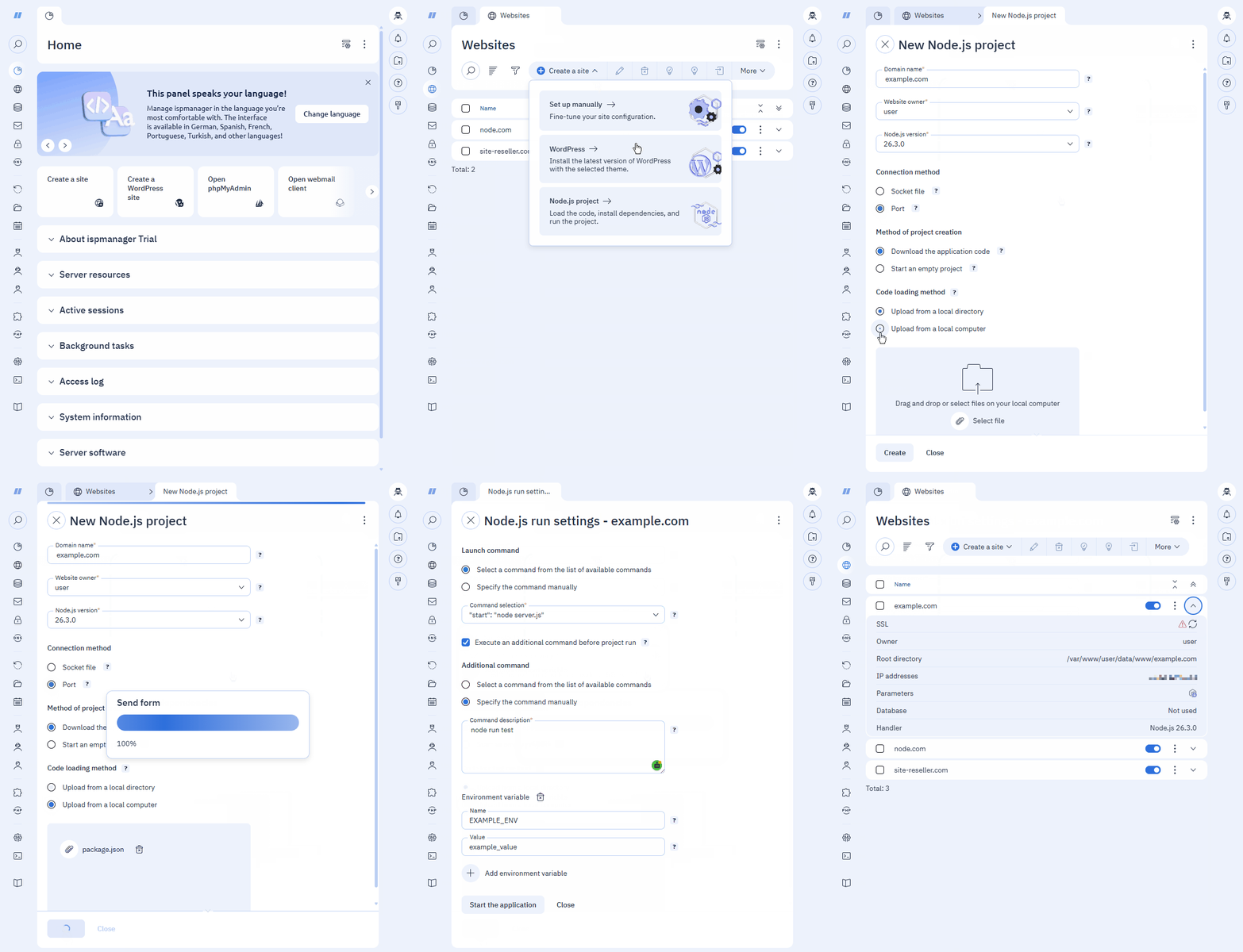
- Log in to ispmanager with your account.
- Go to the Sites section.
- On the toolbar, click
 Create site → Node.js project.
 - Fill in the information:
- Domain name — the name of the new website or project. Example: example.com
- Site owner — the user who owns the project. Available to reseller-level accounts or above.
- Node.js version — Node.js versions from 12.13.0 to 26.2.0
- Connection method:
Socket file — connecting and running a project via a Unix socket
DetailsTo run Node.js over a Unix socket, the directory
/var/www/USERNAME/data/nodejs/will be created.To pass settings to the Node.js server file, use the
SOCKETenvironment variable and its value.Port — connecting and running a project via a free, unprivileged TCP port
Detailsispmanager will automatically select a free TCP port for Node.js. The search for a free port starts with the value specified in the NodeJsBackendBind parameter of the ispmanager configuration file. The default value is 127.0.0.1:10000.
To pass settings to the Node.js server file, use the
PORTenvironment variable and its value.
- Method of project creation:
- Upload the application code — a
package.jsonfile with packages and dependencies for running the project- Code loading method:
- Upload from a local directory — files are uploaded only from the project owner's directory. Directory selection is available if the user has file read permissions.
- Path to the directory — the path to the project folder from the project owner's directory. Directory:
/var/www/USER/data
- Path to the directory — the path to the project folder from the project owner's directory. Directory:
- Upload from a local computer — a file from a folder on your computer
- Select file — select a file or drag it from a folder on your computer into the panel
- Upload from a local directory — files are uploaded only from the project owner's directory. Directory selection is available if the user has file read permissions.
- Code loading method:
- Run an empty project — a project with a
package.jsonfile without dependencies. Edit the file if necessary after creating the project
- Upload the application code — a
- Click Create.
After the file is uploaded, the panel will automatically read it and, if successful, install the dependencies. If an error occurs, a notification will appear stating "Installation of Node.js dependencies completed with errors." To view the error log, click Details in the notification or  in the Sites section.
Next, configure the project run settings.
Adding a project to the site
- Log in to ispmanager with your account.
- Go to the Sites section.
- Create or
 Edit an existing site.
 - In the site settings, specify:
Handler — Node.js
When selecting the Node.js handler, installing a CMS or website builder is not available.
- Node.js version — Node.js versions from 12.13.0 to 26.2.0
- Connection method:
Socket file — connecting and running a project via a Unix socket
DetailsTo run Node.js over a Unix socket, the directory
/var/www/USERNAME/data/nodejs/will be created.To pass settings to the Node.js server file, use the
SOCKETenvironment variable and its value.Port — connecting and running a project via a free, unprivileged TCP port
Detailsispmanager will automatically select a free TCP port for Node.js. The search for a free port starts with the value specified in the NodeJsBackendBind parameter of the ispmanager configuration file. The default value is 127.0.0.1:10000.
To pass settings to the Node.js server file, use the
PORTenvironment variable and its value.
- Save the changes.
- Select a site → click
 .
. - Click Run settings (Node.js).
- Set the required startup commands.
- Click Save and restart.
After the first deployment of the project, dependencies from the package.json file will be automatically installed.