Managing a Node.js project
Actions with a Node.js website
To select an action:
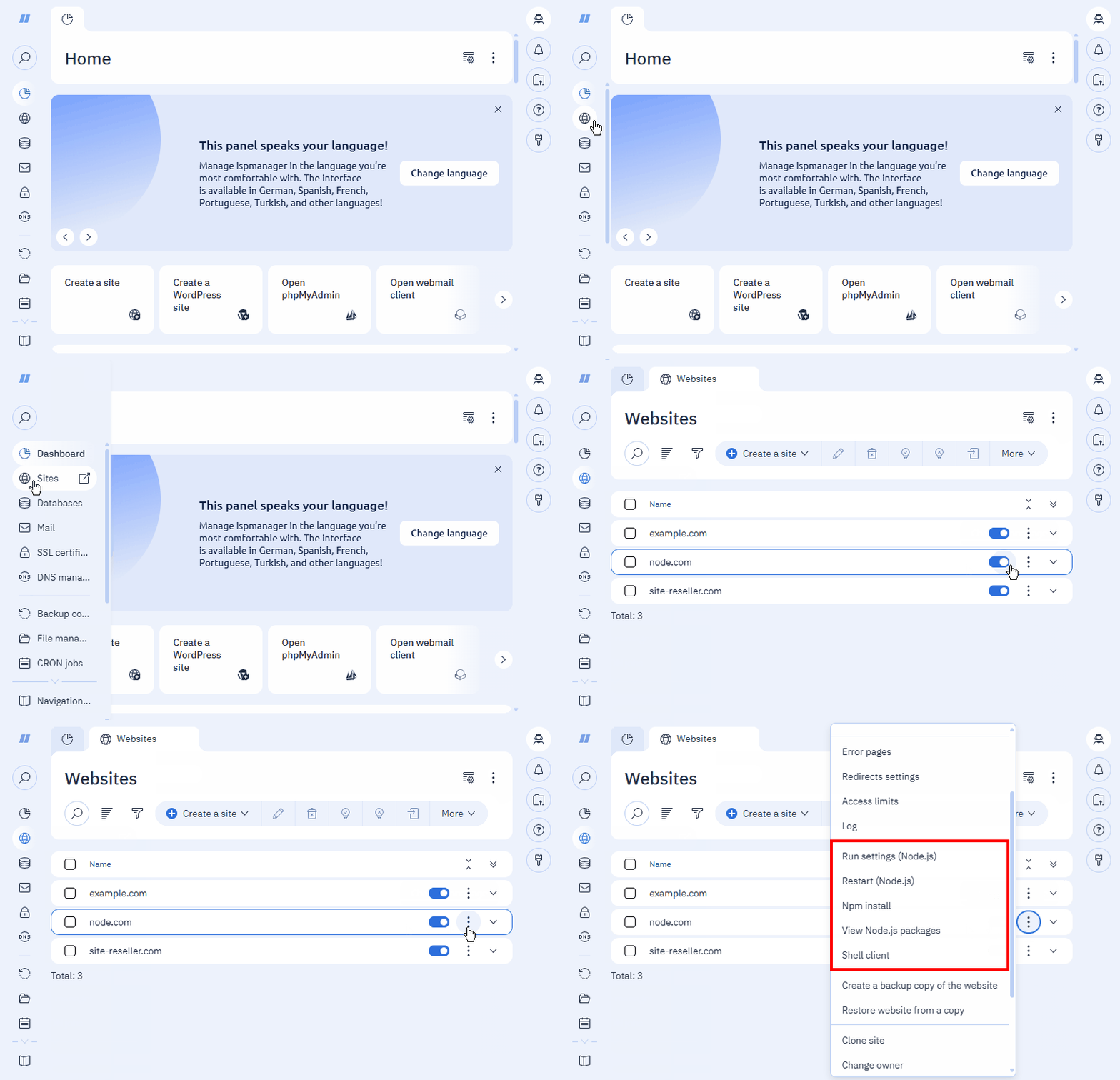
- Log in to ispmanager with your account.
- Go to the Sites section.
- Selcet a site or an application → click
 .
. - In the context menu, select the desired action:
- Run settings (Node.js)
- Restart (Node.js)
- Npm install
- View Node.js packages
- Shell client
Run settings (Node.js)
Run settings are commands from the configuration file that Node.js will execute in the project. For example, the command "node server.js" will launch server.js.
To configure the commands, fill in the following information:
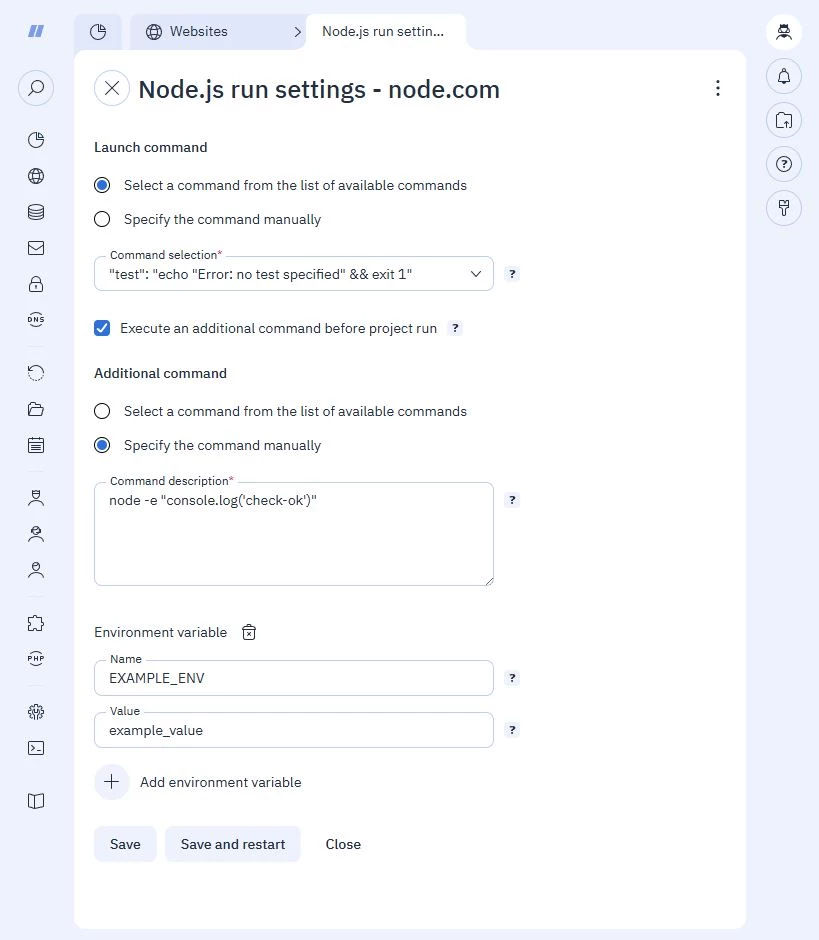
- Selcet a command from the list of available commands:
Command selection — commands are selected from the list specified in the
"scripts" parameter of thepackage.jsonfileCommand example"scripts": { "test": "echo \"Error: no test specified\" && exit 1", "start": "node server.js" }
- Specify the command manually:
- Command description — a single, custom-written command for running a project. A command can include multiple commands using operators (
&&,;, and|). Command example:"npm run test && exit 1"
- Command description — a single, custom-written command for running a project. A command can include multiple commands using operators (
- Execute an additional command before project run — check the box to specify a custom command and activate it before each project run. Command example:
node server.js. After the command execution, it will be saved in the list of commands under the Select a command from the list of available commands option. Example command in the list:"ispmanager-custom-command":"node server.js" - Environment variable — a variable that passes parameters to the project without changing the code. Environment variables are stored in base64-XML encoding. They are specified in
NAME/VALUEformat in the AppEnv field of the internal nodejs table. Up to 10 environment variables can be added.- Name — name of a variable. Example:
EXAMPLE_ENV - Value — value of a variable. Example:
example_value
- Name — name of a variable. Example:
Click Save after making the changes.
After adding new commands, install them via npm and restart the project.
Restart (Node.js)
After a Node.js project is created and deployed for the first time, it automatically restarts.
To apply all subsequent changes, restart the project manually.
The restart is followed with a  status in the Parameters column. If successful, the status changes to
  ; if unsuccessful, it changes to
  . Click the status to view the error log.
Npm install
Npm — is the Node.js package manager. When used with the install command, it installs dependencies from the package.json file and manages the project. Represents an equivalent to entering a command in the terminal.
Always use Npm install:
- after changing run settings
- after adding dependencies to the
package.jsonfile manually
Not required when installing packages via View Node.js packages.
View Node.js packages
Offer ability to:
- view automatically downloaded packages from
package.json - install missing packages without editing
package.json - remove packages from
package.jsonand the project
To install packages manually:
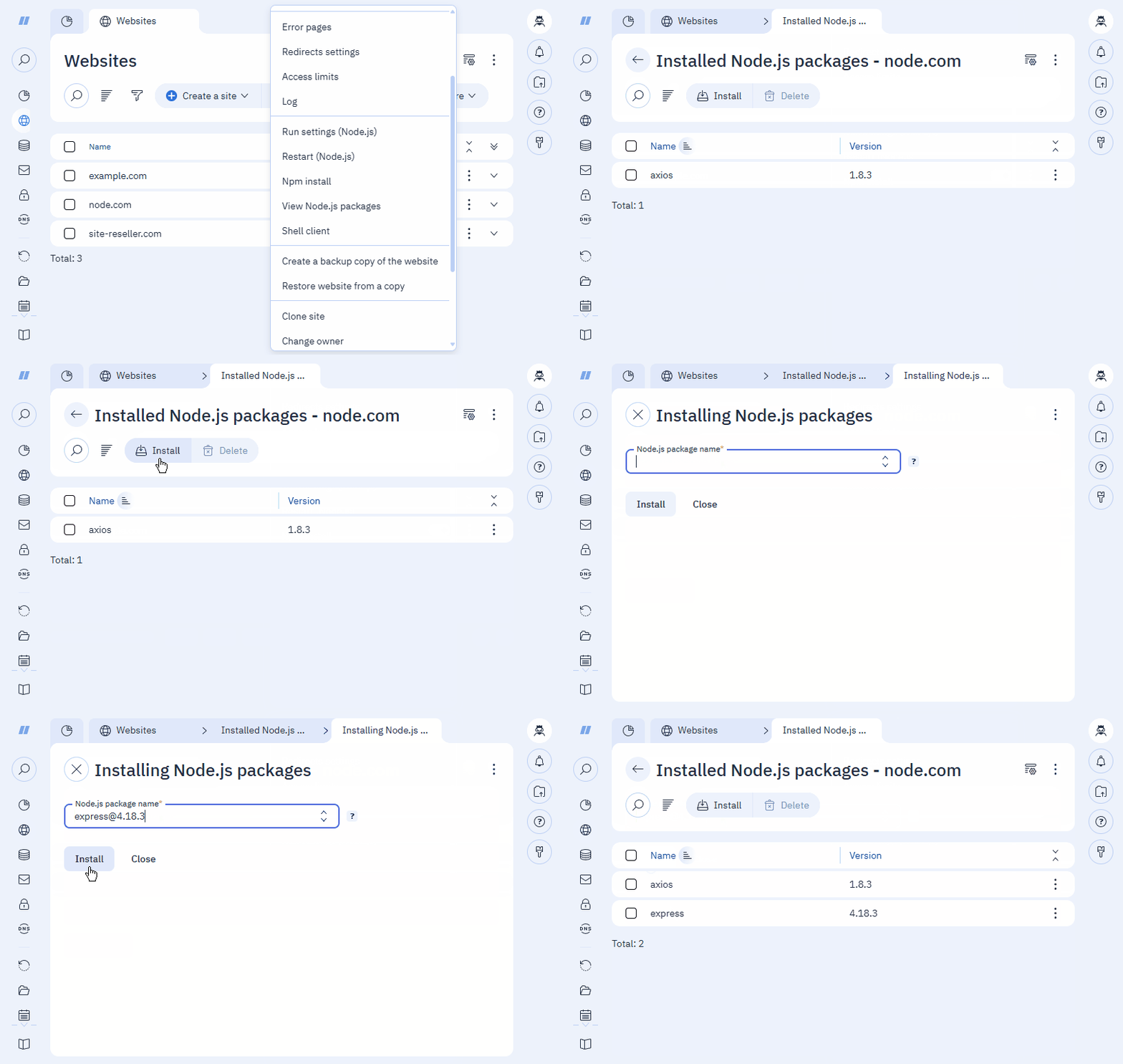
- Click
 Install on the toolbar.
 Enter:
PACKAGE@PACKAGE_VERSION. For a list of packages, list each one on a new line.ExampleTo install Express version 4.18.3, enter: express@4.18.3.
- Click Install.
- Wait until installation of the packages is completed.
Packages are installed from the npm registry. Once installed, they appear in the list and are added to package.json under "dependencies."
{
"name": "node.com",
"version": "1.0.0",
"description": "",
"main": "server.js",
  "scripts": {
    "test": "echo \"Error: no test specified\" && exit 1",
    "start": "node server.js"
},
"keywords": [],
"author": "",
"license": "ISC",
"type": "commonjs",
"dependencies": {
"express": "^4.18.3"
}
}Shell client
To run Node.js and npm commands, use shell client. This feature is available if you have access to shell enabled in the user settings.
Upon launch of the shell client, the control panel will automatically:
- open the website's home directory
- add the paths to Node.js for the selected website to the
PATHvariable
Node.js project files
By default, a Node.js project creates a package.json configuration file and a server.js server file. The configuration file installs dependencies via npm and controls server startup.
To edit files:
Please be advised that you should not edit files unless you're absolutely sure of possible consequences. ispmanager checks the syntax before saving, but not if the settings are correct.
- Log in to ispmanager with your account.
- Go to the Sites section.
- Select a site.
- Click
 Config. files on the toolbar.
 In the Node.js configuration file, change the path to the site application in the
"main"and"start"parameters.Default content ofpackage.json{ "name": "doc.test", "version": "1.0.0", "description": "", "main": "server.js", "scripts": { "test": "echo \"Error: no test specified\" && exit 1", "start": "node server.js" }, "keywords": [], "author": "", "license": "ISC" }For more information on the configuration file format, see the official Node.js documentation.
Edit the server file if necessary.
Defaultserver.jscontentconst http = require('http'); const fs = require('fs'); const server = http.createServer((req, res) => { res.statusCode = 200; res.setHeader('Content-Type', 'text/html;charset=utf-8'); const data = fs.readFileSync(process.env.INDEX_PATH, 'utf8'); res.end(data); }); if ("SOCKET" in process.env) { const socket = process.env.SOCKET; // Socket must be removed before starting server. // This action is required. Otherwise server will not start if socket exists. if (fs.existsSync(socket)) { fs.unlinkSync(socket); } server.listen(socket, () => { fs.chmodSync(socket,0660); console.log(`Listening ${socket}`); }); } else if ("PORT" in process.env) { const hostname = process.env.INSTANCE_HOST; const port = process.env.PORT; server.listen(port, hostname, () => { console.log(`Listening http://${hostname}:${port}/`); }); }- Click Save and Close.
Next, install the packages via npm.
Application diagnostics via pm2
Check the website application's operation via the pm2 process manager. This feature is available if you have access to shell enabled in the user settings.
- Connect to the server running the ispmanager panel via SSH.
Log in to the terminal as the website owner.
How to log in to the terminalEnter the following command in the terminal:
su USERNAMEwhere
USERNAMEis the username in the panel. For example, www-root.List applications:
/usr/lib/ispnodejs/bin/pm2 listOutput example|id│name │namespace│version│mode│pid │uptime│↺ │status│cpu│mem │user │watching│ ├──┼────────────┼─────────┼───────┼────┼──────┼──────┼──┼──────┼───┼──────┼──────────────────┼────────┤ │ 0│example.com │default │N/A │fork│317423│ 13m │2 │online│0% │60.6mb│ USERNAME │disabled│ │ 1│example2.com│default │N/A │fork│316830│ 19m │0 │online│0% │61.7mb│ USERNAME │disabled|Request information about the application you need:
/usr/lib/ispnodejs/bin/pm2 info NAME or IDDetailsWhere:
NAME— site name. For example, example.comID— application process ID
Output example:
Describing process with id 0 - name example.com
| status            │ online                                                              │
│ name              │ example.com                                                         │
│ namespace         │ default                                                             │
│ version           │ N/A                                                                 │
│ restarts          │ 2                                                                   │
│ uptime            │ 15m                                                                 │
│ script path       │ /var/www/ USERNAME /data/.nvm/versions/node/v18.1.0/bin/npm │
│ script args       │ start                                                               │
│ error log path    │ /var/www/ USERNAME /data/.pm2/logs/example.com-error.log    │
│ out log path      │ /var/www/ USERNAME /data/.pm2/logs/example.com-out.log      │
│ pid path          │ /var/www/ USERNAME /data/.pm2/pids/example.com-0.pid        │
│ interpreter       │ node                                                                │
│ interpreter args  │ N/A                                                                 │
│ script id         │ 0                                                                   │
│ exec cwd          │ /var/www/ USERNAME /data/www/example.com                    │
│ exec mode         │ fork_mode                                                           │
│ node.js version   │ 26.2.0                                                              │
│ node env          │ N/A                                                                 │
│ watch & reload    │ ✘  	                                                              │
│ unstable restarts │ 0                                                                   │
│ created at        │ 2026-06-01T04:25:03.051Z                                            |