CMS catalog
The ispmanager panel provides management of Ansible-based CMSs. Administrators can use built-in popular CMSs or upload their own. This allows for centralized configuration of available solutions, helping users easily upload CMSs to their websites and significantly speed up workflows.
Requirements
The following requirements must be met to manage CMS:
- Any web server installed
Ansible installed
If Ansible is not installedTo install Ansible:
- Log in to ispmanager with an account with superuser rights.
- Go to the Software configuration section.
- Select Ansible (CMS Installation) from the list.
- On the toolbar, click
 .
. - Confirm the Ansible installation.
Wait for the installation to complete.
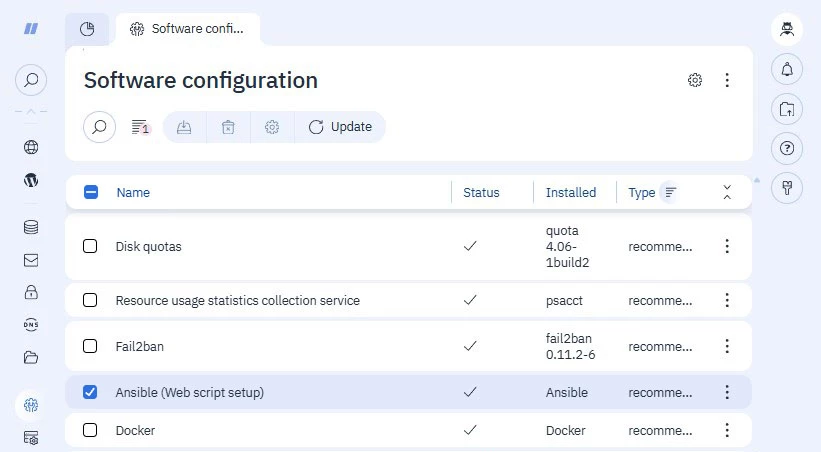
Upon successful installation, Ansible is automatically activated.
Built-in CMS
The latest versions of common CMS have already been added to ispmanager:
Use the actions on the toolbar to manage user access to the CMS.
If the CMS you need is not on the list, add it manually.
Actions with CMS
| Button | Description |
|---|---|
 | List update. If the list of applications contains uncached APS scripts (without  ), they will be removed after the update. ), they will be removed after the update. |
 | CMS version management |
 | CMS usage is enabled for users |
 | CMS usage is disabled for users |
 | List of all CMS |
Adding CMS
The ispmanager panel supports adding your own Ansible-based CMS.
Create a repository accessible via HTTPS and containing the
webscripts.xmlmeta description. For example, on GitHub.Example: webscripts.xml<doc> <webscript type="ansible" name="Bitrix"> <settings> <filename>bitrix.tgz</filename> <playbook>playbook.yml</playbook> </settings> <mgr> <minimal_version>6.0.0</minimal_version> </mgr> <required> <php version="7.2" max_version="7.4"> <extensions> <extension name="gd"/> <extension name="exif"/> </extensions> <modes> <mode name="php_mode_cgi"/> </modes> </php> <database type="mysql" version="5.6"/> </required> </webscript> </doc>type— attribute with the internal script namename— attribute with the script name in the panel interface<filename>— element with the archive name in the directory. The panel will download and unzip it during installation<playbook>— element with the name of theplaybook.ymlfile that will be executed<minimal_version>— element with the minimum ispmanager version required by the script<required>— section with environment requirements:<php>— element with the PHP version. Versions are considered betweenversionandmax_version.<extensions>— elements with PHP extensions<modes>— element with the PHP processing mode. For example, CGI
<database>— element with the databasetypetype, with a server version of at leastversionsql-mode— attribute with the MySQL modes enabled for the database serverrestricted="yes"— attribute with modes that will not be used for the script
Create script archives. Each archive should contain
ansible playbook.ymland all necessary supporting files. If necessary, use the ispmanager script catalog.Example: ansible playbook.yml- hosts: 127.0.0.1 tasks: - name: Create a install directory if it does not exist file: path: "{{ install_path }}" state: directory owner: "{{ user_name }}" group: "{{ user_name }}" mode: "0755" recurse: yes - name: Download bitrix get_url: url: "http://www.1c-bitrix.ru/download/standard_encode.tar.gz" dest: "{{ install_path }}/standard_encode.tar.gz" mode: "644" timeout: 1800 owner: "{{ user_name }}" group: "{{ user_name }}" - name: Unpack bitrix archive unarchive: src: "{{ install_path }}/standard_encode.tar.gz" dest: "{{ install_path }}" remote_src: yes owner: "{{ user_name }}" group: "{{ user_name }}" - name: Set the permissions on Bitrix directories command: find {{ install_path }} -type d -exec chmod 755 {} \; - name: Set the permissions for Bitrix files command: find {{ install_path }} -type f -exec chmod 644 {} \; - name: Create a directory if it does not exist file: path: "{{ install_path }}/bitrix/php_interface" state: directory owner: "{{ user_name }}" group: "{{ user_name }}" mode: "0755" - name: copy dbconn.php template: src: templates/dbconn.php.j2 dest: "{{ install_path }}/bitrix/php_interface/dbconn.php" owner: "{{ user_name }}" group: "{{ user_name }}" mode: 0644 - name: copy .settings.php template: src: templates/.settings.php.j2 dest: "{{ install_path }}/bitrix/.settings.php" owner: "{{ user_name }}" group: "{{ user_name }}" mode: 0644 - name: copy after_connect_d7.php template: src: templates/after_connect_d7.php.j2 dest: "{{ install_path }}/bitrix/php_interface/after_connect_d7.php" owner: "{{ user_name }}" group: "{{ user_name }}" mode: 0644 - name: copy after_connect.php template: src: templates/after_connect.php.j2 dest: "{{ install_path }}/bitrix/php_interface/after_connect.php" owner: "{{ user_name }}" group: "{{ user_name }}" mode: 0644 - name: Delete archive file: path: "{{ install_path }}/standard_encode.tar.gz" state: absentThe Playbook is launched when the script is installed for the site.
List of parameters passed to the script:
user_name— usernameinstall_path— script installation pathdb_name— database namedb_user_name— database usernamedb_password— database user passworddb_server— IP address and port for connecting to the databasesite_name— website domain namesite_docroot— website rootsite_php— PHP enabled/disabledsite_php_mode— PHP modesite_ssi— SSI enabled/disabledsite_hsts— HSTS enabled/disabledsite_nodejs— Node.js enabled/disabledsite_secure— SSL enabled/disabledsite_ssl_cert— path to the SSL certificatesite_email— administrator emailsite_basedir— open_basedir enabled/disabledsite_charset— website encodingAmong the parameters with the
site_prefix there are all fields from thewebdomaintable of the/usr/local/mgr5/etc/ispmgr.dbdirectory.
- Add the appropriate entries to
webscripts.xmland attach the script archive. Add the following line to the
/usr/local/mgr5/etc/ispmgr.confconfiguration file:WebscriptsRepoUrl https://example.com/repo/webscripts.xmlDetails- WebscriptsRepoUrl — a parameter that accepts the URL to an external HTTPS repository containing a script
- https://example.com/repo/webscripts.xml — the full URL to the repository containing the script
The panel only works with one repository. When adding the WebscriptsRepoUrl parameter, it uses only the specified URL. To add multiple scripts, place them in the same
webscripts.xmlrepository.- Click Save.
- Connect to the server running the ispmanager panel via SSH.
Restart the panel using the command:
/usr/local/mgr5/sbin/mgrctl -m ispmgr exit
Scripts specified in webscripts.xml will appear in the CMS section. If they don't appear, refresh the list.
Technical details
Scripts run in the background mode. Once the process is complete, user sees a notification in the dashboard.
/usr/local/mgr5/sbin/webscripts— script execution handler/usr/local/mgr5/var/webscripts.log— handler log/usr/local/mgr5/var/.webscripts/— directory where the script is downloadedwebscript— name of the table containing script descriptions