Data transfer between users
Data transfer between users ensures a seamless change of data ownership for:
- websites and website files
- SSL certificates
- databases and database users
- mail domains
- mailboxes and mailbox files
- FTP users
Generally, the transfer process is as follows:
- Transferred files are copied to the new user.
- Owner of the transferred entities and copied files is changed.
- Paths in the site configuration files that contain the path to the site owner's home directory are changed.
- Copied data is deleted from the previous owner.
Requirements for data transfer between users
The panel must have:
- at least 2 users created
- configuration file template engine enabled
If the template engine is enabled, the panel configuration file /usr/local/mgr5/etc/ispmgr.conf will contain the Option EnableWebTemplate parameter.
The process of data transfer between users
The transfer is available for one entity at a time: one site, one domain, one database.
- Log in with a reseller-level account or above.
- Go to the Sites section.
Select the desired website and click
 Change owner on the toolbar: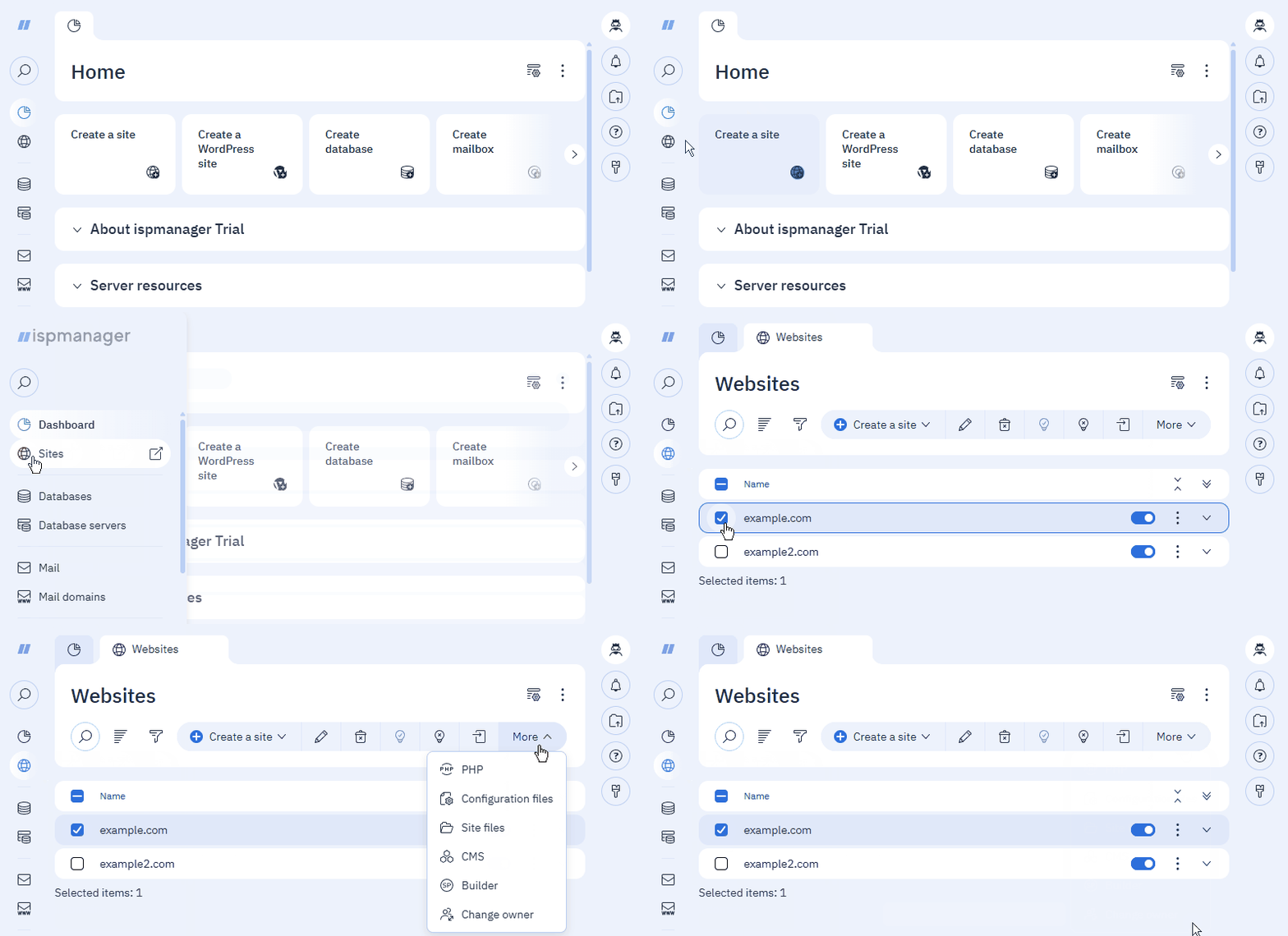
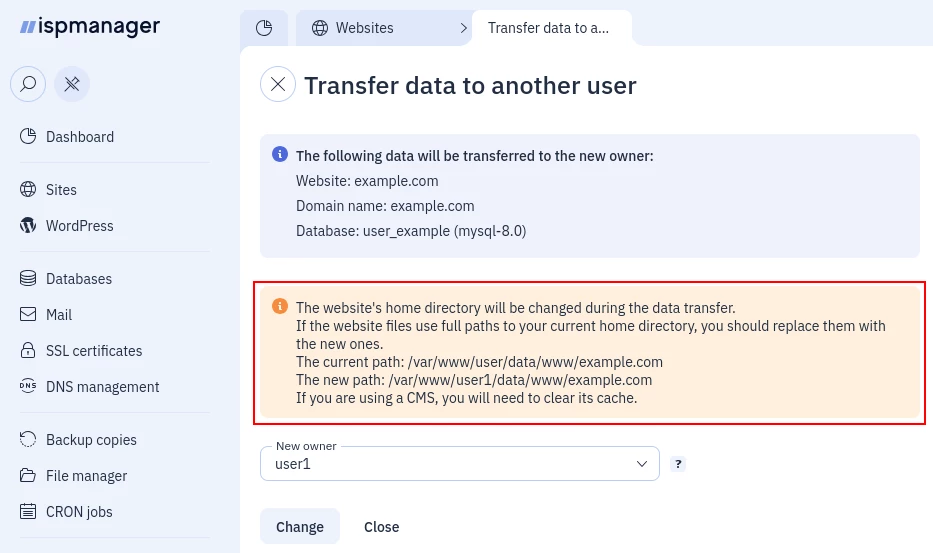
A form with a list of the data to be transferred will open, the current and new path to the site directory, and a list of users to select.
- Select a new owner from the list of users.
- Click Change.
The following entities will be migrated along with the site:
- site files
the associated with the site database and database user
When transferring a database user, all of its databases will be migrated, even those not associated with the site.
- site SSL certificate
- the domain name associated with the site
- the email domain associated with the domain name
- the mailboxes and mailbox files associated with the email domain
- the FTP user if their home directory matches the site's root directory
- the user's personal address, if linked to the site
- Log in with a reseller-level account or above.
- Go to the DNS management section.
Select the desired website and click
Change owner on the toolbar: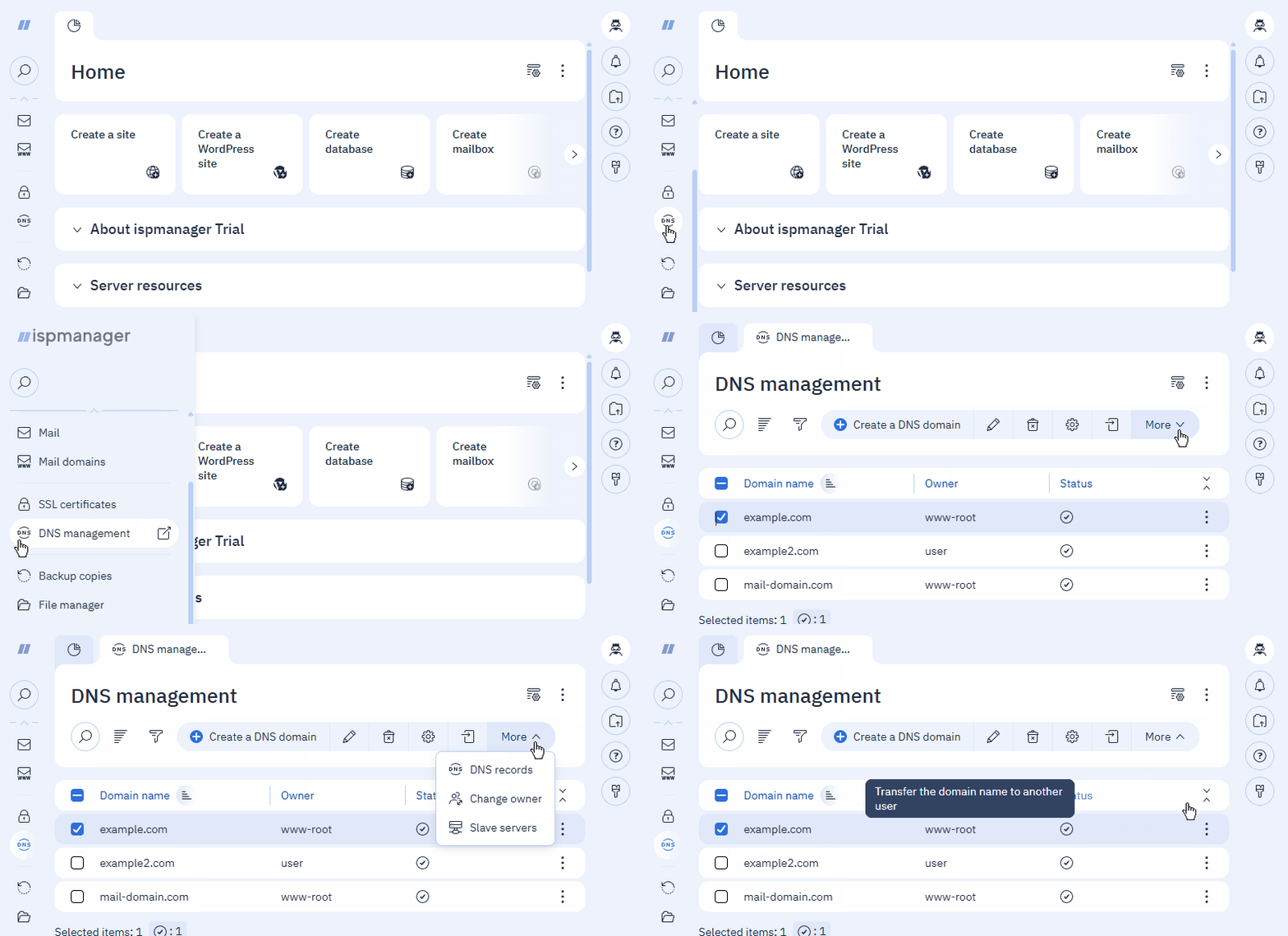
A form with a list of the data to be transferred will open, the current and new path to the site directory, and a list of users to select.
- Select a new owner from the list of users.
- Click Change.
The following entities will be migrated along with the domain:
- the associated mail domain
- the mailboxes and mailbox files associated with the mail domain
- the associated website and website files
the associated with the site database and database user
When transferring a database user, all of its databases will be migrated, even those not associated with the site.
- site SSL certificate
- the FTP user if their home directory matches the site's root directory
- the user's personal address, if linked to the site or the mail domain
- Log in with a reseller-level account or above.
- Go to the Mail domains section.
Select the desired website and click
Change owner on the toolbar: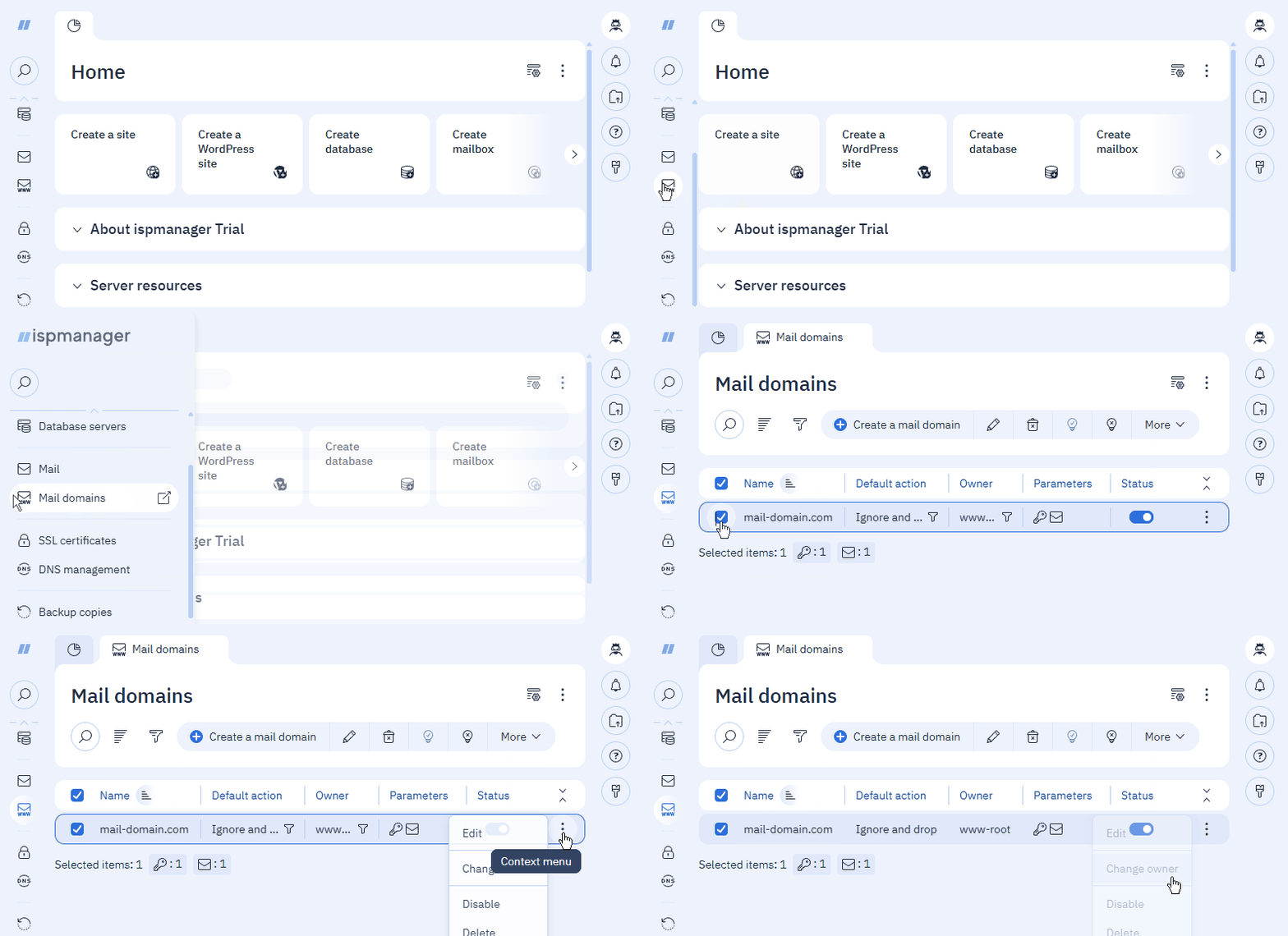
A form with a list of the data to be transferred will open, the current and new path to the site directory, and a list of users to select.
- Select a new owner from the list of users.
- Click Change.
The following entities will be migrated along with the mail domain:
- the mailboxes and mailbox files associated with the mail domain
- the primary domain associated with the mail domain
- the associated website and website files
the associated with the site database and database user
When transferring a database user, all of its databases will be migrated, even those not associated with the site.
- site SSL certificate
- the FTP user if their home directory matches the site's root directory
- the user's personal address, if linked to the site or the mail domain
- Log in with a reseller-level account or above.
- Go to the Databases section.
Select the desired website and click Change owner on the toolbar:
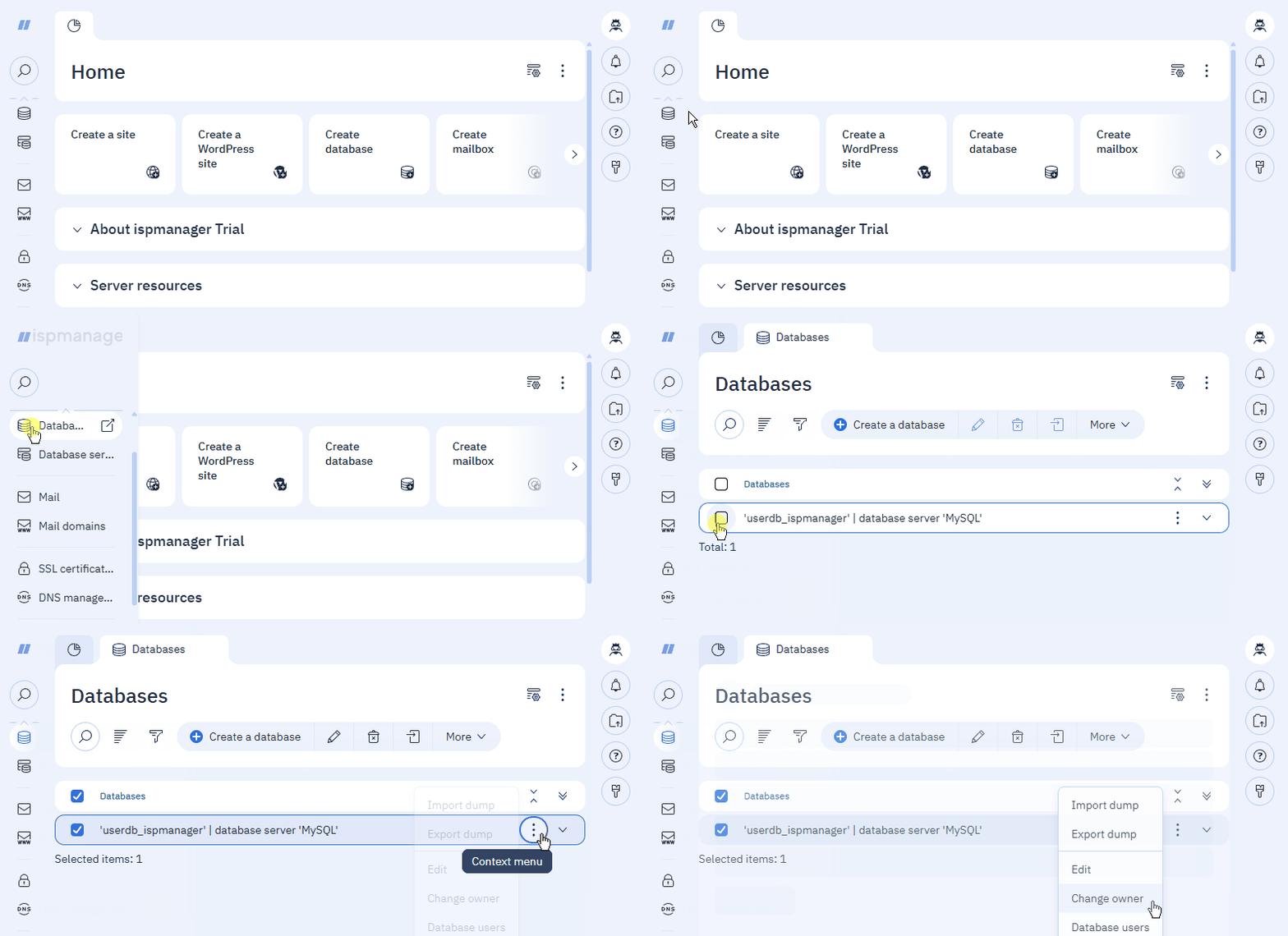
A form with a list of the data to be transferred will open, the current and new path to the site directory, and a list of users to select.
- Select a new owner from the list of users.
- Click Change.
The following entities will be migrated along with the database:
database user
When transferring a database user, all of its databases will be migrated, even those not associated with the site.
- all other databases of the database user
If the new owner does not have required permissions, such as access to a specific PHP mode or the number of sites available, the system will automatically increase the required limits and enable the necessary access.
The limits will not be reset even if an error occurs or the data transfer is canceled.
During the transfer, the following is prohibited for the entities being transferred:
- editing
- enabling
- disabling
- deleting
The site's home directory changes during the transfer. If the site's files use paths to the old home directory, manually replace them with the new ones. If the site uses a CMS, clear its cache.
Viewing the transfer task list
- Go to teh Users section
Click
Data transfer on the toolbar.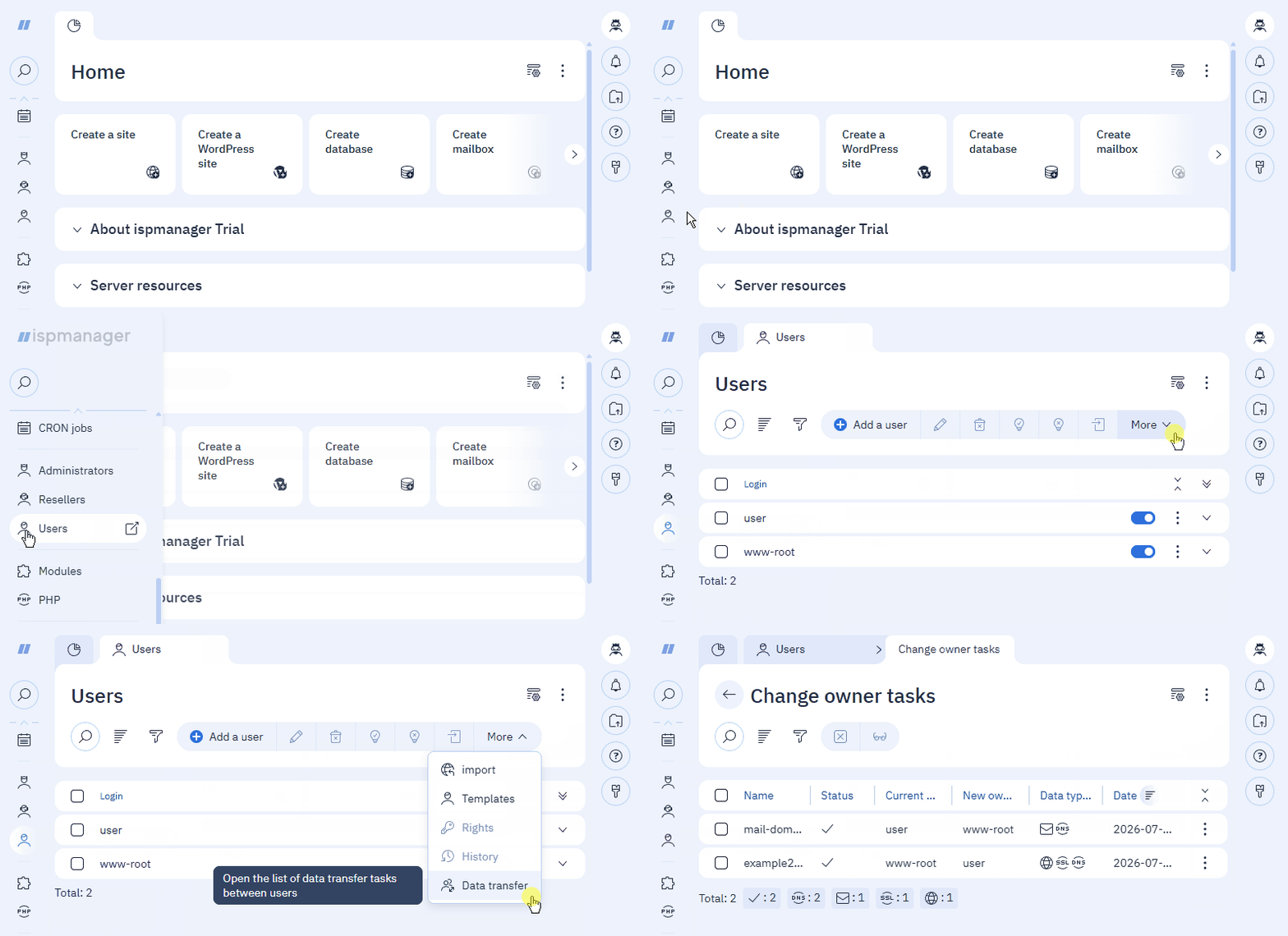
A list of transfer tasks will open.
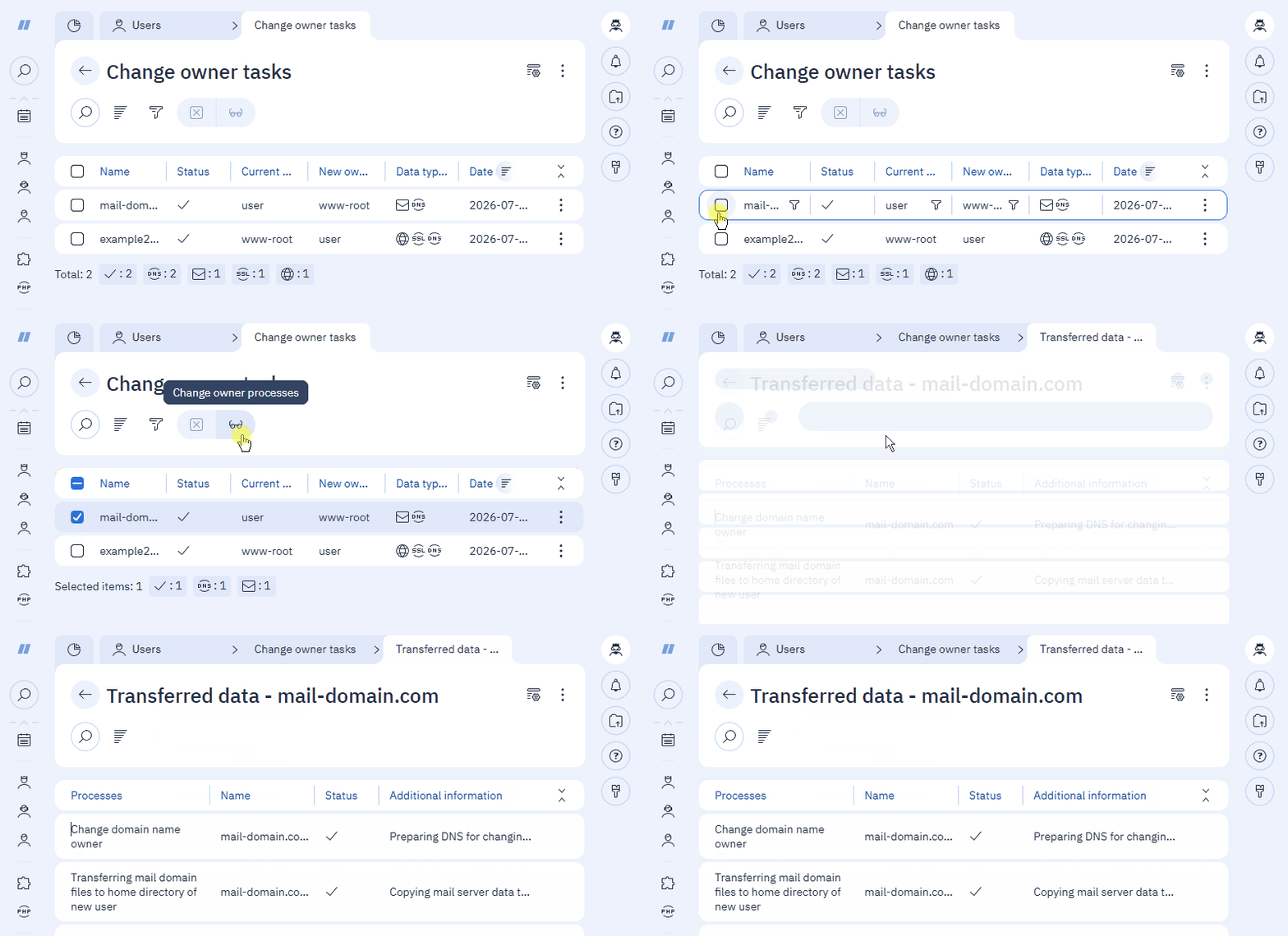
To view detailed information about a transfer task, select it in the list and click  on the toolbar:
Cancelling data transfer
In case any issues occur or the transfer stops, cancel the transfer process. To do this, after launching, select the transfer in the list and click  Cancel data transfer on the toolbar.
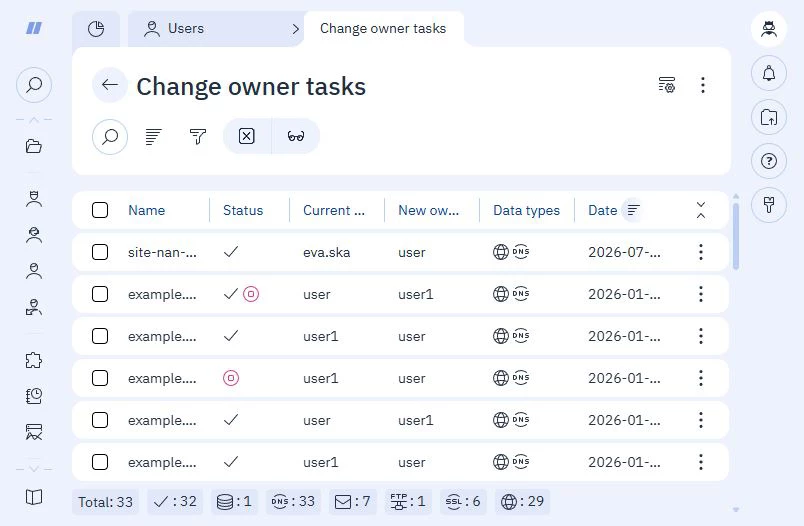
If the transfer was cancelled while copying mailbox or website files, the transferring of data is stopped immediately. If the transfer was cancelled at a later stage, the transfer process will be completed but marked as  canceled.