ispmanager license activation and upgrade
Activation may be required when purchasing a new license or to update information about an existing one.
ispmanager checks the license information on a daily basis. The panel automatically sends requests to the license server to receive updates about the expiration date, tariff and purchased modules.
To speed up the process of obtaining license information, activate or update your data manually.
After the license is successfully activated, this information is always saved to the file /usr/local/mgr5/etc/ispmgr.lic.
Activation by IP address
The IP address is specified in the license settings in your Client area. You can specify it when purchasing a license or add it at any time.
An attempt to activate a license by IP address is made immediately after ispmanager is installed. The panel sends a request to the license server and checks if a license for that IP address exists. If the license is found, the panel is activated. Otherwise, the panel stays inactive waiting to be activated.
The license will be activated automatically if an external IP address of the server with the panel is specified in the license settings in your Client area.
Activation by key
This is a universal activation method. Suitable if the server with the panel is located behind NAT (no external IP address).
A key is a unique digital number used to activate a license. Each key can only be used once. You can view an existing key or generate a new one in your Client area.
There are three ways to activate the license manually:
The two latter methods are available if the panel is already installed on the server.
When installing ispmanager
- Connect to the server via SSH with root superuser rights.
Run the panel installation with the parameter:
sh install.eu.sh --activation-key KEYDetailsWhere:
- --activation-key — installation parameter
- KEY — unique license key in the format: 1234567890-ABCDEFGHIJKLMNOPQRSTUVWXYZ
- Complete the installation.
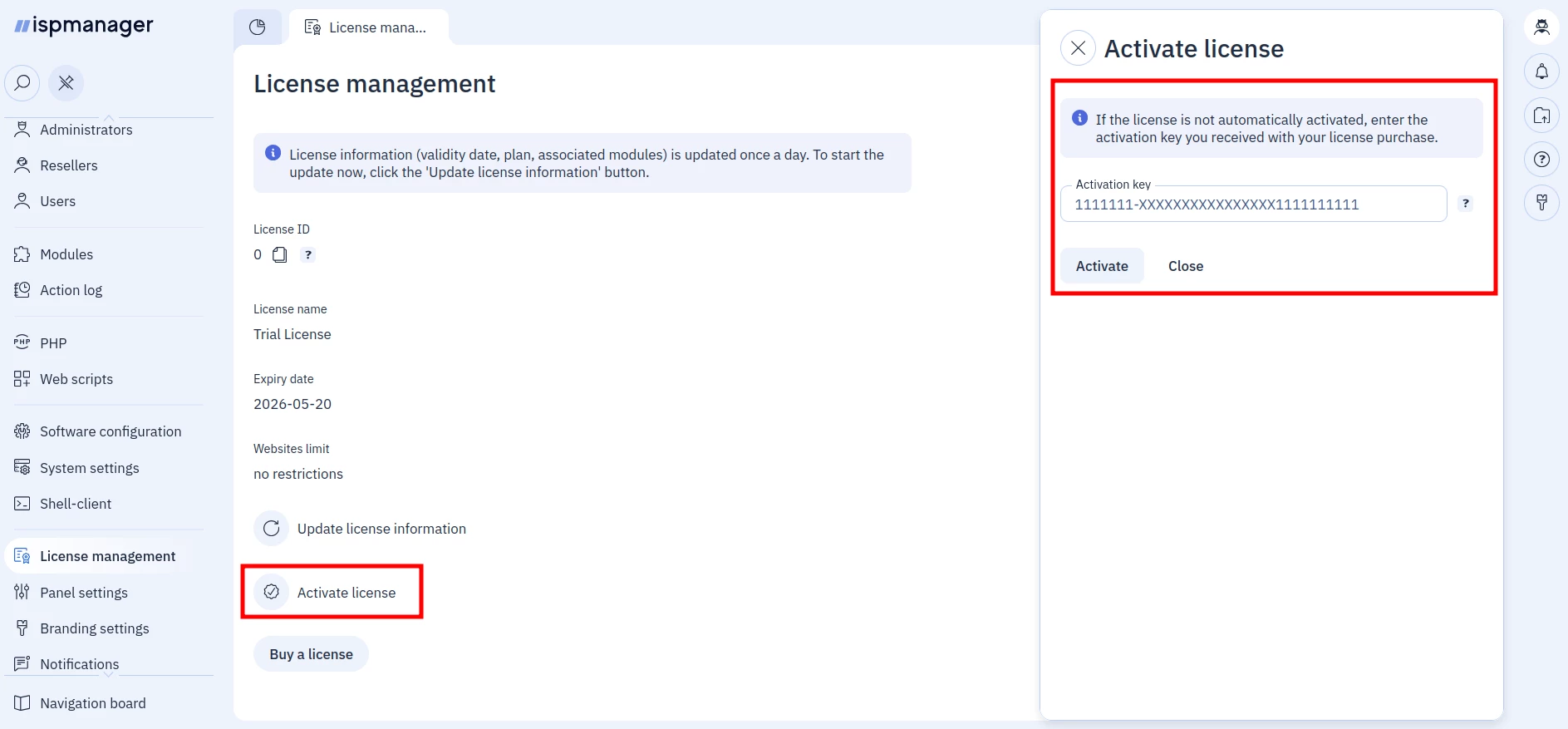
Via ispmanager web interface
- Log in to ispmanager with an administrator level account or above.
- Navigate to the License management section → click
 Activate license.
 - Enter the Activation key from your Client area.
Click Activate.
From command line
- Connect to the server with the panel via SSH with root superuser rights.
Run the following command:
/usr/local/mgr5/sbin/licctl fetch ispmgr KEYDetailsWhere KEY is a unique license key in the format: 1234567890-ABCDEFGHIJKLMNOPQRSTUVWXYZ
License update
This method is suitable for updating information about an existing license. For example, when changing tariff or purchasing a module.
Via ispmanager web interface
- Log in to ispmanager with an administrator level account or above.
Navigate to the License management section → click
 Update license information.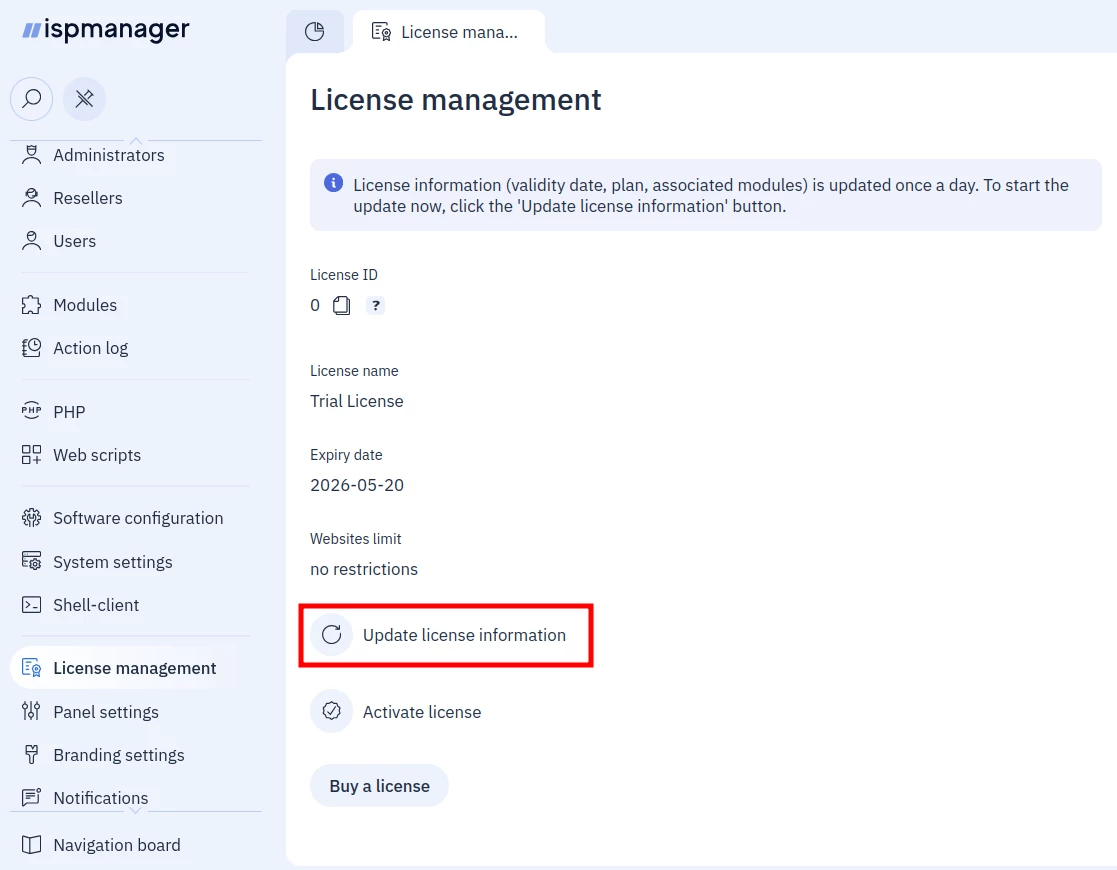
From command line
- Connect to the server with the panel via SSH with root superuser rights.
Run the following command:
/usr/local/mgr5/sbin/licctl fetch ispmgr